Create connectors for Engineering Change Management with Connectivity Studio, which is part of STAEDEAN Business Integration Solutions.
Data mapping
Use Documents to specify the file layout for external files.
Outgoing asynchronous connector
Use this type of connector to send engineering change requests (ECRs). Automate the connector through the change log event.
Type Code | Code | Type | Description |
|---|---|---|---|
AZFILEWRITER | Endpoint | Writes files to a folder. For on-premises implementations, use the FILEWRITER endpoint. | |
RECORDCHANGEEVENT | Event | Starts a pipeline when the Microsoft Dynamics 365 Business Central change log detects a change. | |
XMLGENERATOR | Activity | Generates an XML document containing data from Microsoft Dynamics 365 Business Central. |
Note
When using web services, replace the AZFILEWRITER with a web services endpoint as described under Synchronous connector (Web services).
Note
The record change event is a Connectivity Studio function and is independent from the Microsoft Dynamics 365 Business Central Change Log.
Note
Specify a document in the RECORDCHANGEEVENT and set a filter on the field specified in the document as well as in the document itself:
Node name | Data Source Type | Data Source | Filter |
|---|---|---|---|
PEMECMEngChangeRequest | Table | PEMECM Eng. Change Request | PEMECM Eng. Change Request: Status=Processed |
Status | Field | Status |
In the Pipeline, set the connector elements in the correct sequence:
Type From | Code From | Type To | Code To |
|---|---|---|---|
Event | RECORDCHANGEEVENT | Activity | XMLGENERATOR |
Activity | XMLGENERATOR | Endpoint | AZFILEWRITER |
To test the connector, follow these steps:
Publish the connector.
Make sure the Job Queue entry Business Integration Solutions-CS Job Queue Handler is running for your user ID. Set On Hold > Set Status to Ready.
Incoming asynchronous connector
The advantage of this type of connector is that it is relatively easy to understand and implement. It assumes that the engineering system can import and export XML files to a central file share: either on a network or cloud-based, such as Microsoft Azure File Storage.
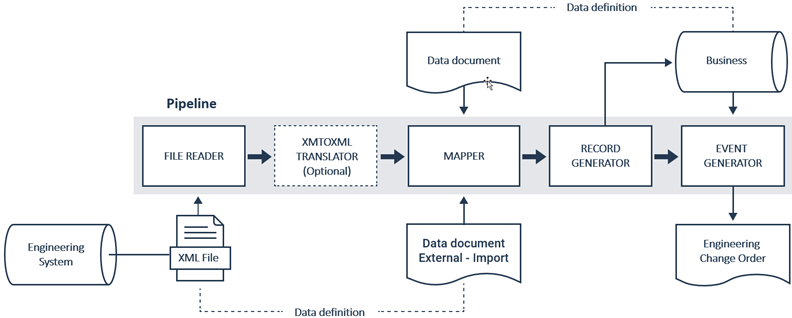
This example of an Engineering Change Management-ECO Eng. Change Order connection uses the following elements to import and process the above file layouts.
Type Code | Code | Type | Description |
|---|---|---|---|
AZFILEREADER | Endpoint | Reads files from a folder. For on-premises implementations, use the FILEREADER endpoint. | |
EVENTGENERATOR | Activity | Starts a Microsoft Dynamics 365 Business Central object such as a report or code unit. | |
MAPPER | Activity | Maps a source XML document to a target XML structure. | |
RECORDGENERATOR | Activity | Converts an XML document into Microsoft Dynamics 365 Business Central records. | |
XMLTOXMLTRANSLATOR | Activity | Optionally converts an XML document to another XML structure. |
Note
The object used in the EVENTGENERATOR is specific to Engineering Change Management: Codeunit 11014979 Engineering Change Management Create Eng. Change Order.
In the Pipeline, set the connector elements in the correct sequence:
Type From | Code From | Type To | Code To |
|---|---|---|---|
Endpoint | AZFILEREADER | Activity | XMLTOXMLTRANSLATOR |
Activity | XMLTOXMLTRANSLATOR | Activity | MAPPER |
Activity | MAPPER | Activity | RECORDGENERATOR |
Activity | RECORDGENERATOR | Event | EVENTGENERATOR |
Synchronous connector (Web services)
This type of connector is based on web services and represents a higher level of automation compared to an asynchronous connector. However, this type of connector is more complicated to implement because you must deal with the security levels and authorization on both ends.
Business Integration Solutions Connectivity Studio offers two scenarios for the use of web services endpoints. The data handling activities used in the asynchronous connector are the same.
Pull
In this scenario, Connectivity Studio calls the web service on the engineering system with a GET to retrieve Anywhere Mobility Solutions files ready to be transmitted. Use the WEBSERVICEENDPOINT activity to send an HTTP request to an external system and optionally handle the response.
Push
In this scenario, the engineering system pushes messages to Microsoft Dynamics 365 Business Central and uses the WEBSERVICE activity, which triggers a pipeline when an external party calls the related web service. The Web service Event uses the standard Microsoft Dynamics 365 Business Central web service functionalities.