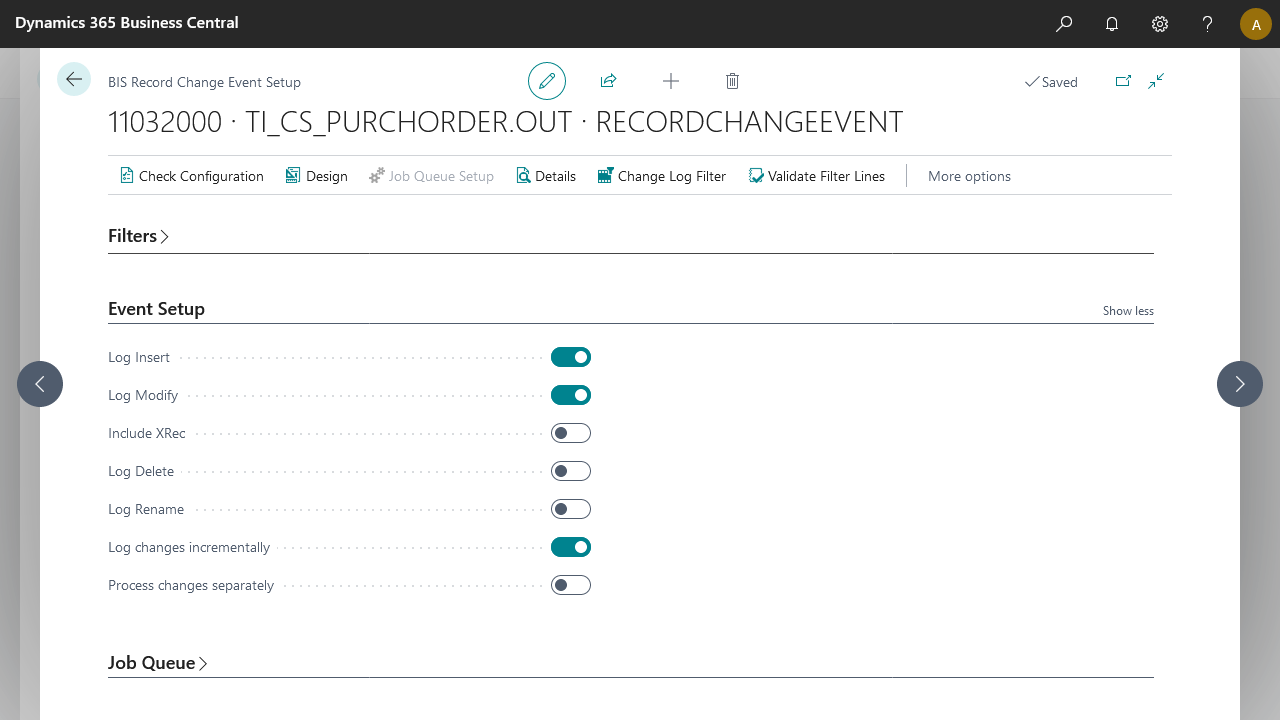
A Record Change event triggers an outbound pipeline based on changes to a record (insert, modify, delete, or rename) in Microsoft Dynamics 365 Business Central.
How it works
One of the fields represented in the setup internal document changes.
The pipeline triggers and executes in the context of the changed record.
Steps
Create an export connection and insert the element RECORDCHANGEEVENT.
On the elements line, select Edit.
On the Record Change Event Setup page, fill in the following fields:
Field
Description
Document No.
Specify the internal document number.
Node Name
Used for filtering. Node names follow the internal document structure.
Table Filter
Specify the table filter. This filter applies to the data set.
Log Insert
Select this field to trigger a pipeline when a new record inserts.
Include XRec
Consider the previous record state when the current record does not match the filters set on the table.
Log Modify
Select this field to trigger a pipeline when a record modifies.
Log Delete
Select this field to trigger a pipeline when a record deletes. Only primary key information passes in the output file.
Log Rename
Select this field to trigger a pipeline when a record renames.
Process with Job Queue
Enable this field to create a separate recurring job queue entry in the job queue. This can be modified and runs this connection instead of the product job queue entry.
Job Queue Category
Specifies the job queue category to use when job queue entries are created for this connection. When a job queue category code is defined, messages for this connection run in a serial manner.
Note
Before the April 2024 release, XRec monitoring was enabled by default. Going forward, new configurations have this setting disabled by default.
Select Check Configuration to see if there are Anywhere Mobility Solutions configuration errors.
Select OK.