In Business Integration Solutions, use the RECORDGENERATOR activity to write records into Microsoft Dynamics 365 Business Central.
Usage
Use this activity to convert an XML document into Microsoft Dynamics 365 Business Central records.
Concept
An import pipeline reads data from an external system and, through various pipeline elements, translates the data into a readable XML document. Based on an internal document definition, the Record Generator reads the data from the XML document and writes it into Microsoft Dynamics 365 Business Central.
Note
Make sure the external data written into Microsoft Dynamics 365 Business Central has recordgenthe same data type as in the internal table structure. When the file contains data of a different type, the Record Generator returns an error.
XML input ➡️ [Record Generator] ➡️ [Microsoft Dynamics D365 BC]
Setup page
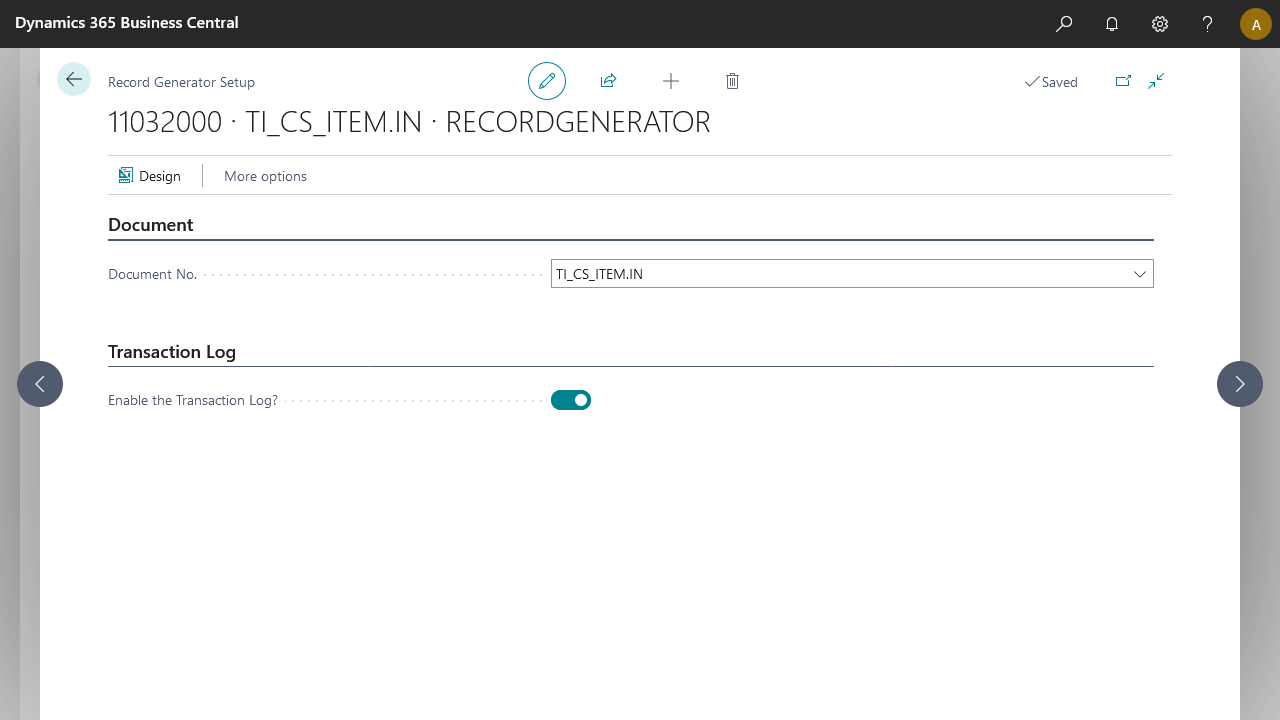
Document No.: The Record Generator creates the records based on the internal document's table settings and defined relations.
Transaction log: When the transaction log is enabled, all generated records are logged in the message transaction log.
Design button: Opens the internal document in design mode.
To
See
Manipulate records with custom connectors
Manipulate records with record handlers
Set up RECORDGENERATOR activity
Set up the RECORDGENERATOR to generate records into Microsoft Dynamics 365 Business Central.