Use the Splitter activity to break a composite message into a series of individual messages, where each message contains data related to one item.
Steps
Create a connection and insert the element SPLITTER.
On the elements line, select Edit.
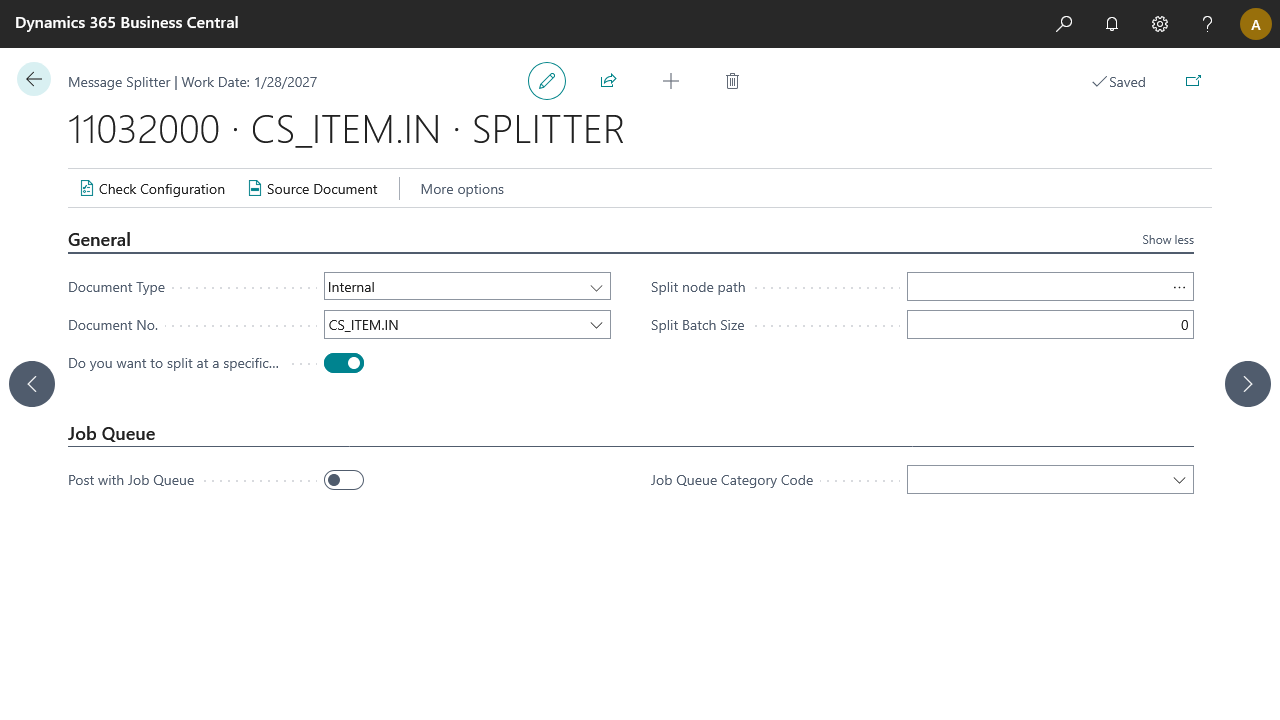
On the Message Splitter Setup page, fill in the following fields:
Field
Description
Document Type
Select the document type: either Internal or External.
Document No.
Based on the document type, select the document.
Do you want to split at a specific node path?
When selected, you must also specify the Split Node Path field. See also the Examples.
Split Node Path
Provide a specific node path where the document splits.
Split Batch Size
Provide a batch size for splitting the source file. By default, the Splitter splits the source file on the first node under the root node. For example, splitting one XML file containing 1,000 sales orders generates 1,000 individual XML files. Setting a batch size of 250 generates four XML files with 250 sales orders each.
Post with Job Queue
Select this field to process the connection using the job queue with a specific category. Further processing of messages always runs in a background (job queue) session. See Scheduler for more information.
Job Queue Category Code
Specifies the code of the job queue category to which the job queue entry belongs. Select the field to choose a code from the list.
Select Check Configuration to see if there are Anywhere Mobility Solutions configuration errors.
Select OK.
Examples
Given the following document definition:
    Sub node 1 value
    Sub node 2 value

        Sub node 3 value
        Sub node 4 value
        Sub node 5 value
Example 1
Do you want to split at a specific node path? set to false. This generates the entire document.
Example 2
Do you want to split at a specific node path? set to true and Split Node Path set to SubNode1:
Sub node 1 value
Example 3
Do you want to split at a specific node path? set to true and Split Node Path set to Header/Header:
    Sub node 3 value
    Sub node 4 value
    Sub node 5 value
Example 4
Do you want to split at a specific node path? set to true and Split Node Path set to Header/Header/SubNode. This results in three messages:
Message 1:
Sub node 3 value
Message 2:
Sub node 4 value
Message 3:
Sub node 5 value
Setting the batch size to 2 generates two messages:
Message 1:

    Sub node 3 value
    Sub node 4 value

Message 2:

    Sub node 5 value