Use this task when you want to define a document to describe D365 BC data to be mapped on an external document.
Steps
Go to the documents list page. Depending on the solution:
For Connectivity Studio: go to Departments > Business Integration Solutions > Connectivity Studio > Design > Documents.
For Notification Management: go to Departments > Business Integration Solutions > Notification Management > Design > Documents.
For Replication Management: go to Departments > Business Integration Solutions > Replication Management > Publications > Design > Documents for publications, or Subscriptions > Design > Documents for subscriptions.
For EDI Studio: go to Departments > Business Integration Solutions > EDI Studio > Design > Documents.
Select New.
Select type as Internal and provide a document number and description.
Select the Design button to open the setup page.
Use the Add Table and Add Fields actions to add tables and fields and define an internal document structure. You can also configure table and field properties.
A new internal document structure is created and added to the document list page.
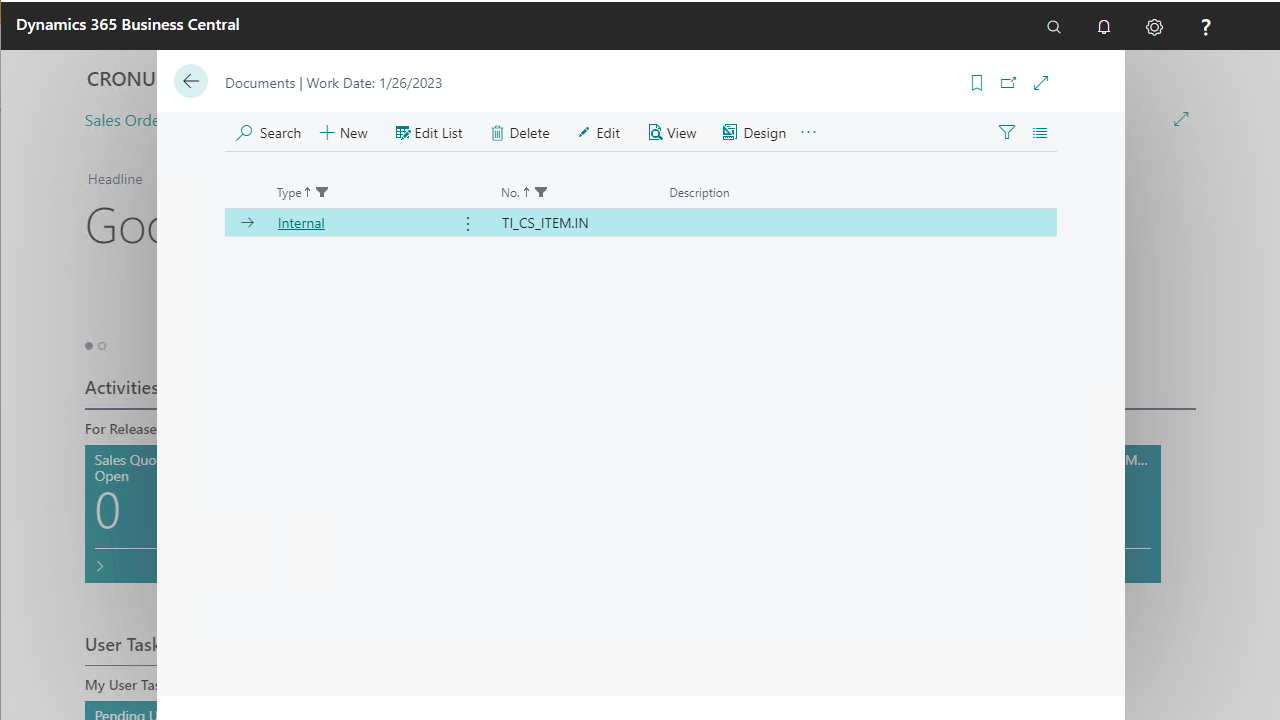
From this list page, you can view more details about a document using its design page. An internal document line links either to a table or to a field within a table.
Table properties
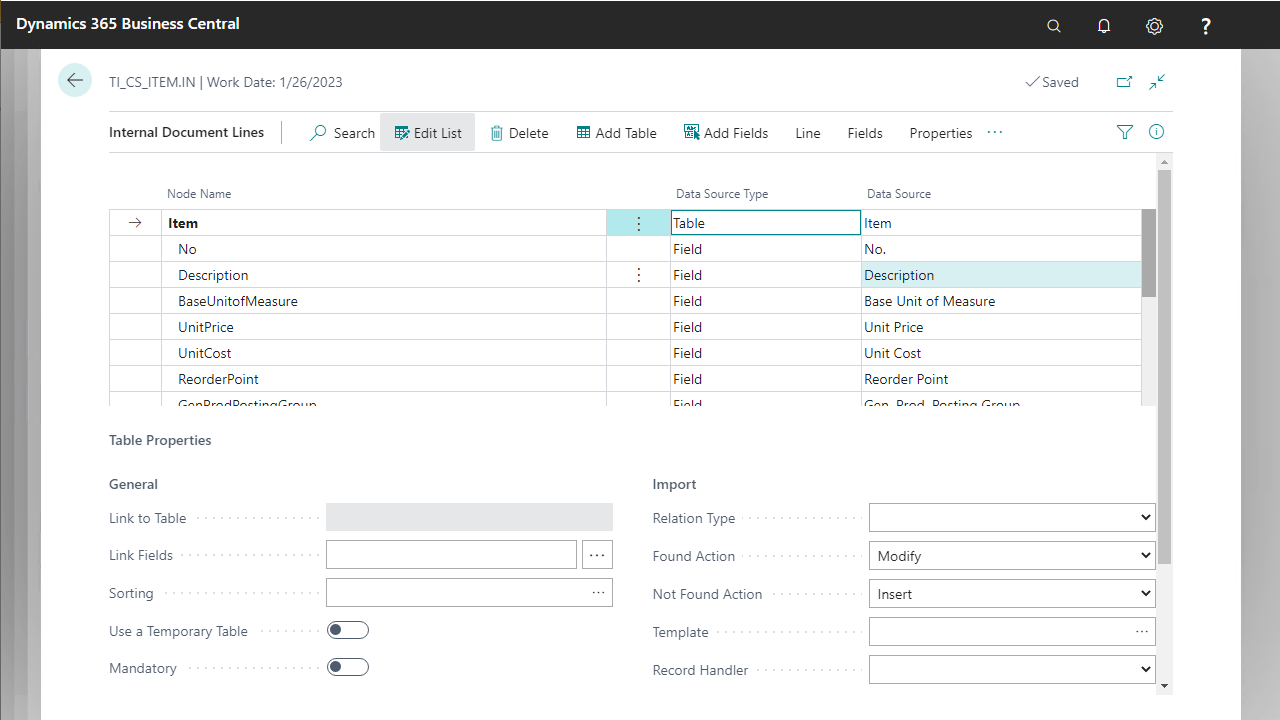
Property | Purpose |
|---|---|
General | |
Link to Table | Defines which table the node links to. Works in combination with Link Fields. Applies to a nested document structure. |
Link Fields | Specifies the relation that applies to this node and its parent table node. |
Sorting | Sorts the records during generation using a different key. |
Use a Temporary Table | Generates from or imports to a temporary table. |
Mandatory | Specifies whether the node must be present in the generated document at all times. |
Import | |
Relation Type | Specifies the processing sequence of the current table. Reference processes the current table before updating the linked table. Composition updates the current table after processing the linked table. |
Found Action | Action to take when the record is found. |
Not Found Action | Action to take when the record is not found. |
Template | Specifies a record used as initial values on all fields from the linked data source table. |
Record Handler | Specifies the interface handling the table triggers for the current line. |
Export | |
Table Filter | Specifies a filter applied to the table before records are read. |
Connector Name | Temporary table custom connector name. |
Note
Link to Table, Link Fields, and Relation Type properties work in combination with the RECORDGENERATOR activity.
Field properties
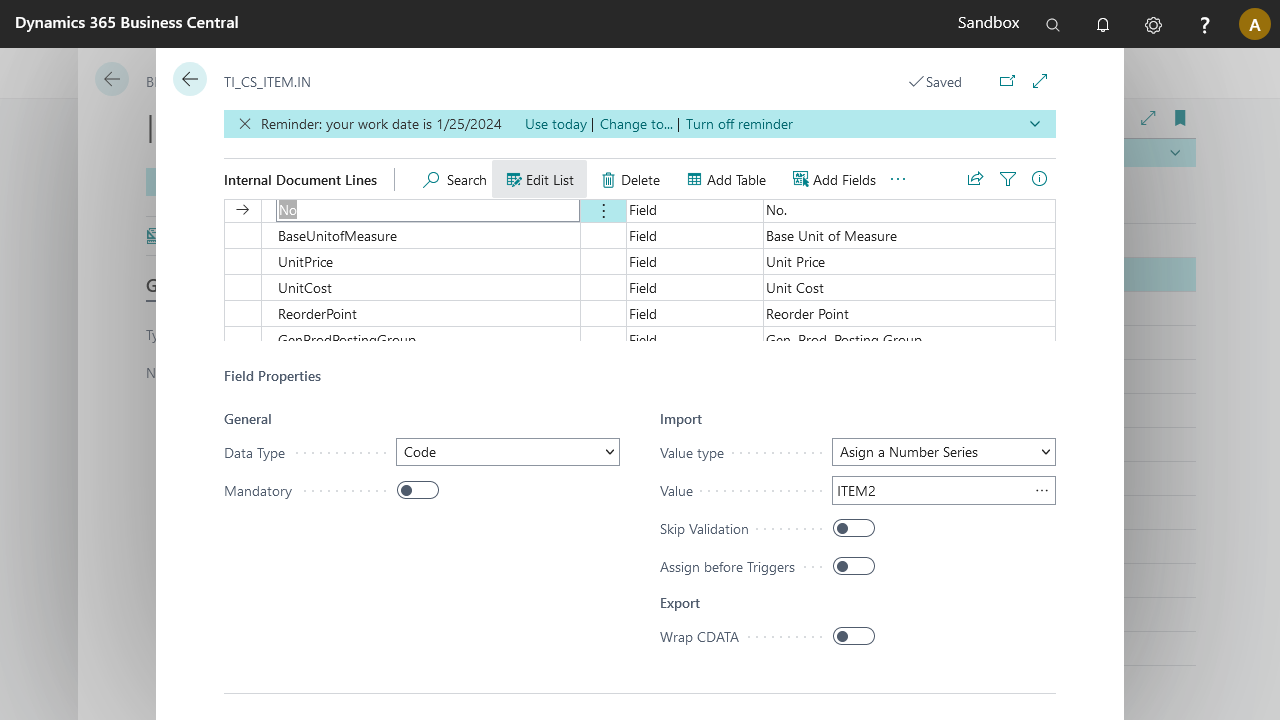
Property | Purpose |
|---|---|
General | |
Data Type | Specifies the node's data type. |
Mandatory | Specifies whether the node's occurrence is mandatory. |
Import | |
Value Type | Determines the field value based on the specified option, working in combination with the Value field: Assign a Number Series, Increase with a fixed step value, or Apply a Default Value. |
Value | Specifies the value related to the value type. |
Skip Validation | Specifies whether the field value should be validated. |
Assign before Triggers | Assigns the value to the field before the validation trigger is called with the same value. |
Export | |
Wrap CDATA | Wraps the value in CDATA tags. |