The Scheduler element processes the remaining pipeline elements in a background session. This is especially useful when the Attachment Generator (or other elements that take significant time to process) is used, because report building in Microsoft Dynamics 365 Business Central can take a while to complete. With this element, the remainder of the pipeline processes via background processing (job queue functionality). The user does not have to wait for processing to complete when running a connection in a user session.
When setting up the pipeline, place this element before the pipeline elements that consume the most time, but after Anywhere Mobility Solutions user interaction, for example, after the Message Editor.
When the Scheduler activity is reached, the current message checks whether the current session is a background session. If it is not, the message state updates to waiting. If configured, a separate job queue entry picks up the message in the background. If no separate job queue entry exists, the product job queue picks up the waiting message.
Steps
Create a connection and insert the element SCHEDULER.
On the elements line, select Edit.
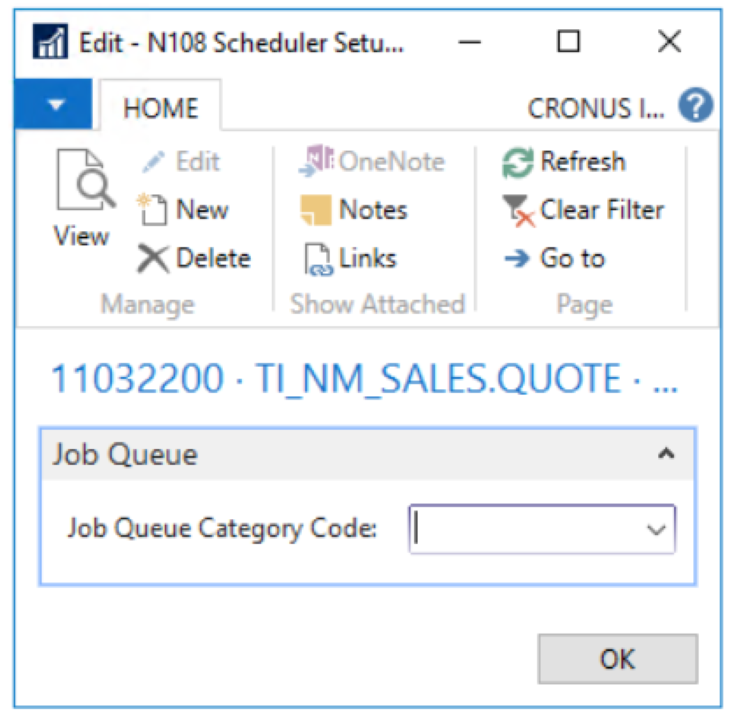
On the Scheduler Setup page, fill in the following fields:
Field
Description
Job Queue Category Code
Specify the category code if desired. This field can be left empty.
Select Check Configuration to see if there are Anywhere Mobility Solutions configuration errors.
Select OK.