Resources in Microsoft Dynamics 365 Business Central plan and manage people and machines in projects, assembly orders, service orders, and, with the TI Manufacturing Integration, in production orders. Time sheets register and post time and costs worked. In Microsoft Dynamics 365 Business Central this results in quite a variety of registration and posting scenarios.
Resource Management simplifies that by linking a UserID to a resource and through the resource task.
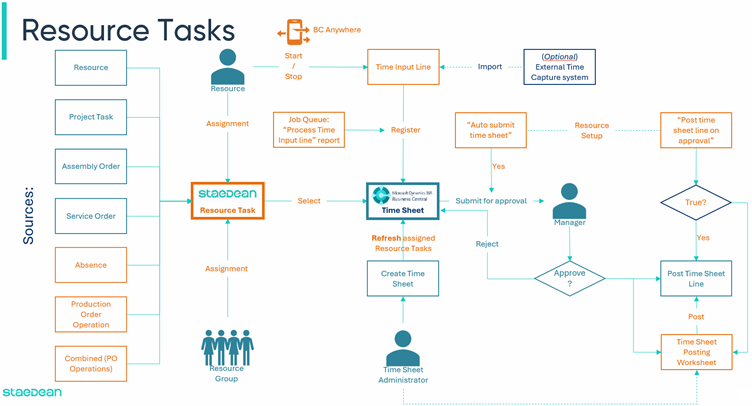
TI Resource Tasks consist of two parts.
1. Resource task
The resource task is automatically created from source documents such as Project Task, Assembly Order, Service Order, Production Order Operation, and Absence Registration. Resource tasks of the type Resource can also be created for common tasks such as meetings, clean-up work, and so on. Type Absence is created to plan future absence (for example, a day off or holiday) to complete the resource availability overview.
Note
Combined is a special type as part of the Manufacturing Integration. This type lets the planner combine similar operations from several production orders in one combined resource task. When posted, the recorded time is divided proportionally among the production orders.
2. Resource task assignment
The resource task assignment links a resource to a resource task. Several resources can be assigned to a resource task. The assignment line tracks the number of hours assigned and the progress in the time registration process. Based on this information, the remaining hours of the assignment are calculated. When not all assigned hours are used, the resource can report the assignment as complete.
Time sheet process
Once created, select the resource task in a time sheet to report worked hours. Alternatively, Start and Stop the resource task to record the duration and (with a Project Queue report) automatically register that time in a time sheet. The Refresh feature automatically inserts assigned resource tasks in the time sheet when the resource task and time sheet periods match.
With the Auto Submit Time Sheet setting in Resources Setup, the registered time sheet line is automatically submitted the registered time sheet line for approval to minimize delay in the time registration process.
Once approved, the Post Time Line On Approval setting automatically posts the time sheet line as per the resource task type. When not posted automatically, post approved time sheet lines from the Time Posting Worksheet.
Product video
Learn more
To learn more about Resource Management, use the following table to find information about the available features and setup options:
To | See |
|---|---|
Set up users for Resource Management | |
Extend the standard resource setup | |
Plan resources for projects | |
Plan resources for assembly orders | |
Monitor resource workload and availability | |
Create and manage resource tasks | |
Assign resource tasks to resources | |
Post resource task entries | |
Register and manage resource absences | |
Enter and manage time registrations | |
Learn how to use time sheets in Microsoft Dynamics 365 Business Central | |
Set up time sheets | |
Understand the time sheet process |