Use this procedure to configure the Azure Blob Storage connector for importing PLM messages into D365 F&SCM.
Steps
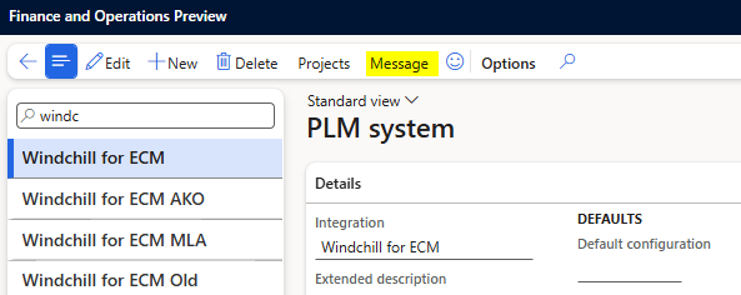
Go to Modules > Engineering Change Management > Setup > PLM Integration > PLM Systems.
If multiple PLM systems are defined, select the correct one.
Select Message on the action pane.
Select Windchill_Source_Azure Blob Storage.
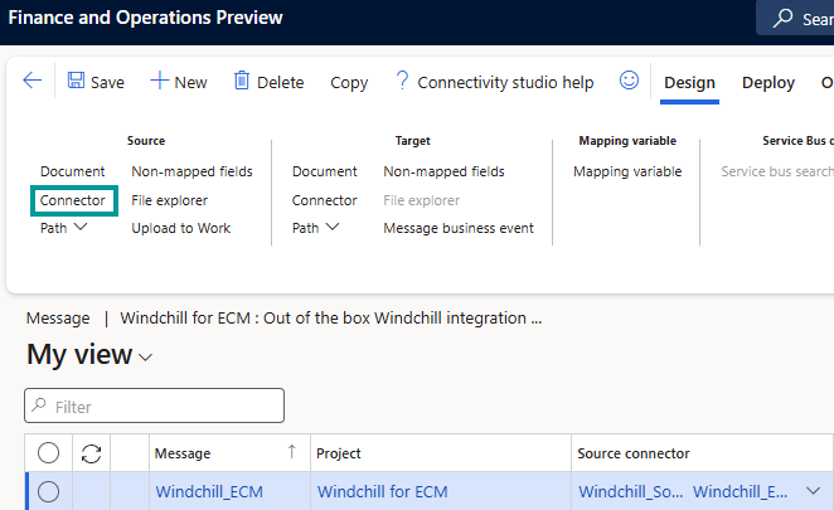
Click Connector to open the connector settings.
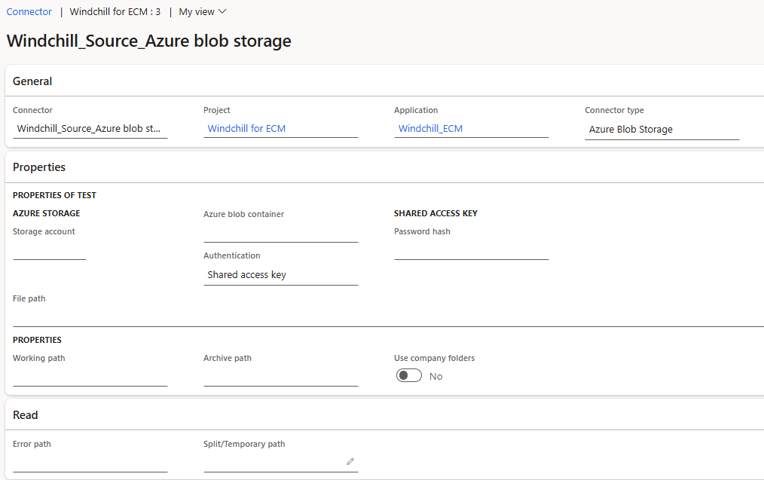
You can set up the link to an Azure blob storage and the input, archive and error folder.
Note
Below are the required fields to configure the Alternative connector.
Field | Purpose |
|---|---|
Storage account | Specifies the Azure storage account that contains the blob container. |
Azure blob container | Defines the blob container used to store XML files. |
Password hash | Authentication key or password hash for accessing the storage. |
Authentication | Select the required authentication method. When changed, this alters the password hash field to accept the chosen credential type. |
Working path | Folder inside the container where XML files are read. |
Archive path | Folder for successfully imported files. |
Error path | Folder for files that failed validation or posting. |
Note
The default connector uses Azure File Storage. Other connector types (Azure Blob Storage, SharePoint, Web Service) are also supported but require an appropriate source document handler as described in Changing the Source Document Handler.