You can install T4EA BGS. You need this step to complete the Siemens Teamcenter T4EA installation.
Steps
Browse to the downloaded T4EA package.
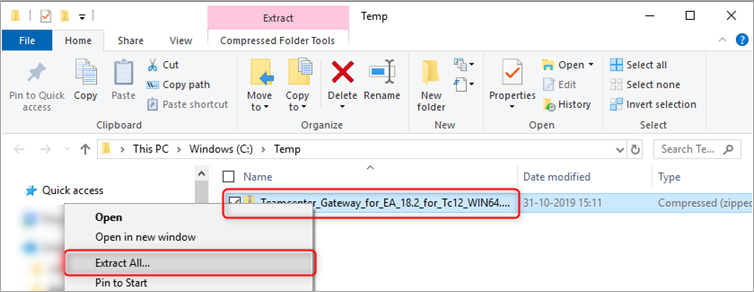
Right click the file > click Extract All.
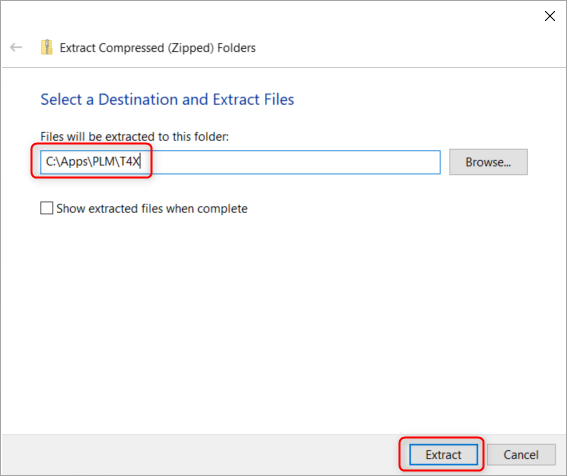
In the textbox fill in 'C:\Apps\PLM\T4X' > click Extract.
Go to 'C:\Apps\PLM\T4X'.
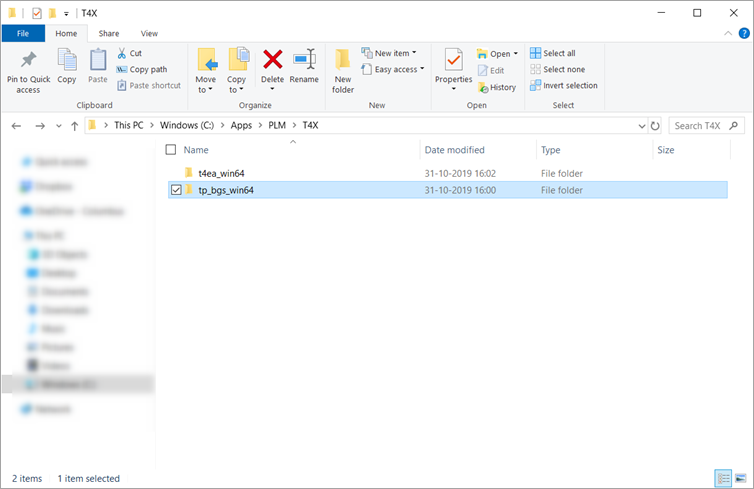
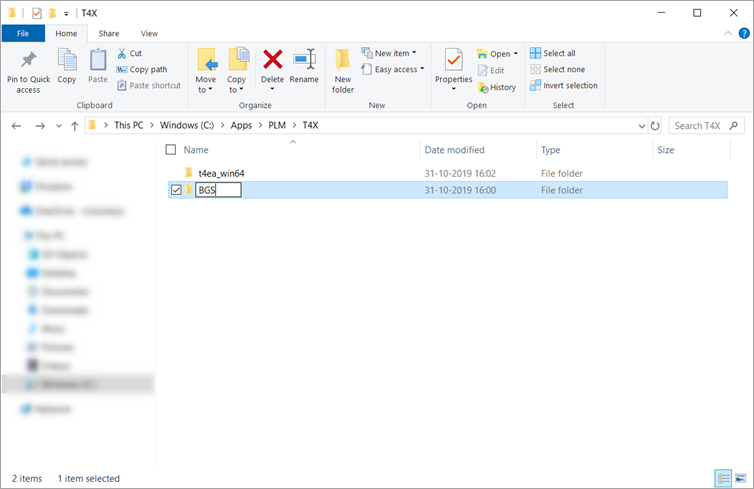
Rename the folder 'tp_bgs_win64' to 'BGS'.
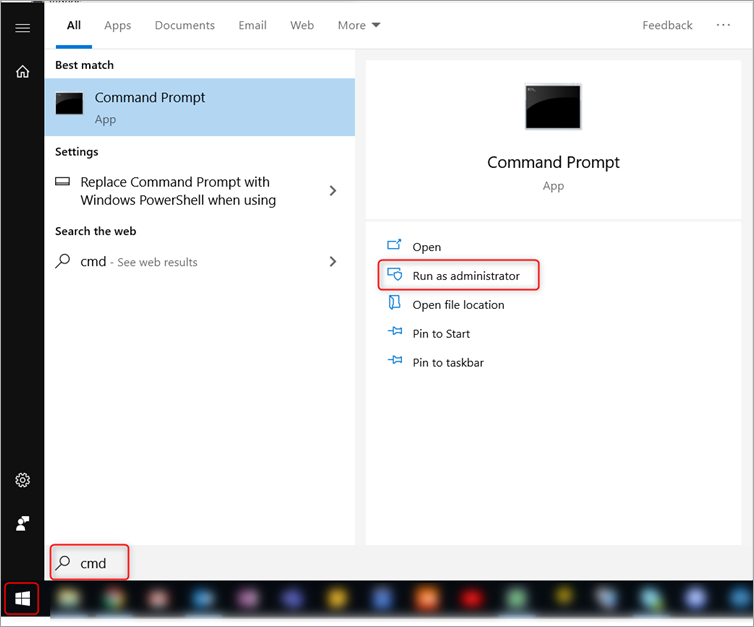
Click Start > in the searchbar enter 'cmd' > click Run as administrator.
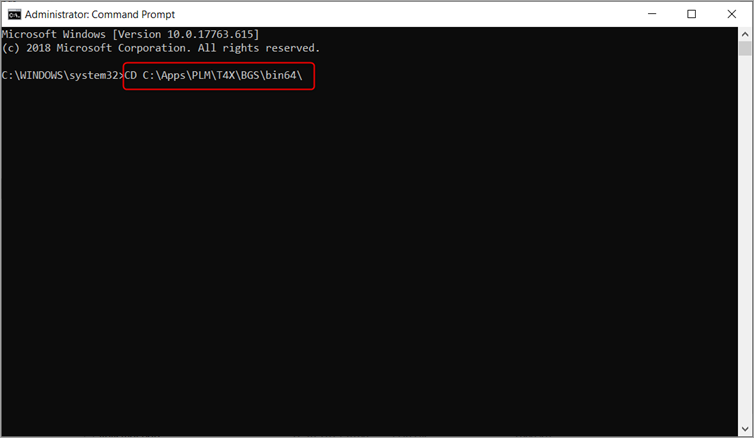
In the command prompt window type 'CD C:\Apps\PLM\T4X\BGS\bin64\' > press enter.
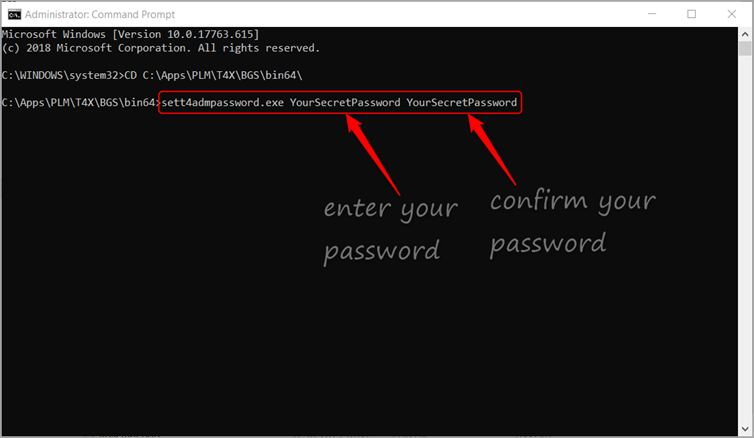
In the command prompt window type 'sett4admpassword.exe YourSecretPassword YourSecretPassword' > press enter.
Note
Replace 'YourSecretPassword' with the password you want to use for your organization.
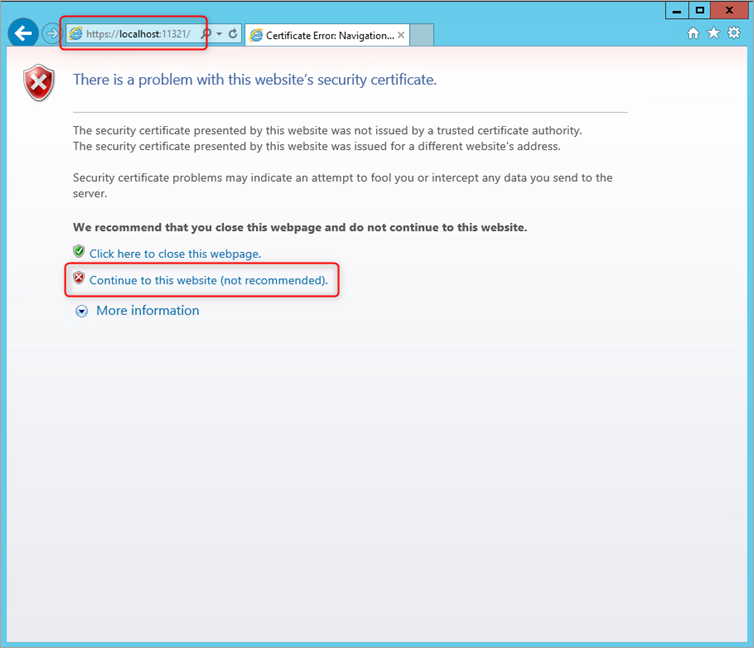
In your browser, go to https://localhost:11320. Optionally, click Continue to this website (not recommended).
Note
This issue only happens the first time you log in, due to the unofficial certificate. Later, use your organization's certificate instead.
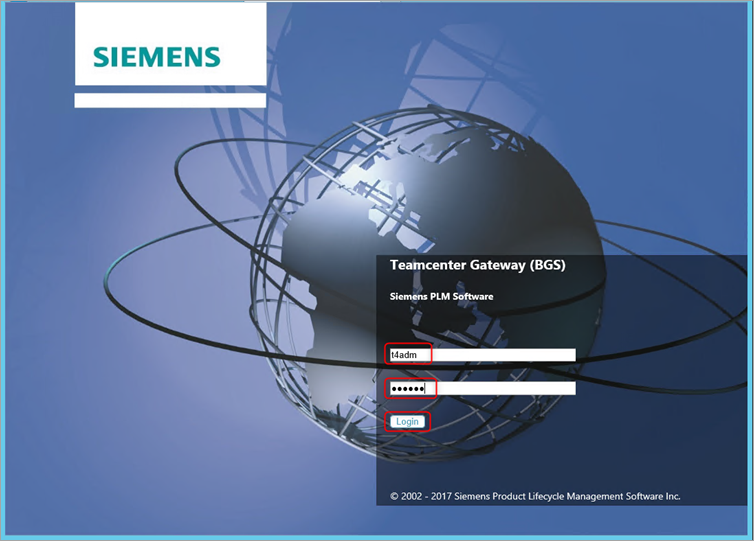
Enter 'T4ADM' as the username, enter your password (this example uses YourSecretPassword), and click Login.
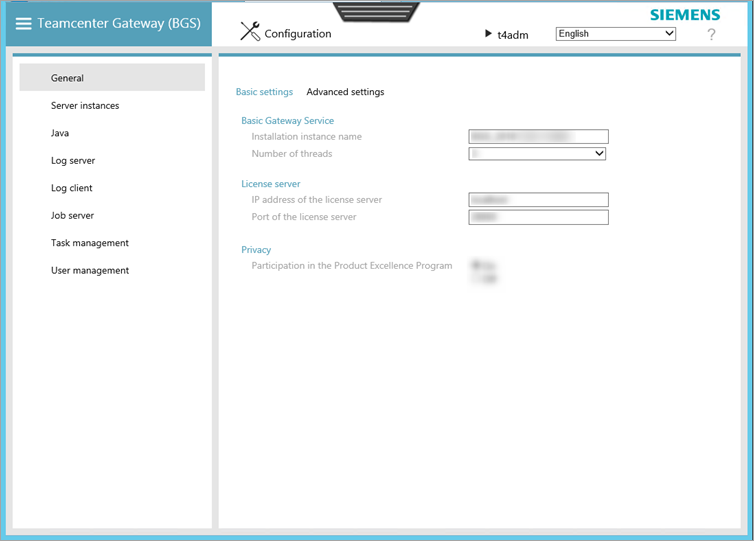
After you log in successfully, your screen looks like this.
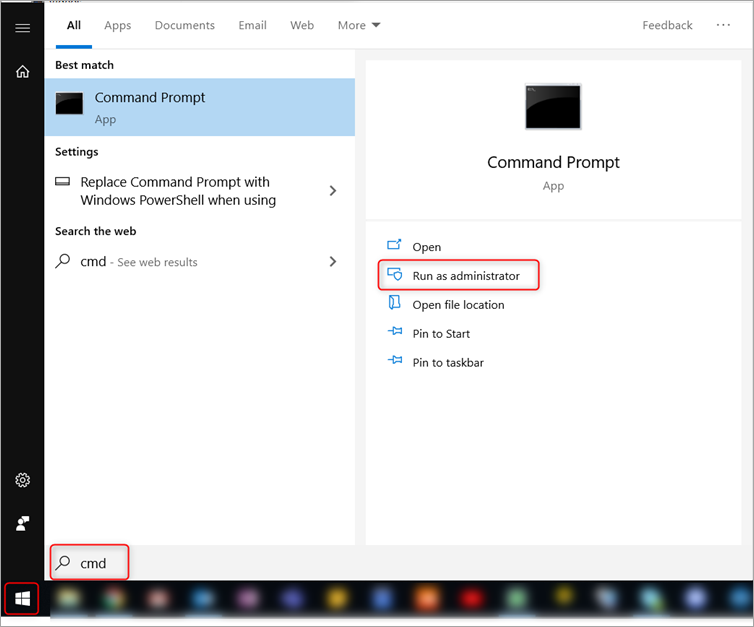
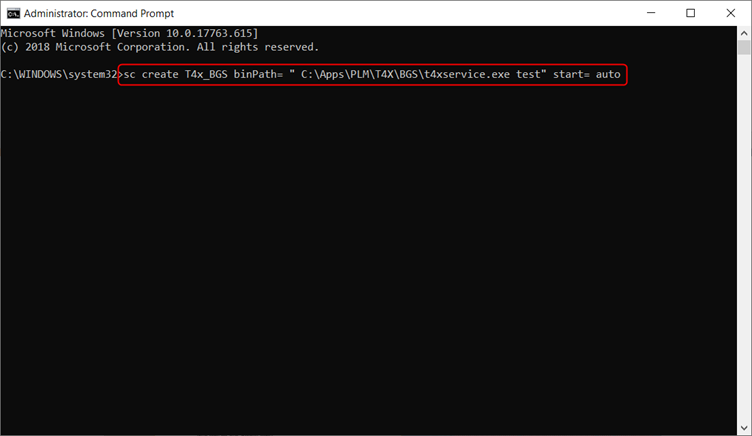
Click Start > in the search bar enter 'cmd' > click Run as administrator.
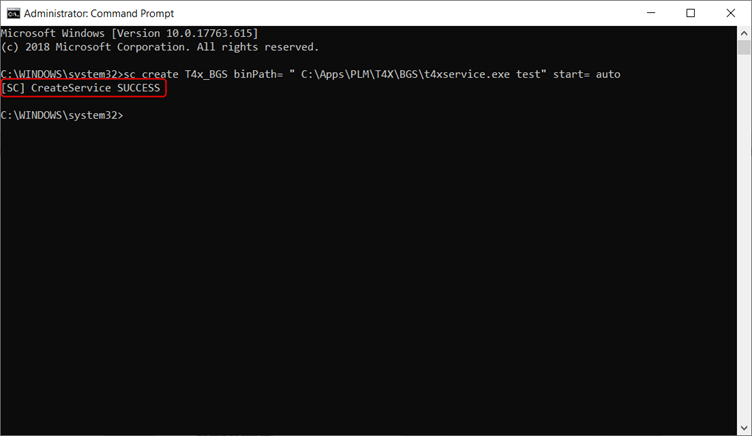
Type sc create T4x_BGS binPath= " C:\Apps\PLM\T4X\BGS\t4xservice.exe test" start= auto > press enter
You see a confirmation message.