Create change notice in PTC Windchill

Prev Next

You can create a change notice to manage the changes to be applied to parts. In this example, one part is revised within a change notice. However, multiple parts could be changed within a change notice and also any other changes could be covered by a change notice.

Note

The steps and user interface can differ in your version of PTC Windchill. This topic describes the manual procedure. For other ways to send change notices, consult your PTC Windchill partner.

Steps

  1. Log in to PTC Windchill.

    Note

    In this topic, we only revise one part.

  2. Browse to the part to be changed.

  3. Select the part > click Actions > click New > click New Change Notice.
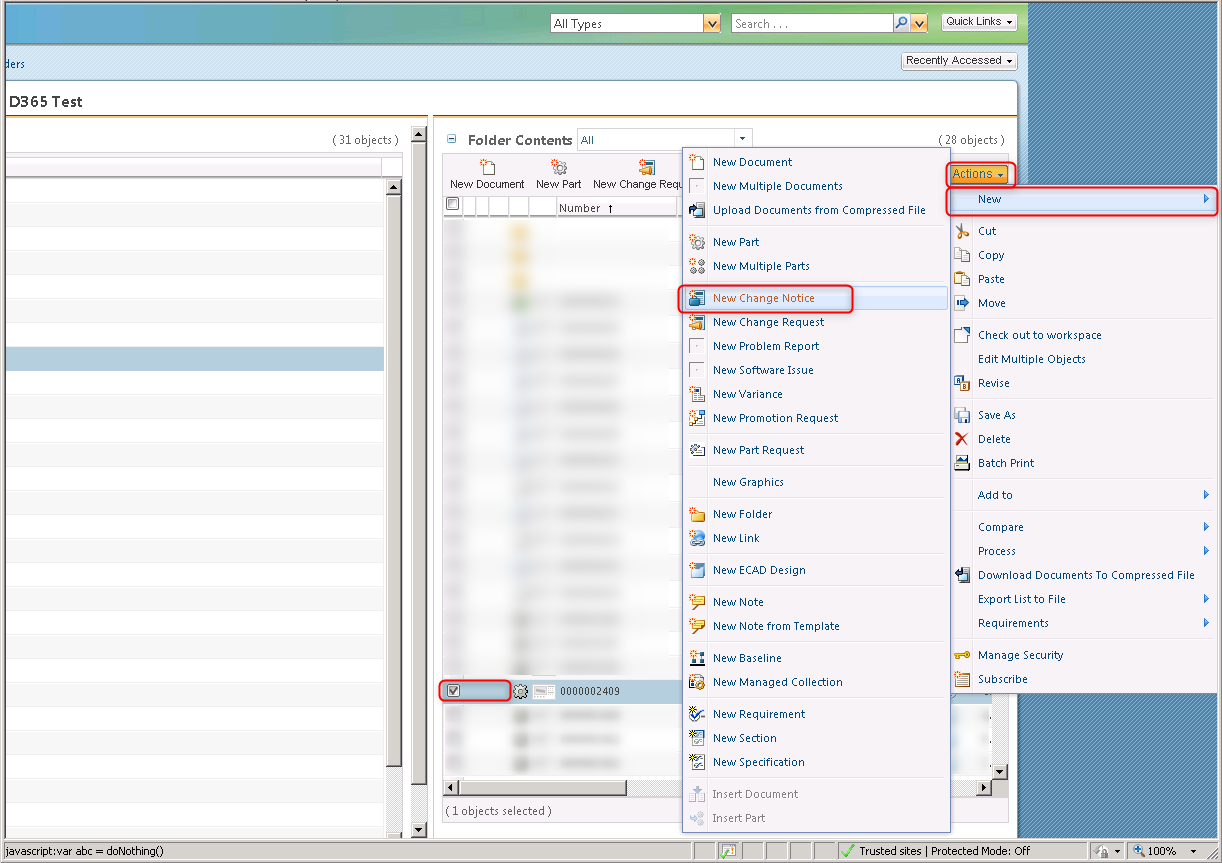
    User interface showing options to create a new change notice in a document management system.

  4. In the Name text box, type a value > click Next.
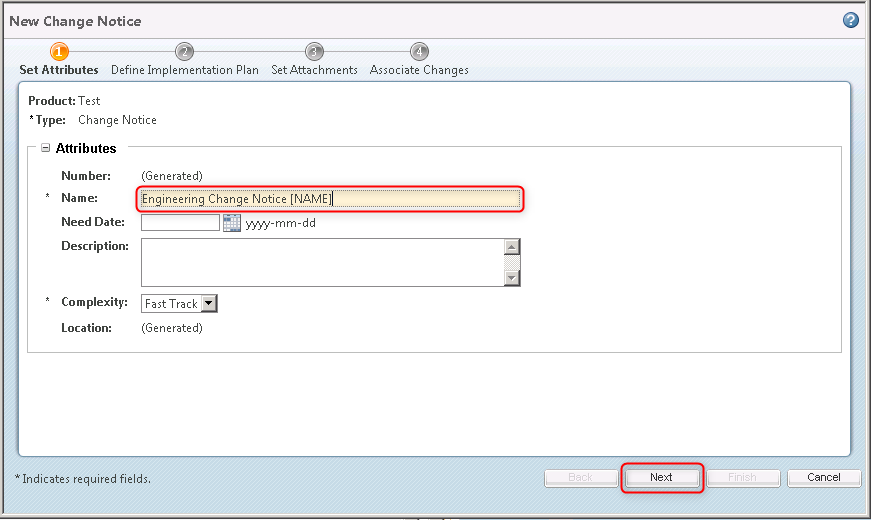
    Form for creating a new Engineering Change Notice with required fields highlighted.

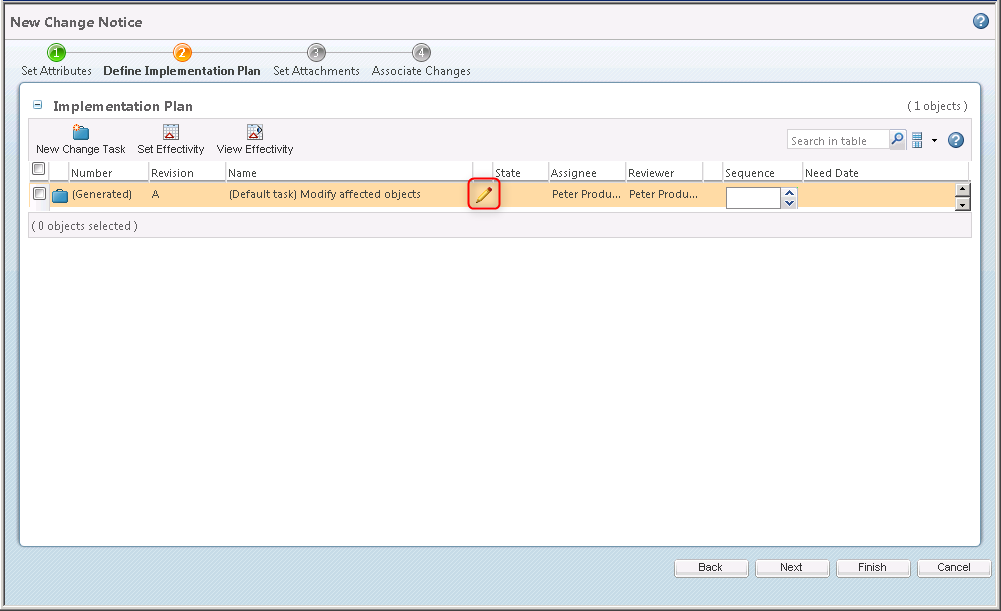
  5. Click Edit.

    Implementation plan showing a task to modify affected objects with assigned personnel.

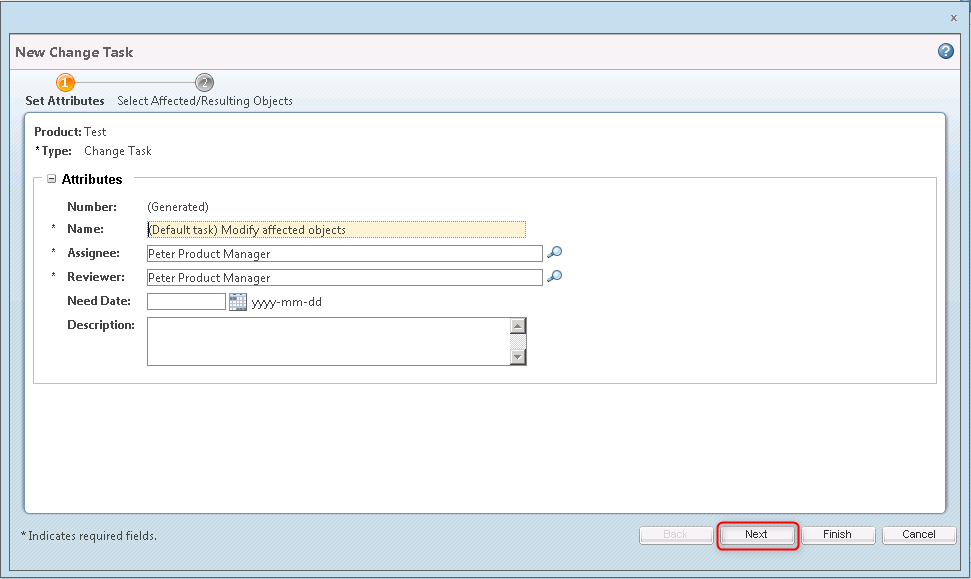
  6. Click Next.

    Form for creating a new change task with various attributes and options.

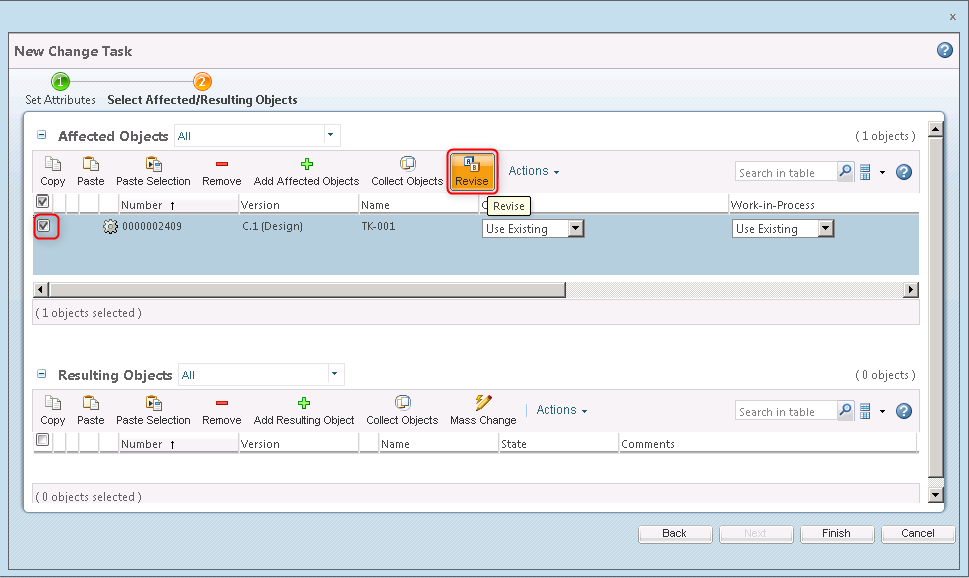
  7. Select the part > click Revise.

    Interface for selecting affected and resulting objects in a change task process.

    Note

    In this topic we only revise one part.

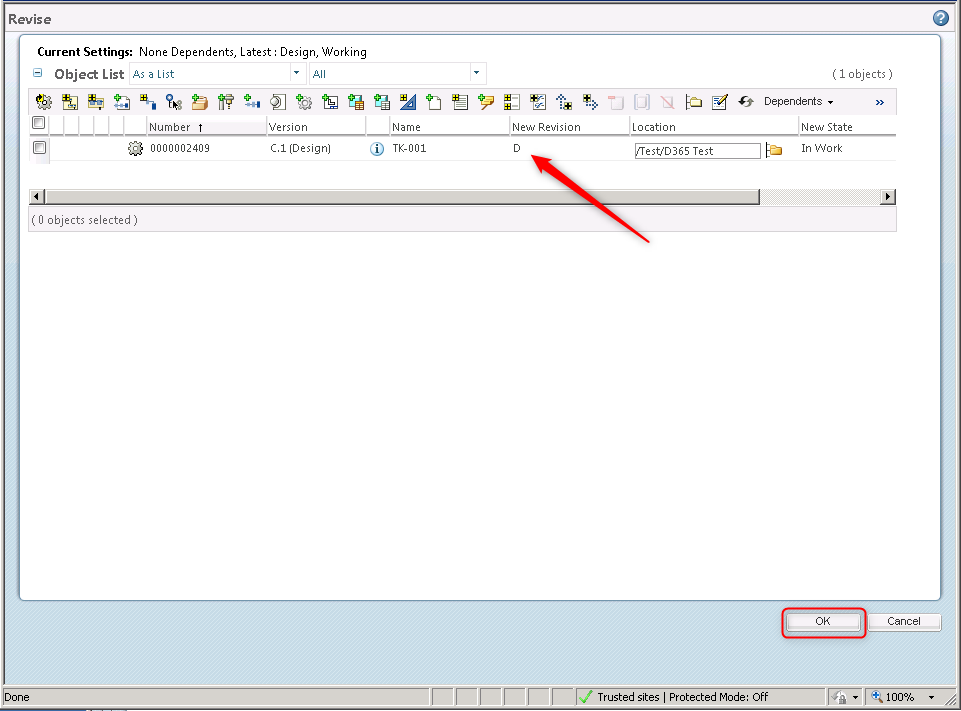
  8. Click OK.

    The interface shows a new revision labeled 'D' in the object list section.

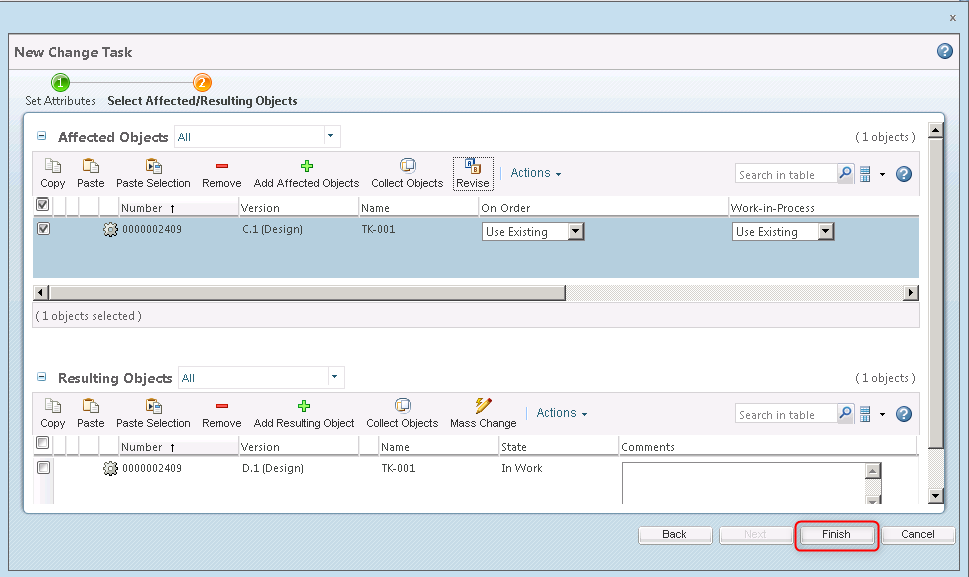
  9. Click Finish.

    Interface for selecting affected and resulting objects in a change task process.

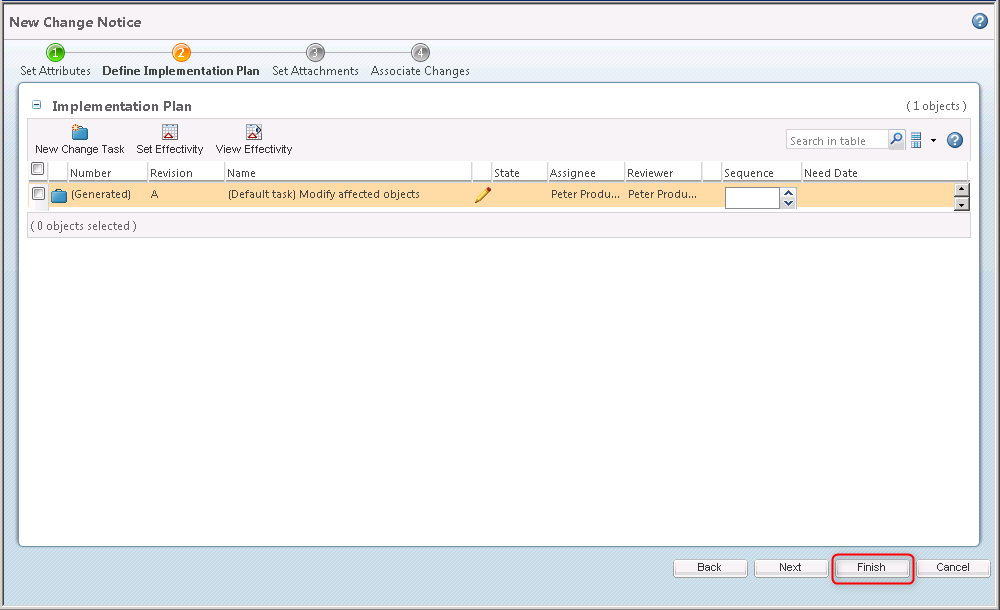
  10. Click Finish.

    Implementation plan for a change notice with task details and finish button highlighted.

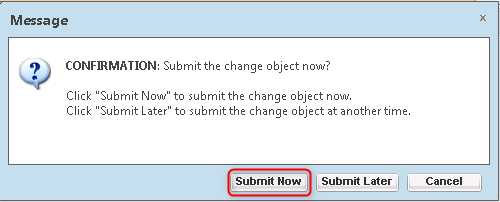
  11. Click Submit Now.

    Confirmation message prompting user to submit or delay change object submission.

    Note

    By submitting the change notice, the change notice is available for an engineer to apply the changes described in the change notice.