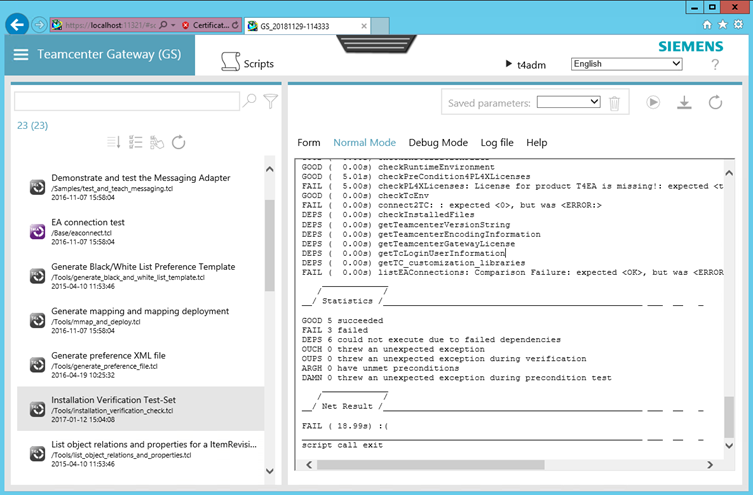
Configure the general T4EA settings to complete the installation.
Steps
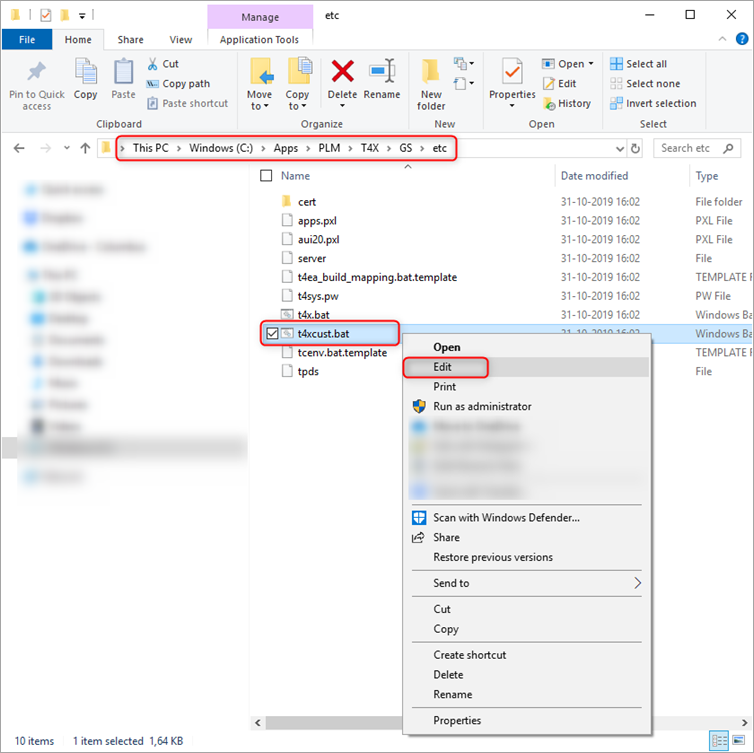
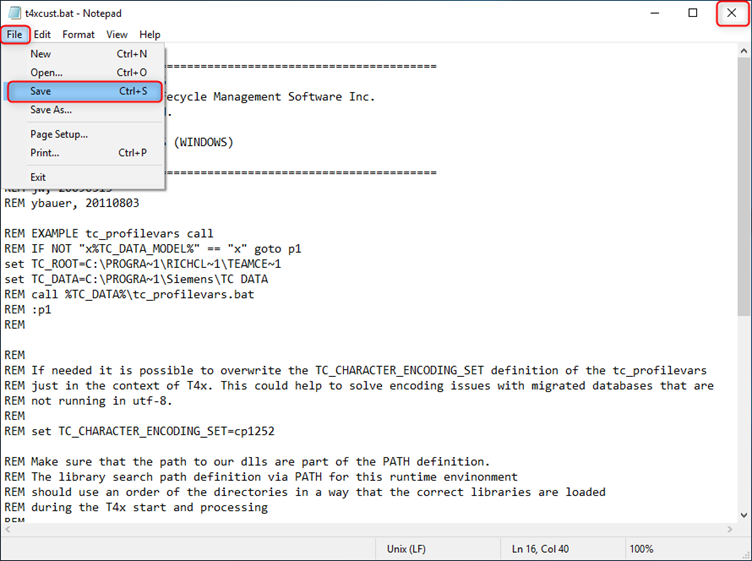
Go to 'C:\Apps\PLM\T4X\GS\etc\' > right click 't4xcust.bat' > click Edit.
Note
Windows might show a warning that the file is not saved. Ignore it and continue.
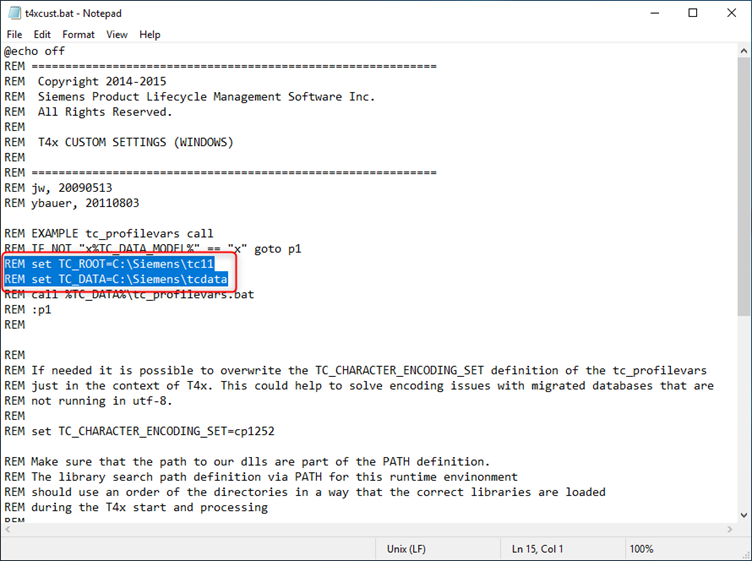
Go to line TC_ROOT and TC_DATA (15 and 16).
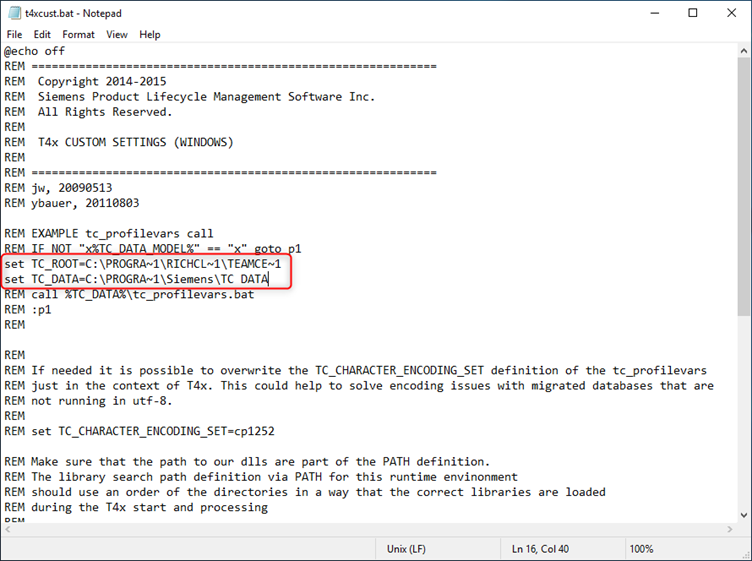
Replace the lines as shown to match your TC_ROOT and TC_DATA.
Note
Your installation roots for the Teamcenter client and database might differ from this example.
Click File and click Save.
Click File and click Exit, or click the close symbol.
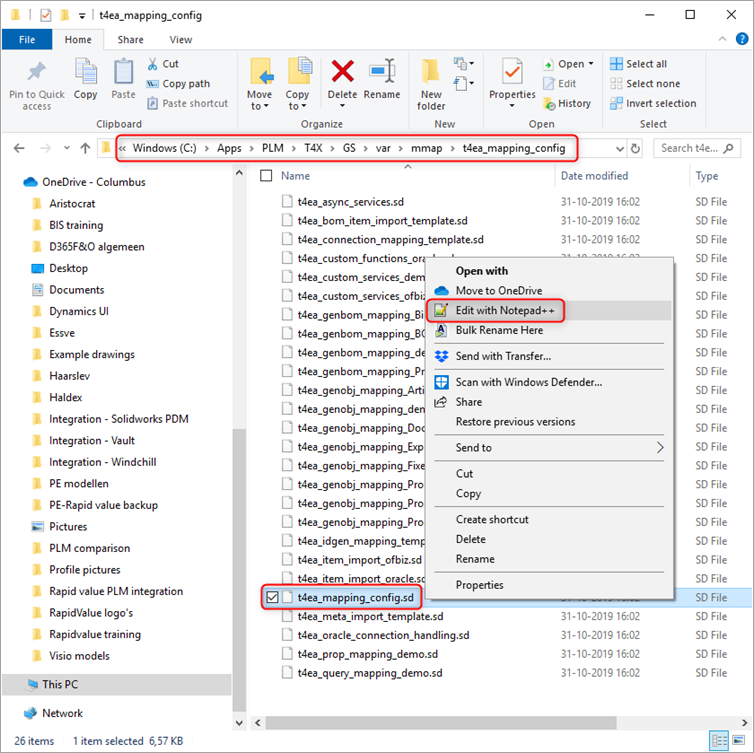
Go to 'C:\Apps\PLM\T4X\GS\var\mmap\t4ea_mapping_config' > rightclick 't4ea_mapping_config.sd' > click 'Edit with Notepad++'.
Note
You can use any text editor to change the file. This example uses Notepad++.
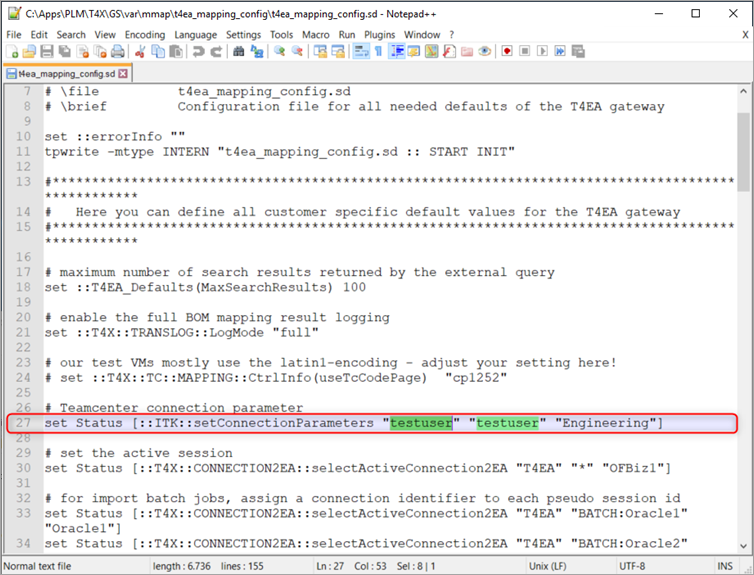
Go to setConnectionParameters (line 27).
Enter your teamcenter admin username and password. This example uses 'AdminUser' and 'YourSecretPassword'.
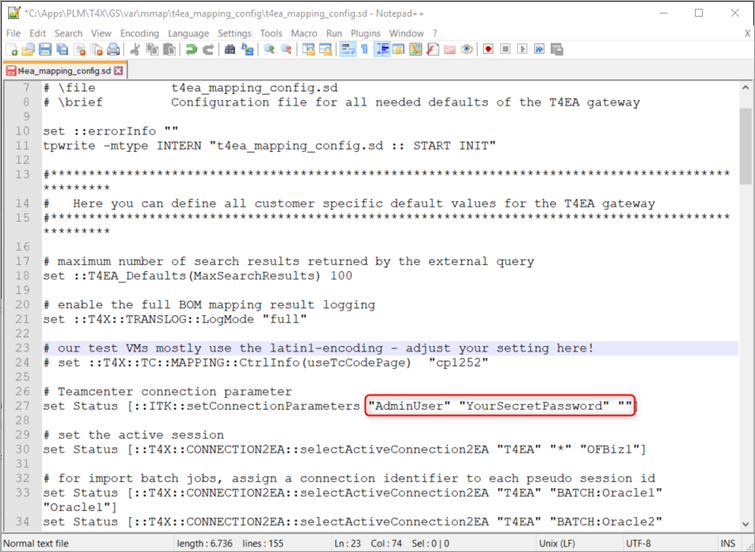
Click File and Save.
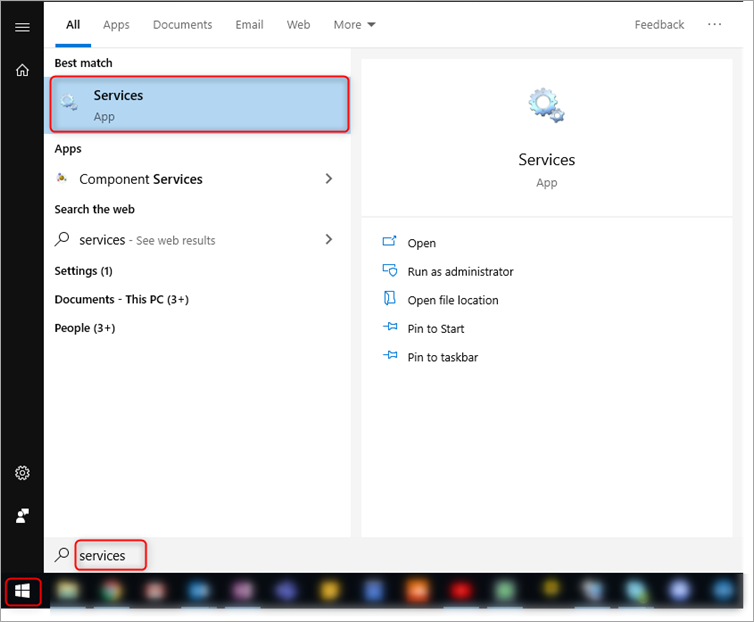
Click Start > in the search bar type 'services'.
Click Services.
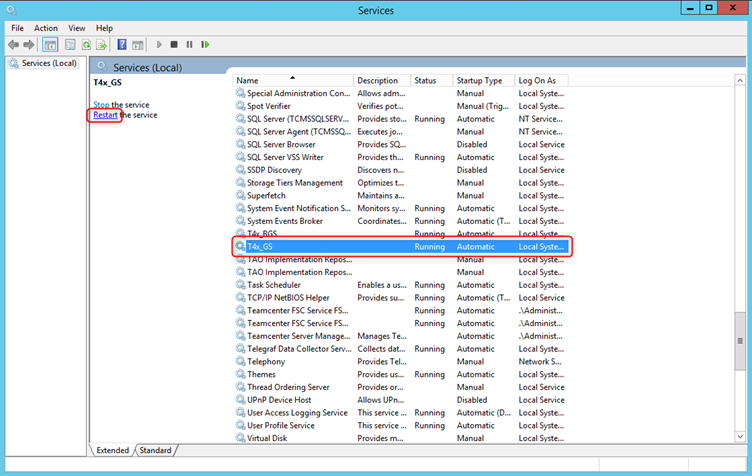
Select T4x_GS and click Restart the service.
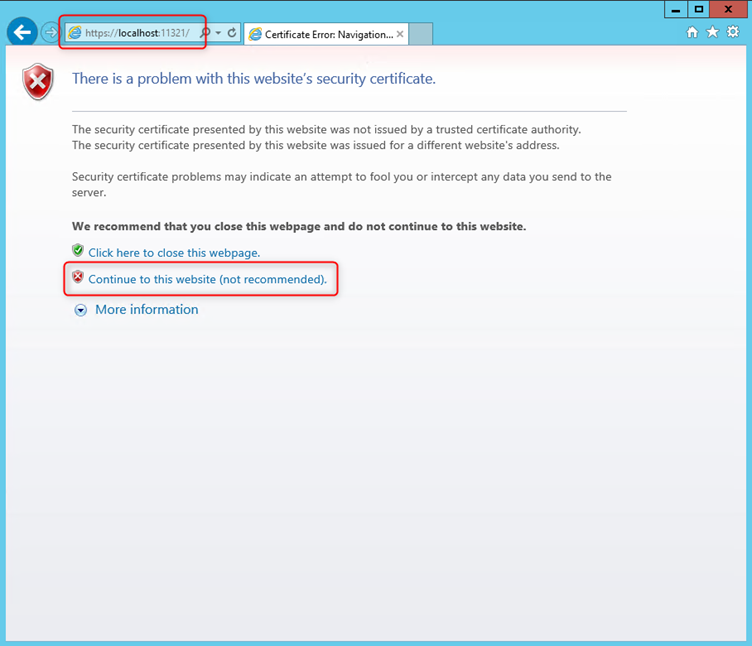
In your browser, go to https://localhost:11321. Optionally, click Continue to this website (not recommended).
Note
This issue only happens the first time you log in, due to the unofficial certificate. Later, use your organization's certificate instead.
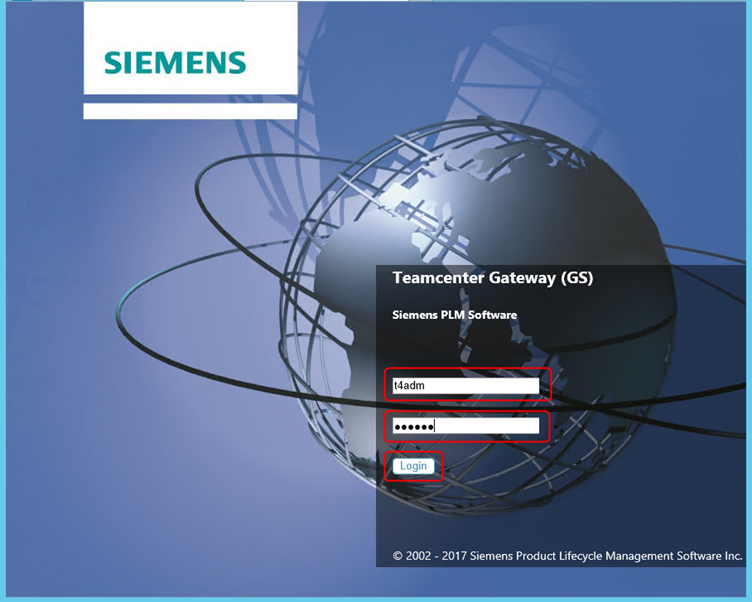
Enter 'T4ADM' as the username, enter your password (this example uses YourSecretPassword), and click Login.
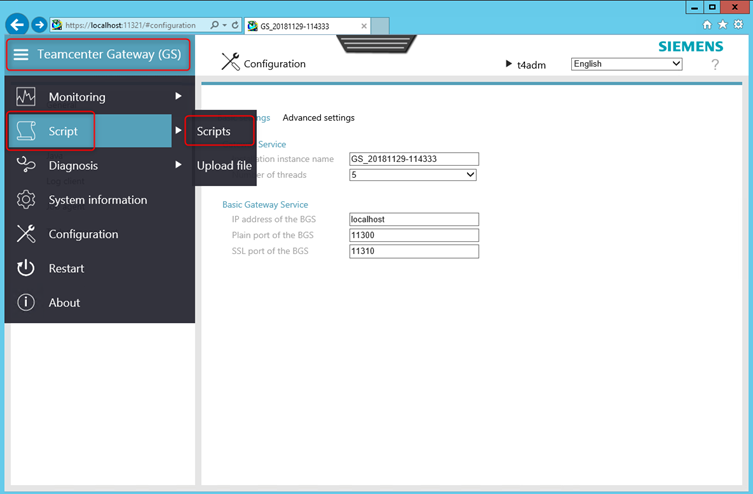
Go to Teamcenter Gateway (GS) > Script > Scripts.
Click 'Installation Verification Test-Set' > click Play.
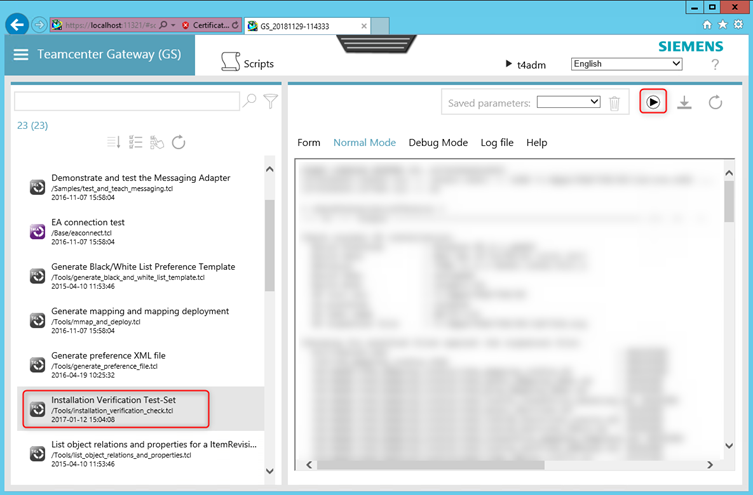
Verify the result of the script. For errors unrelated to this installation, consult your Siemens partner.