The Web Service connector enables real-time data exchange between the PLM system and D365 F&SCM via HTTP requests. This approach removes file-based dependencies and supports on-demand transactions.
Note
The Alternative connector Web Service is supported for both PTC Windchill and Siemens Teamcenter integrations.
The connector type selected depends on the PLM export mechanism and enterprise integration architecture, not on the PLM system itself.
Pre-requisite
An Azure web application must be deployed to forward incoming web service requests to D365 F&SCM. The installation package and setup guide are provided by STAEDEAN.
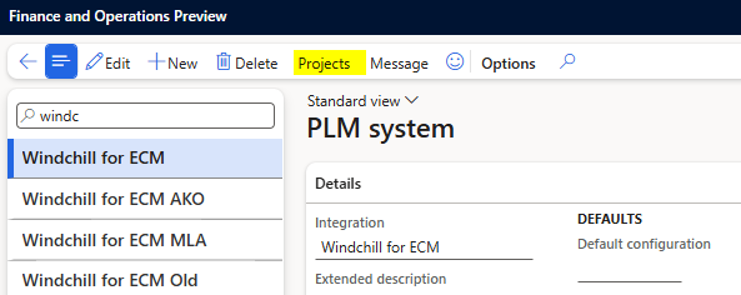
Go to Modules > Engineering Change Management > Setup > PLM Integration > PLM Systems.
Select the applicable PLM system and choose Projects on the action pane.
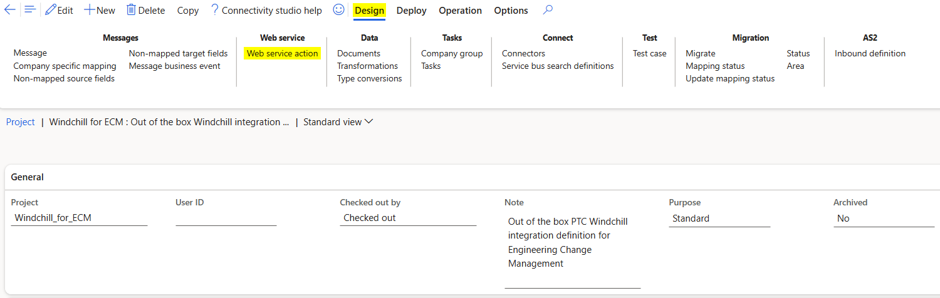
Click Design tab and select Web Service Action.
Create a new web service action as below:
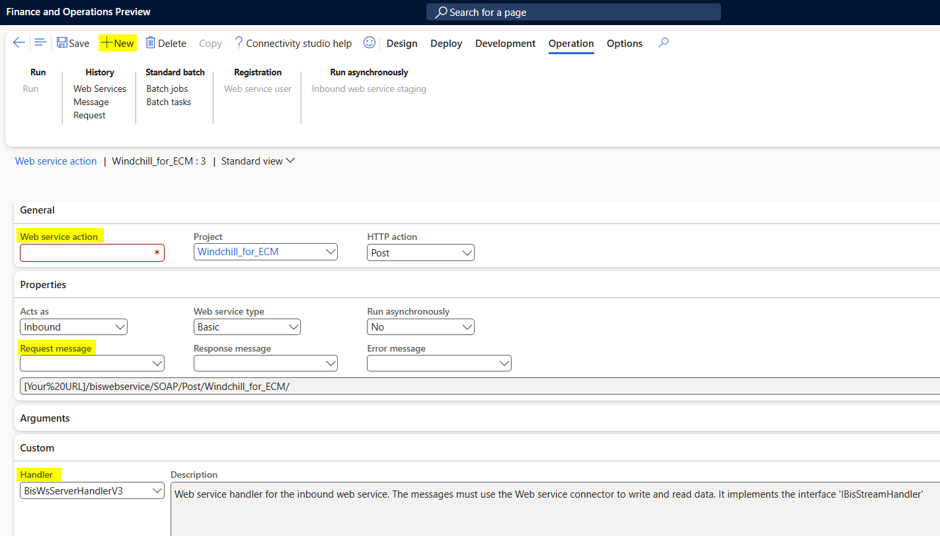
Click + New.
In the Web service action field, enter a unique identifier, this value becomes part of the API endpoint URL.
Note
Avoid spaces and special characters.
In the Request message drop-down list, select the applicable PLM message. Typically, only one message is available for each integration project.
In the Handler drop-down list, select BisWsServerHandlerV3. This handler processes incoming web service requests in D365 F&SCM.
Click Save.