Life Sciences Cloud Compliance Suite allows the comparison of configurations exported using the Create data pack feature through the Compare data packs feature available in the Life Sciences Cloud Compliance Suite module.
The Compare data packs feature supports validation users and IT people, providing them with output files that document and validate configurations across different Microsoft Dynamics 365 Finance & Supply Chain Management legal entities or environments.
Steps
To compare configurations, users must:
Export the first configuration from a legal entity/environment using the Create data pack feature.
Export the second configuration from a legal entity/environment using the Create data pack feature.
Go to Life Sciences Cloud Compliance Suite > Configuration management > Compare data packs.
Click the Upload button next to the File 1 and File 2 fields and upload the two configuration files.
Select the output format in the Target data format field.
Click OK.
Check the output file.
Fine-tune comparison process
Users can additionally fine-tune the comparison process by enabling the following fields:
Exclude system fields: The system automatically disregards any system field from the comparison process.
Only changes: The system return only the changes between the compared configurations in the XML output file.
Note
The output of the Export security feature is compatible with the Compare data packs feature, allowing the possibility to compare security configurations across different Microsoft Dynamics 365 Finance & Supply Chain Management instances.
Currently, the Compare data pack feature does not work for the following tables:
BPHStorageConditionLine
BPHInventDispositionAccess
WMSLocationStatus
Compare data packs - Output
Compare data packs can generate the comparison output in XML format (Flat or Nested) or in a human-readable and storable PDF.
Example Flat XML
Example Nested XML
Comparison Configuration Document
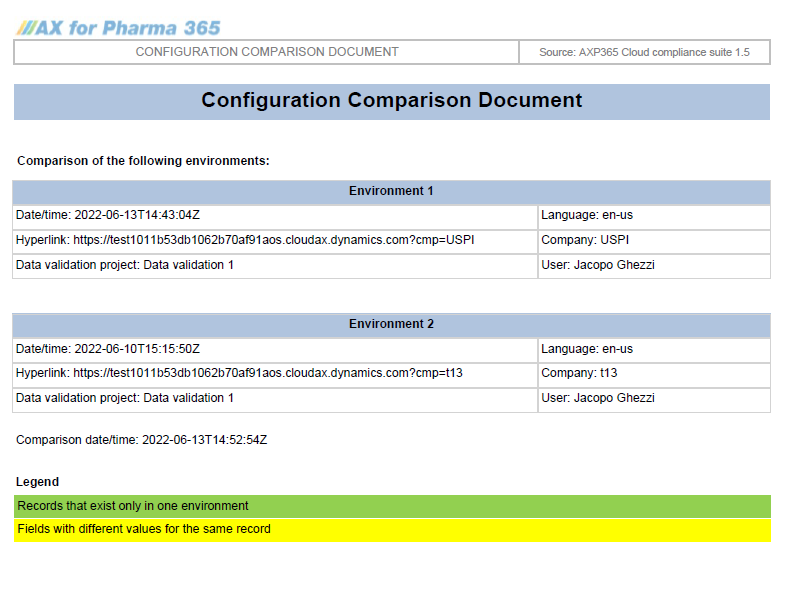
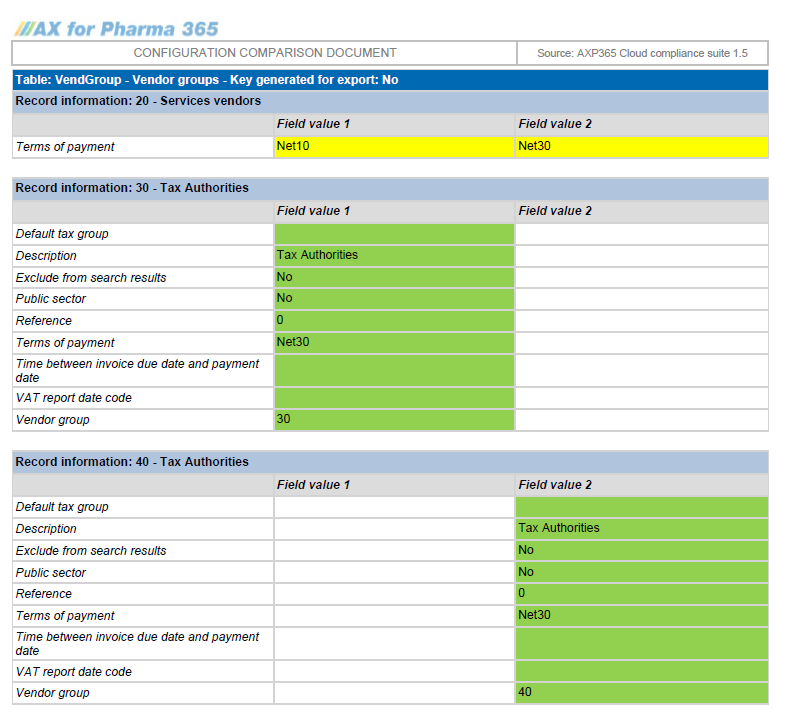
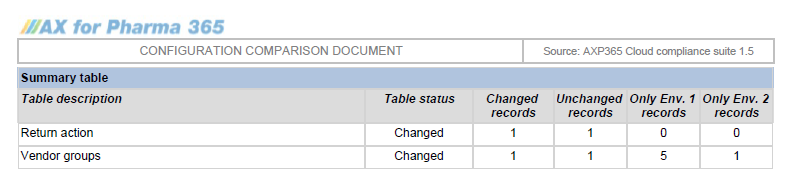
The PDF report, called Comparison Configuration Document, is an easy-to-understand document that provides information about which tables or fields are different among the two compared configurations. With a user-friendly layout, users can:
Understand which legal entities/environments are involved in the comparison through hyperlinks to the environments available in the document.
Understand when and who performed the comparison process.
Understand which fields differ among the same table in the compared legal entities.
Understand which are the records that are available in only one of the compared legal entities or environments.
Understand the overall status of the comparison process.