A Code event or NETCode event triggers an outbound pipeline based on AL code in Microsoft Dynamics 365 Business Central.
To trigger a code event, create AL code that triggers the right code. See Create a Code event / NETCode event.
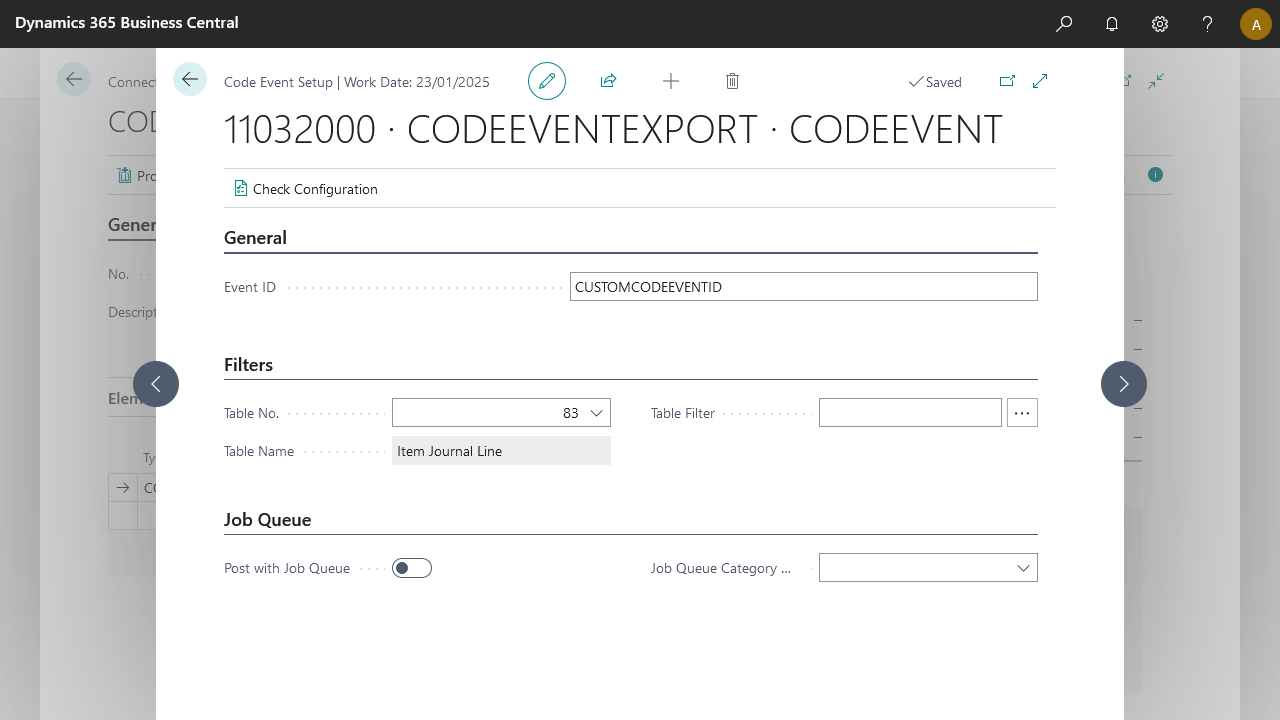
Steps - Code event setup
code Create a connection and insert the element CODEEVENT.
On the elements line, select Edit.
On the Code Event Setup page, fill in the following fields:
Field
Description
Event ID
The identifier to trigger this specific code event.
Table ID
The code event triggers with a record scope. The table ID specifies which record this event shares.
Table Filter
Optionally, enter a table filter to execute this code event only with records in a specific range.
Post with job queue
Enable this option to run the connection asynchronously from the session triggering the code event, using a separate job queue entry.
Job Queue Category Code
Set the job queue category code to ensure parallel processing.
Select Check Configuration to see if there are Anywhere Mobility Solutions configuration errors.
Select OK.
Steps - NETCode event setup
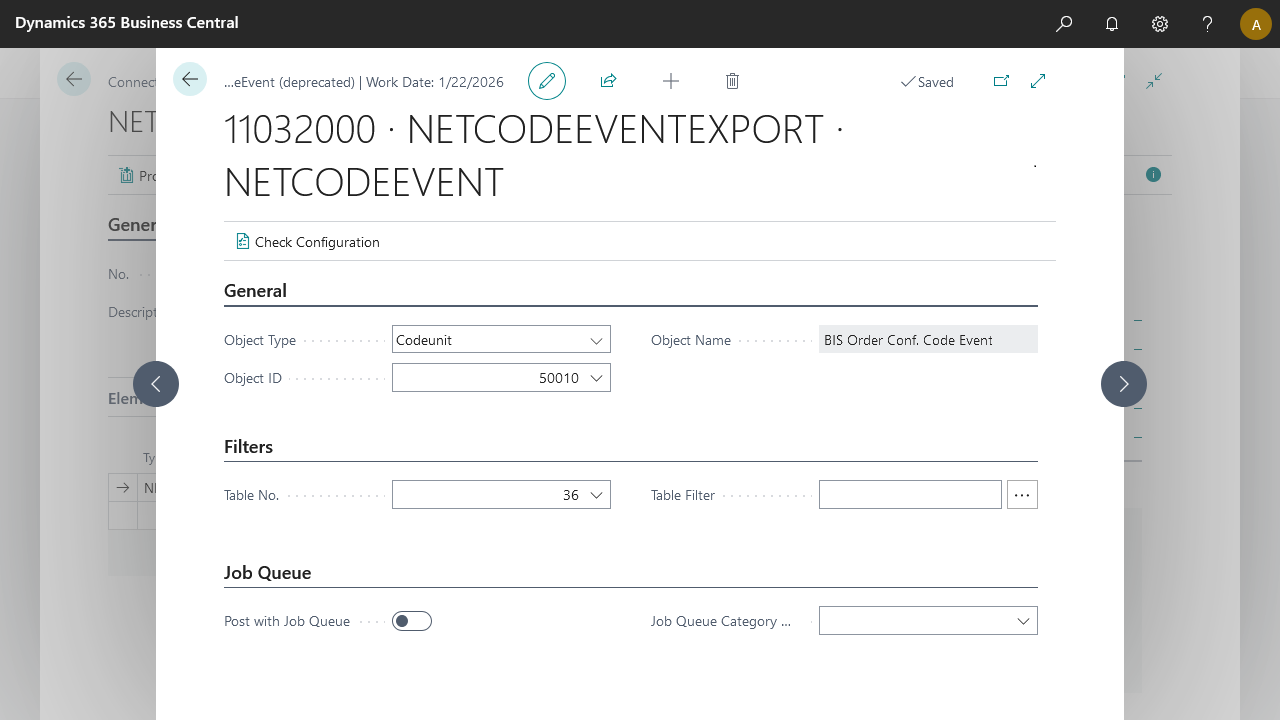
Create a connection and insert the element NETCODEEVENT.
On the elements line, select Edit.
On the NETCode Event Setup page, fill in the following fields:
Field
Description
Object Type
Select the D365 BC object type to trigger the pipeline.
Object ID
Specify the specific D365 BC object ID.
Object Name
Specifies the object name (selected automatically).
Table No.
Select the table on which to apply filters.
Table Filter
Specify the table filter. This filter applies to the data set.
Post With Job Queue
Select this field to process the connection using the job queue with a specific category.
Job Queue Category Code
Select the job queue category used for grouping and filtering jobs.
Select Check Configuration to see if there are Anywhere Mobility Solutions configuration errors.
Select OK.
Note
The NETCode Event is available only for on-premise environments and is marked as obsolete. Consider switching to the Code Event in your connections.