Set up these preferences in the PTC Windchill Preference manager:
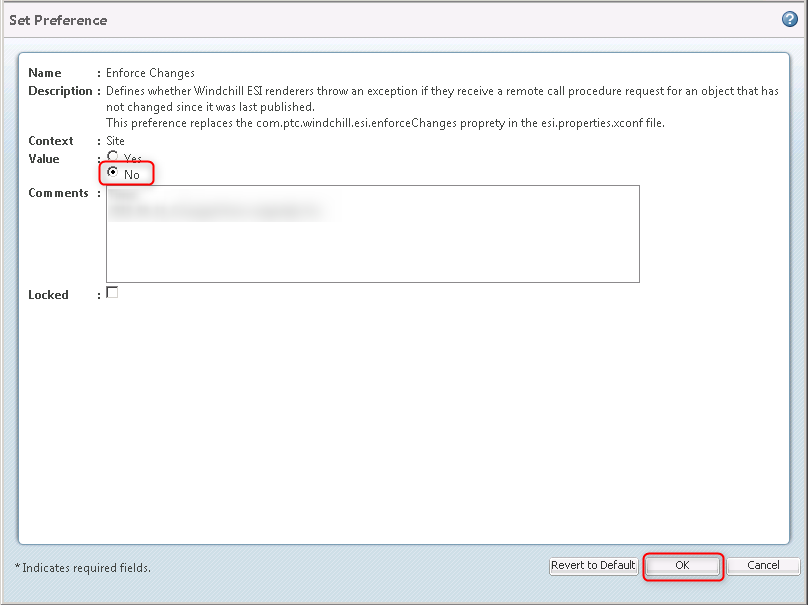
Enforce changes
This preference controls whether Windchill ESI renderers throw an exception. This happens when they receive a request for an object that hasn't changed since its last publication. The integration files sent to D365 F&SCM always contain a part's full, current state, not just recent changes. So you don't need to throw an exception for unchanged data requests.
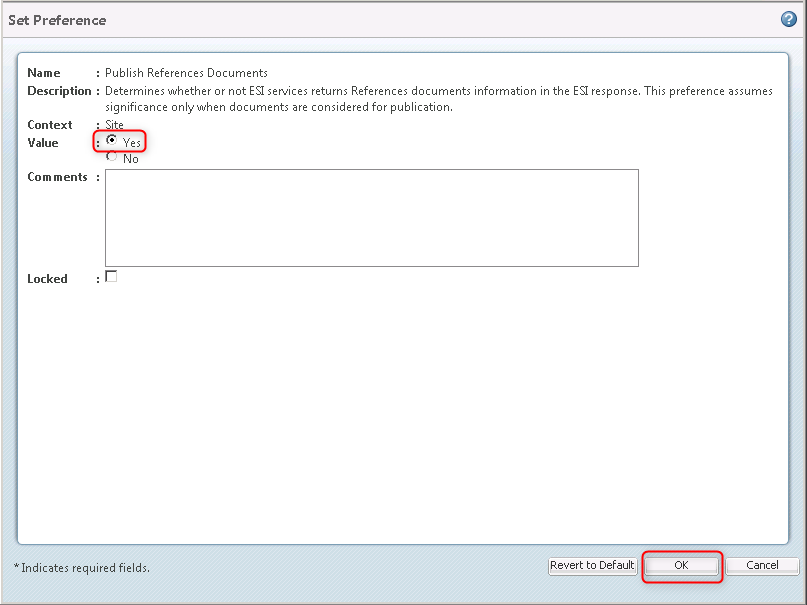
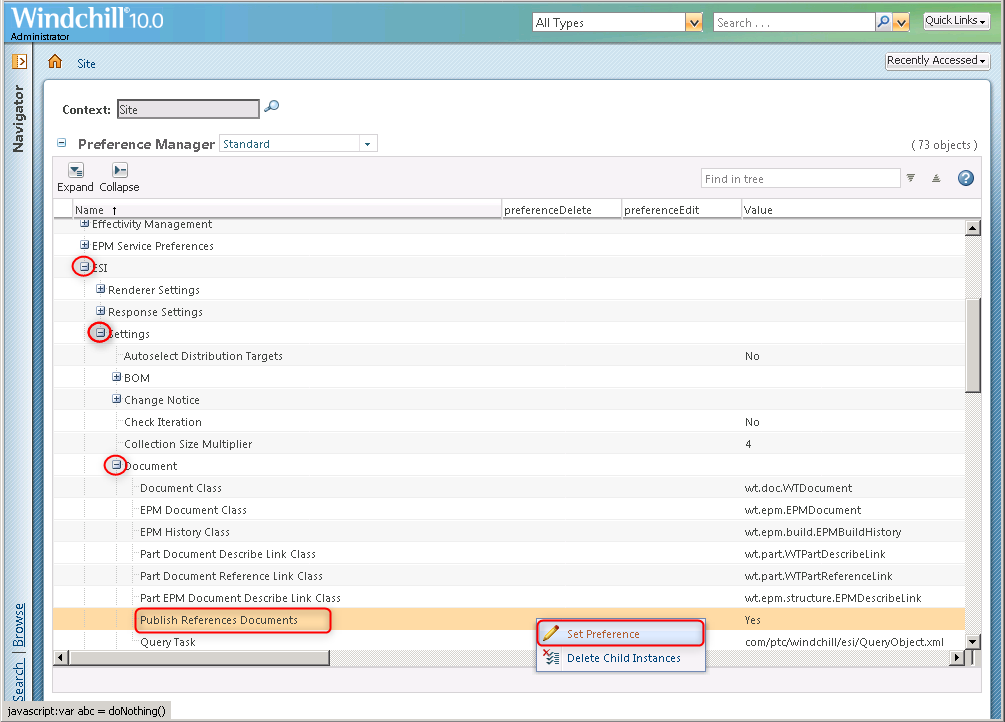
Publish reference documents
This preference controls whether ESI services include reference document information in the ESI response. It only matters when you're publishing documents. Enable this option to send referenced document links to D365 F&SCM.
For more information, refer to Windchill ESI.
Steps
Expand ESI > Settings > right-click Enforce Changes > click Set Preference.
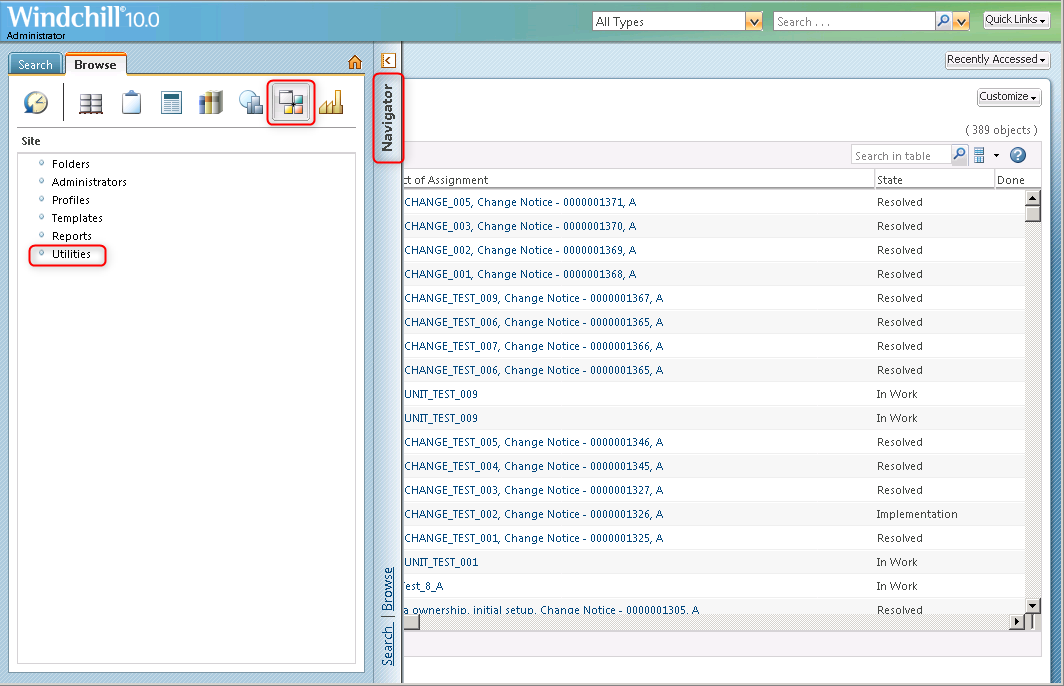
Go to Navigator > Site> Utilities.
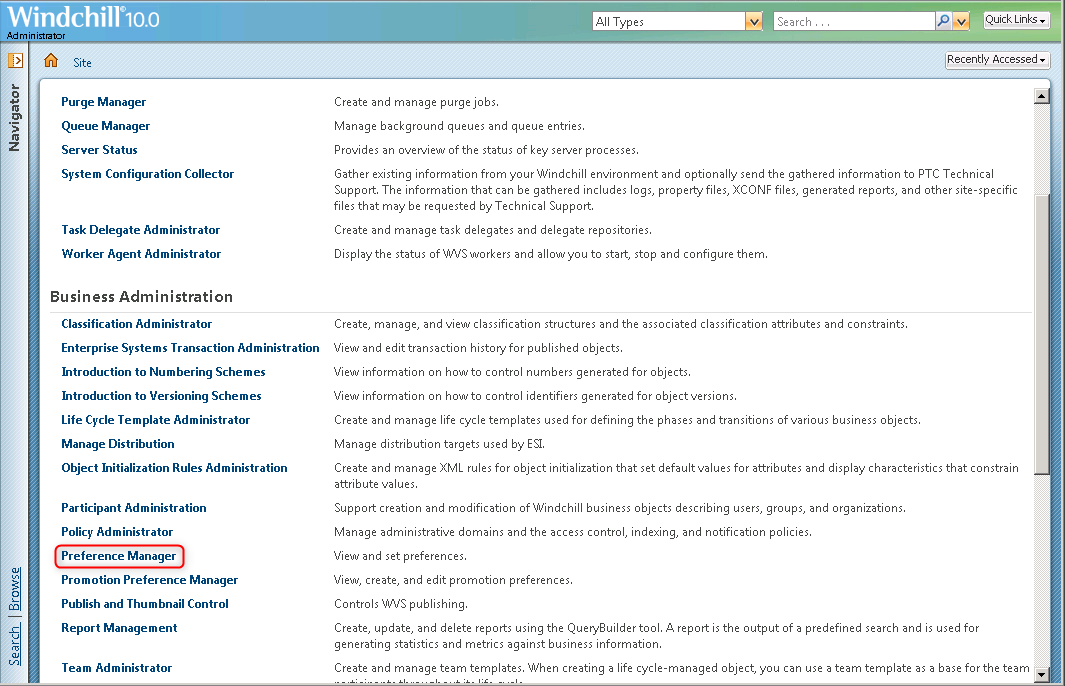
In the Business Administration section, click Preference Manager.
Expand ESI > Settings > right-click Enforce Changes > click Set Preference.
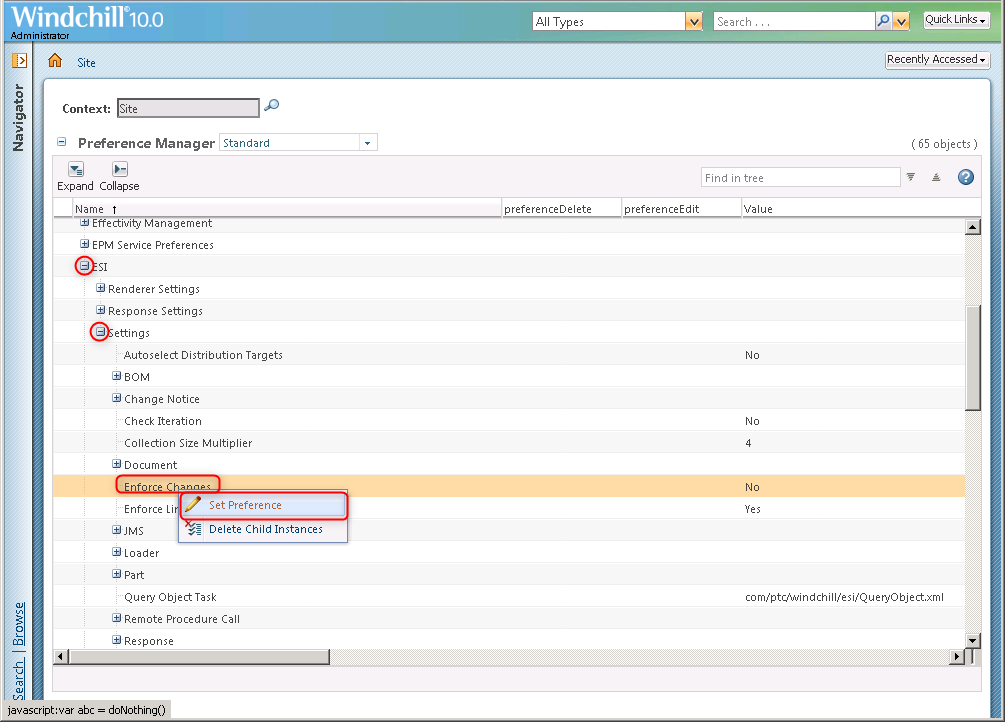
Set the value to No > click OK.
Expand ESI > Settings > Document > right-click Publish Reference Documents > click Set Preference.
Set the value to Yes > click OK.