Set up a distribution target in PTC Windchill. A distribution target is a location where PTC Windchill sends data. The D365 F&SCM integration takes the PTC Windchill data from this location for further processing in D365 F&SCM. Associate the distribution target with the parts you want to send to it throughout their lifetime.
Steps
Log in to PTC Windchill with administrator rights.
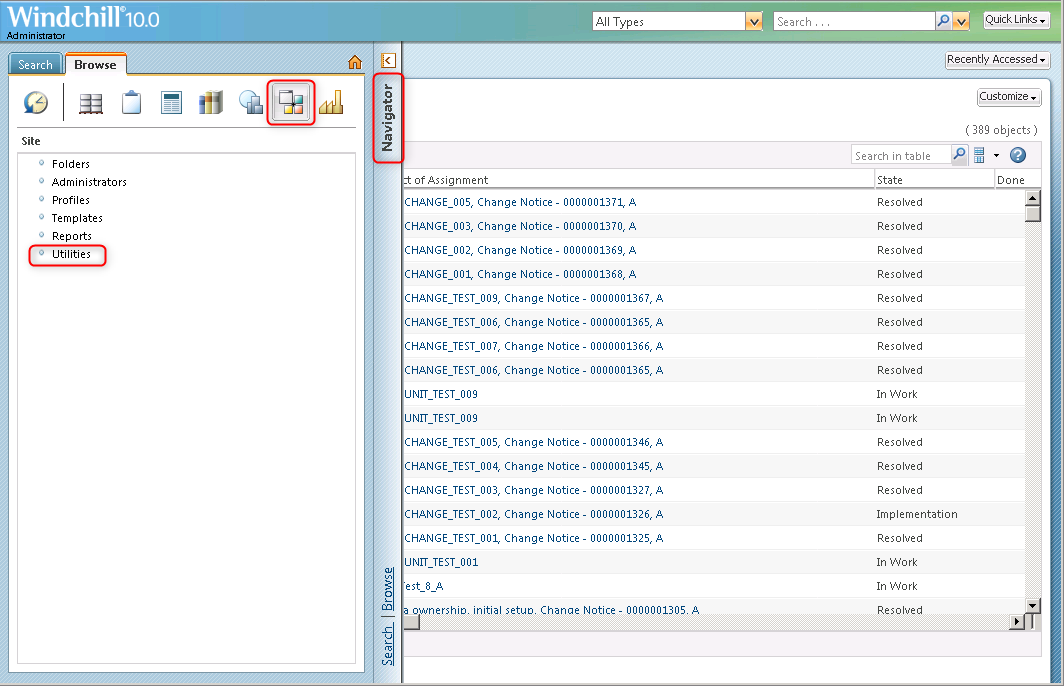
Go to Navigator > Site> Utilities.
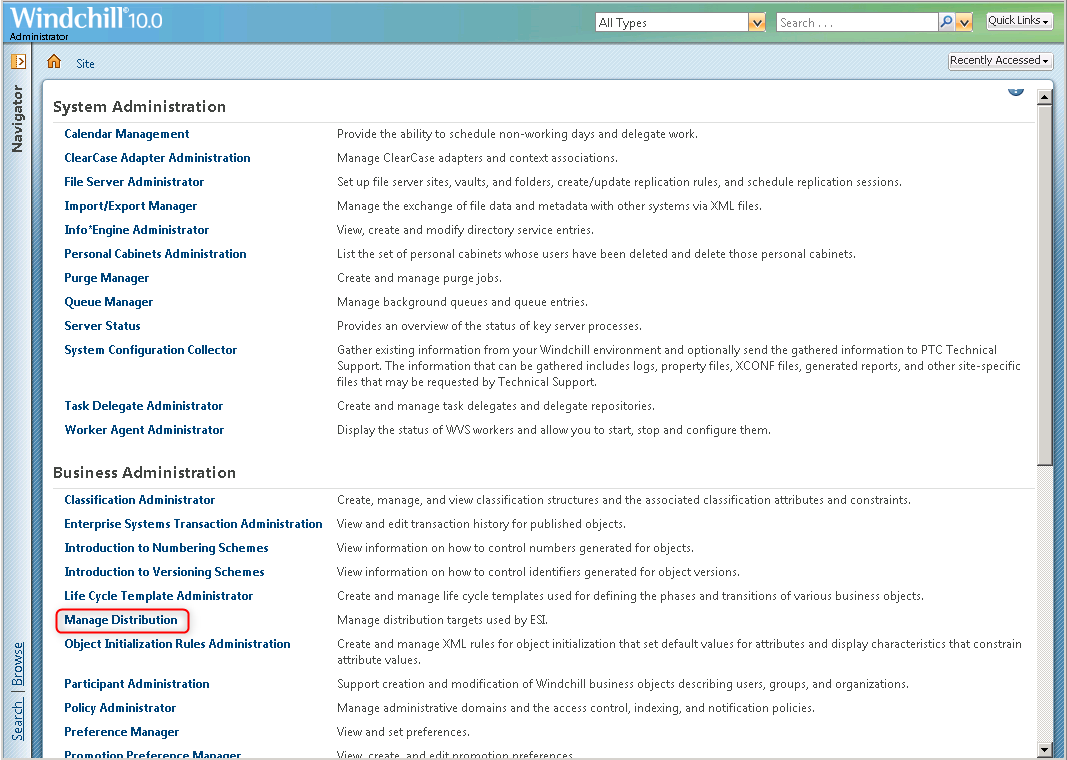
In the Business Administration section, click Manage Distribution.
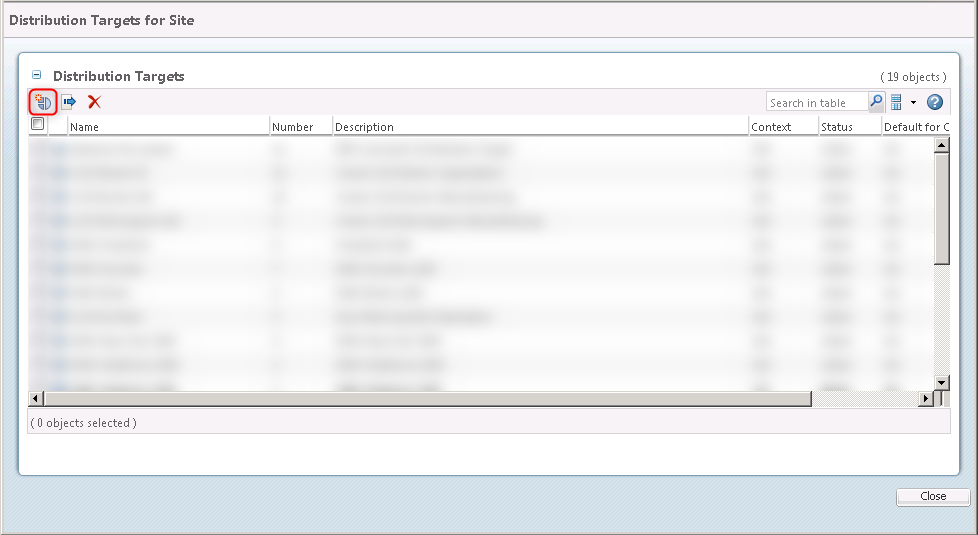
Click Create Distribution Target.
Fill in the Distribution target fields.
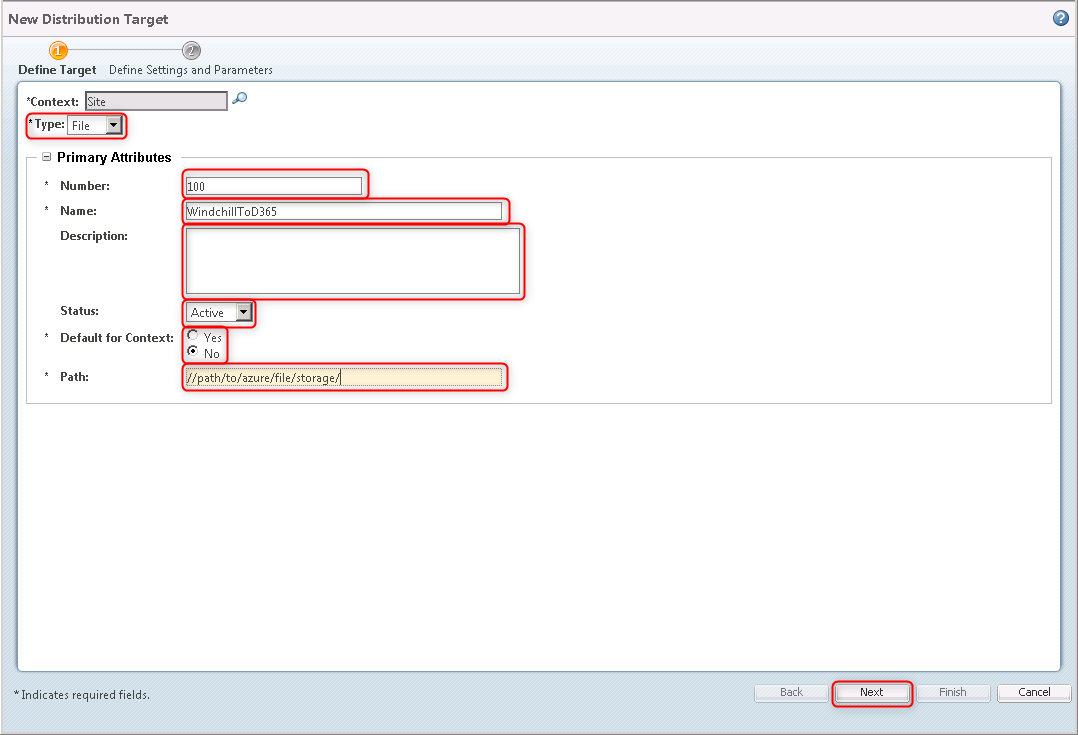
In the Type field, select File.
In the Number field, type a value. You can enter any unused number.
In the Name field, type a value. You can enter any name.
In the Description field, type a value.
In the State field, select Active.
In the Default for Context field, select No.
In the Path field, enter the Azure field storage path.
Click Next.
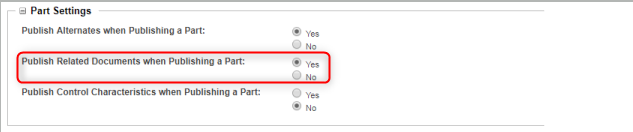
Define the Part Settings as required. For the integration with D365 F&SCM, set Publish Related documents when Publishing a Part to Yes.
Define the BOM Settings as required. For the integration with D365 F&SCM, define these settings as indicated:
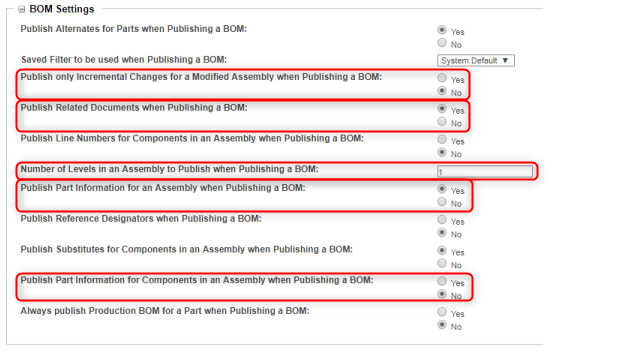
Publish only Incremental Changes for a Modified Assembly when Publishing a BOM = No.
Publish Related Documents when Publishing a BOM = Yes.
Number of Levels in an Assembly to Publish when Publishing a BOM = 1.
Publish Part Information for an Assembly when Publishing a BOM = Yes.
Publish part Information for Components in an Assembly when Publishing a BOM = Yes.
Define the Change Notice Settings as required. For the integration with D365 F&SCM, define these settings as indicated:
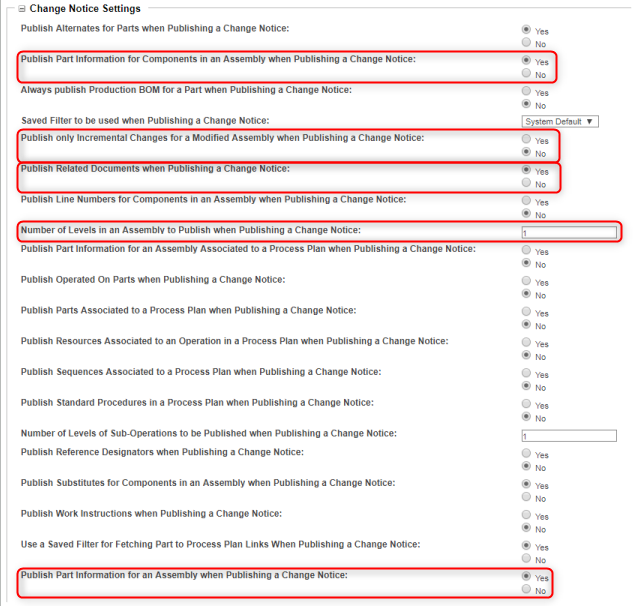
Publish Part Information for Components in an Assembly when Publishing a Change Notice = Yes.
Publish only Incremental Changes for a Modified Assembly when Publishing a Change Notice = No.
Publish Related Documents when Publishing a Change Notice = Yes.
Number of Levels in an Assembly to Publish when Publishing a Change Notice = 1.
Publish Part Information for an Assembly when Publishing a Change Notice = Yes.
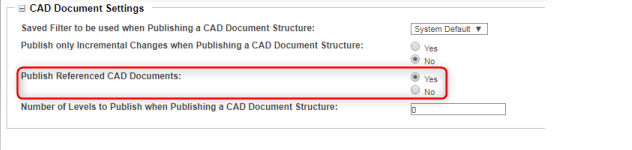
Define the CAD Document Settings as required. For the integration with D365 F&SCM, set Publish Referenced CAD Documents to Yes.
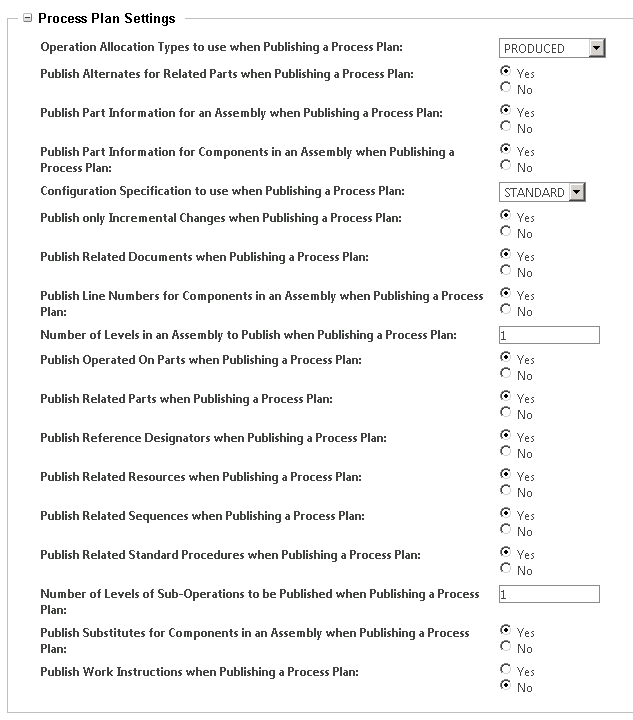
Define the Process Plan Settings as required. The integration with D365 F&SCM needs no specific setup.
Define the Resource Settings as required. The integration with D365 F&SCM needs no specific setup.

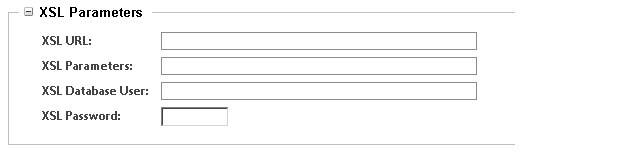
Define the XSL Parameters as required. The integration with D365 F&SCM needs no specific setup.
Note
The Connectivity Studio side of the integration in D365 F&SCM handles the XSL transformation of the datafile. Transforming the data while Connectivity Studio reads it keeps the original file intact. This makes it easier to debug and trace data.
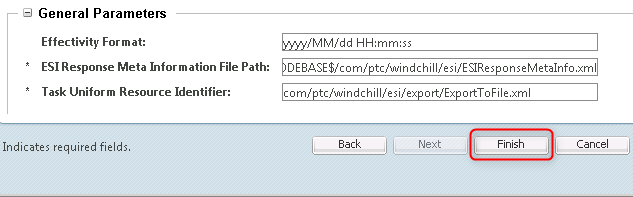
Define the General Parameters as required. The integration with D365 F&SCM needs no specific setup. Click Finish.
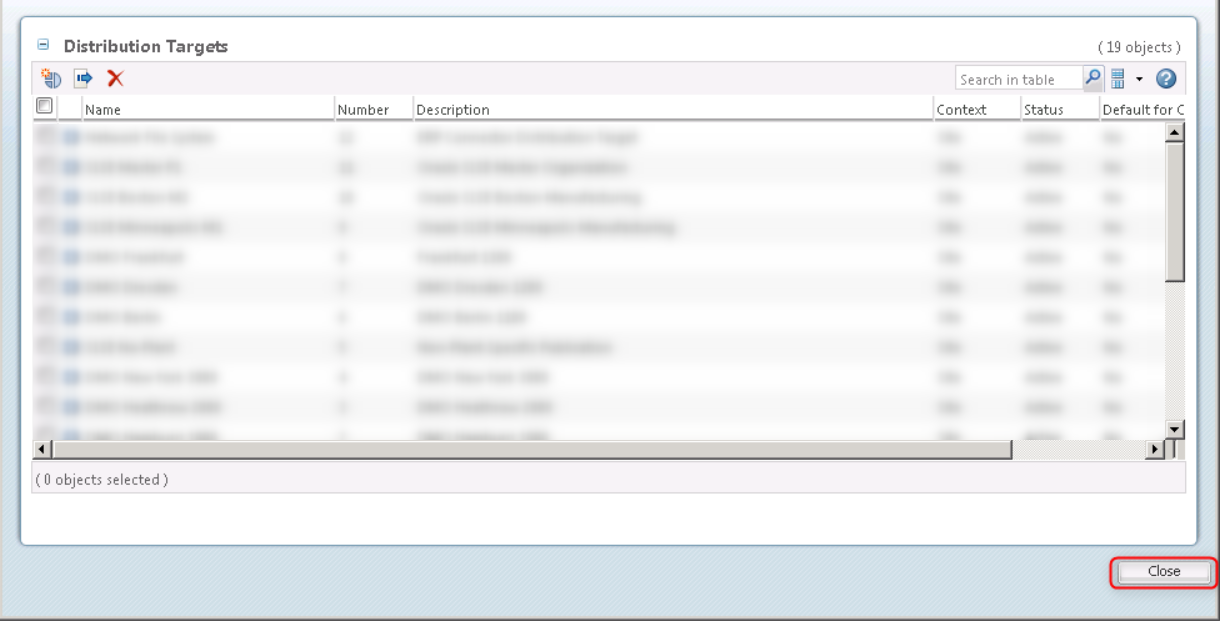
Click Close.
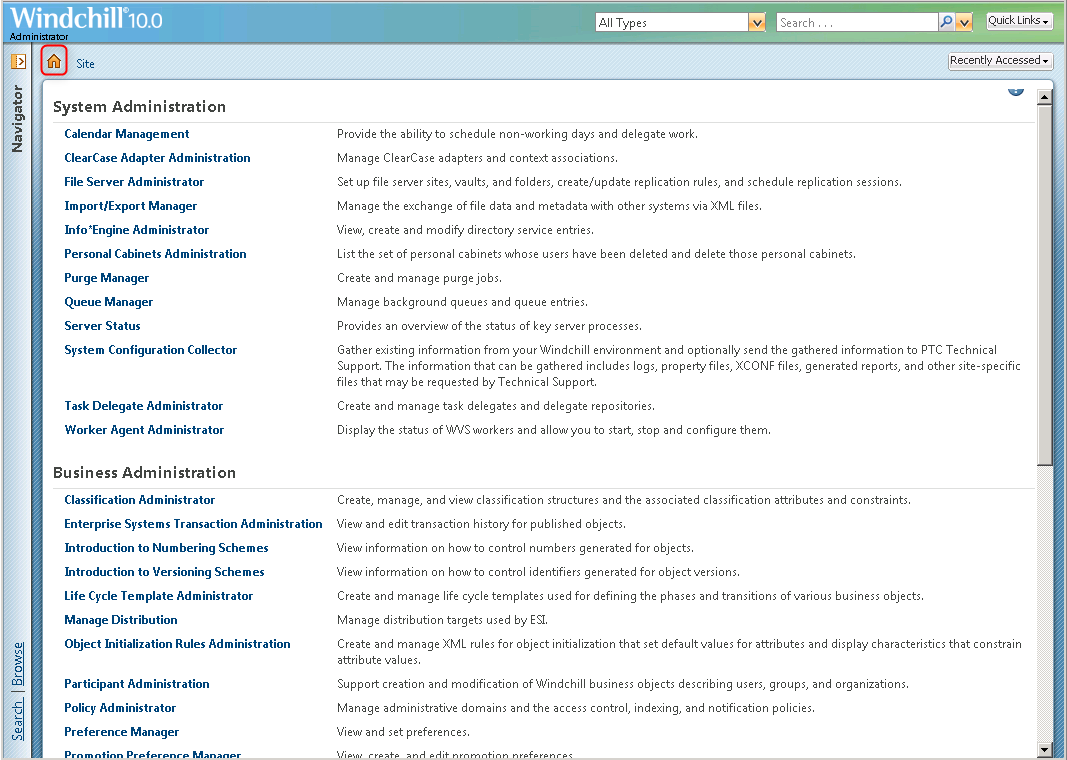
Go to the PTC Windchill home page.