When the XML files are generated in the Working path, the products can be imported into D365 F&SCM through the PLM system. This is done by running the PTC Windchill message via the PLM system. Manual import is typically used during testing or when validating new integration behaviour.
Note
The procedure references PTC Windchill messages in examples, the same import process applies to Siemens Teamcenter. The only difference is the message definition selected, which corresponds to the configured PLM system (Windchill or Teamcenter).
Pre-requisite:
A correctly structured XML file must exist in the Working path folder defined in the connector configuration.
Note
This procedure does not apply to web-service-based integrations.
Steps
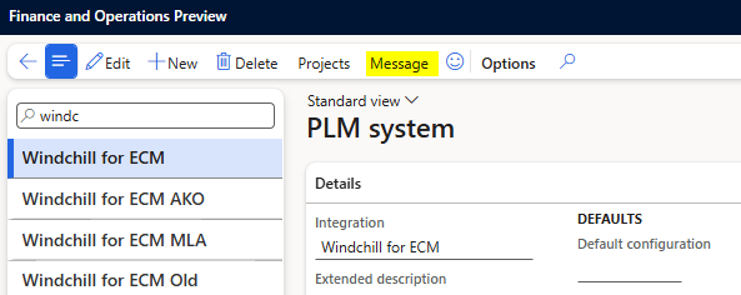
Go to Modules > Engineering Change Management > Setup > PLM Integration > PLM Systems.
If multiple PLM systems are listed, select the appropriate one.
Click Message on the action pane.
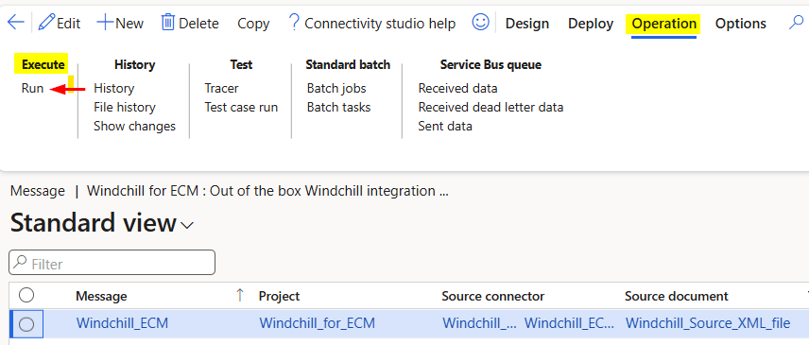
On the Operation tab, in the Execute group, select Run. A new pop-up window appears with the predefined message settings.
In the dialog box, configure the following fields:
Source connector - Select the connector that provides the input data for processing.
Target connector - Select the connector that receives the processed data.
Note
If the Source connector and Target connector are not valid or incorrectly paired, the system displays an error message.
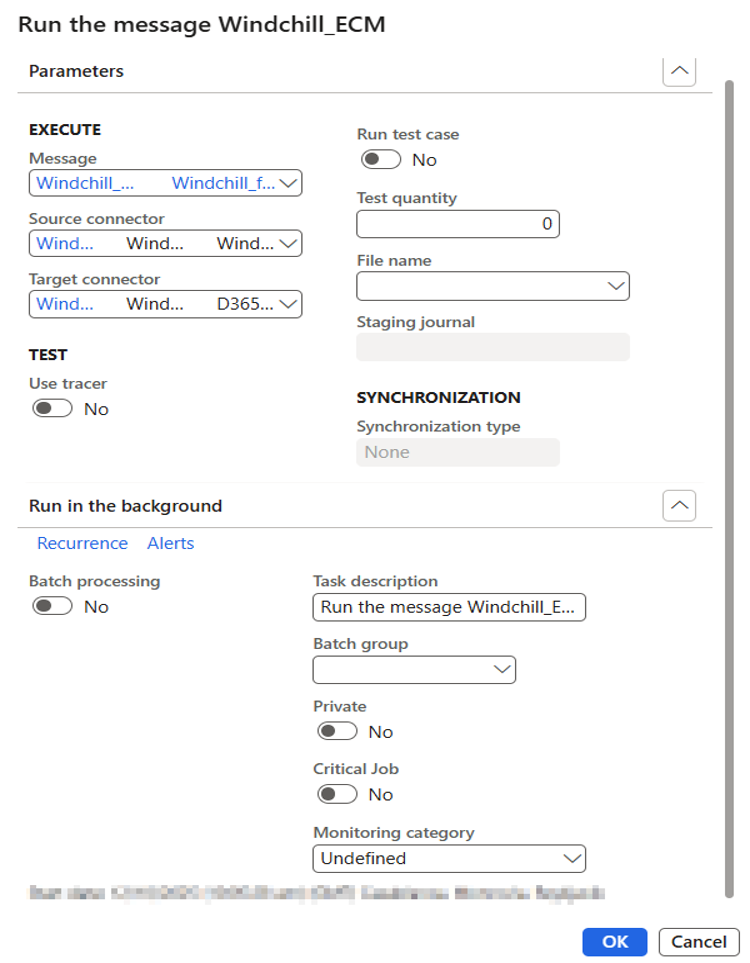
Click OK to import all XML files found in the Working path. When the message is executed, the XML files are converted into PLM staging journals. At this point, product updates are not yet created in the D365 F&SCM released product tables. Posting the staging journal is required to create or update product data in D365 F&SCM.
Note
After processing is completed, the system automatically moves each XML file to one of the following folders:
Archive folder - if the file is imported successfully
Error folder - if any issue occurs during import
Additional Options
The Run dialog provides optional settings that support controlled testing and automated execution:
Run in the background: Enable this option to schedule the import process as a batch job. This is useful for repeated or automated file imports.
File name: Select a specific XML file to import only that file instead of all files in the Working path.
Run test case: Enables test mode. This validates the message logic without updating actual production data.
User tracer: Activates the Connectivity Studio tracer. This diagnostic tool tracks each transformation step during message execution and produces detailed logs.