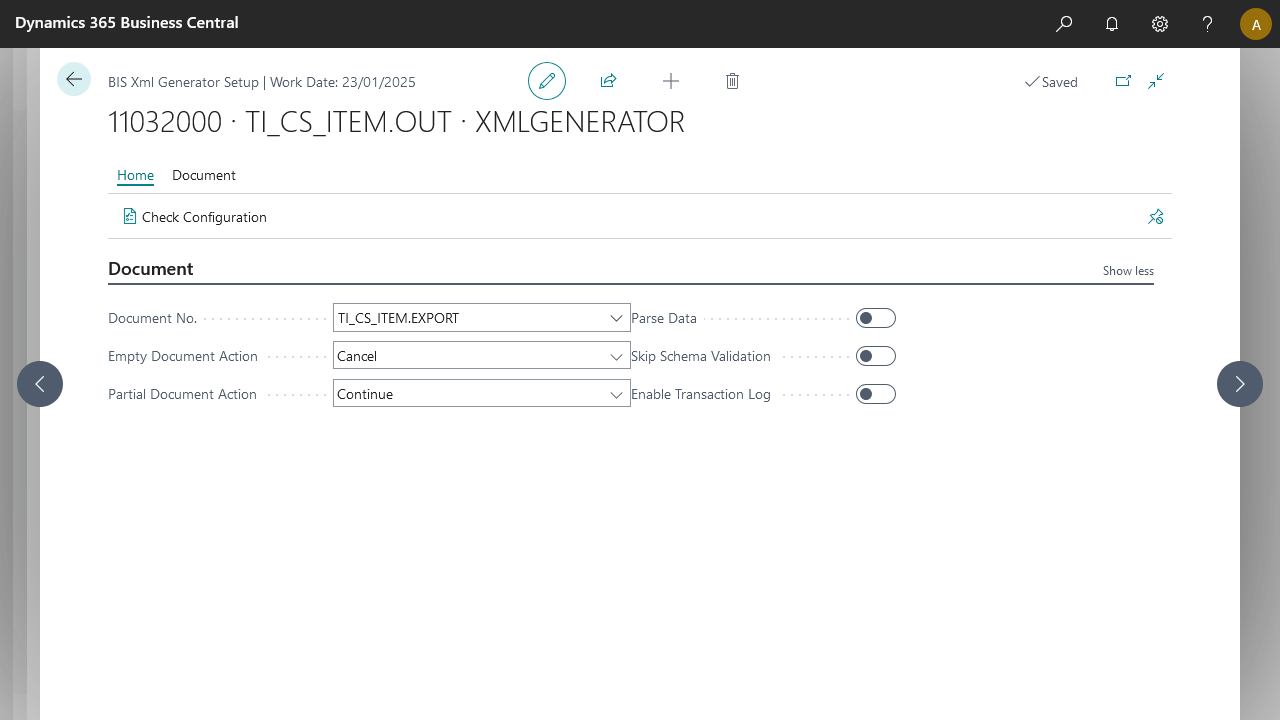
In Business Integration Solutions, use the XMLGENERATOR activity to convert a Microsoft Dynamics 365 Business Central record set into an XML document.
Usage
Use this activity to generate an XML document containing data from Microsoft Dynamics 365 Business Central.
Concept
Data from Microsoft Dynamics 365 Business Central is exported based on various types of events. This data is not structured. The XML Generator activity stores the data in a document format that is easy to process.
Based on an internal document definition, the XML Generator activity reads the Microsoft Dynamics 365 Business Central records and converts them into an XML document structure encoded in UTF-16 characters. Connections trigger from various events. These events have a record scope. From this scope, based on an internal document, Business Integration Solutions generates an XML message.
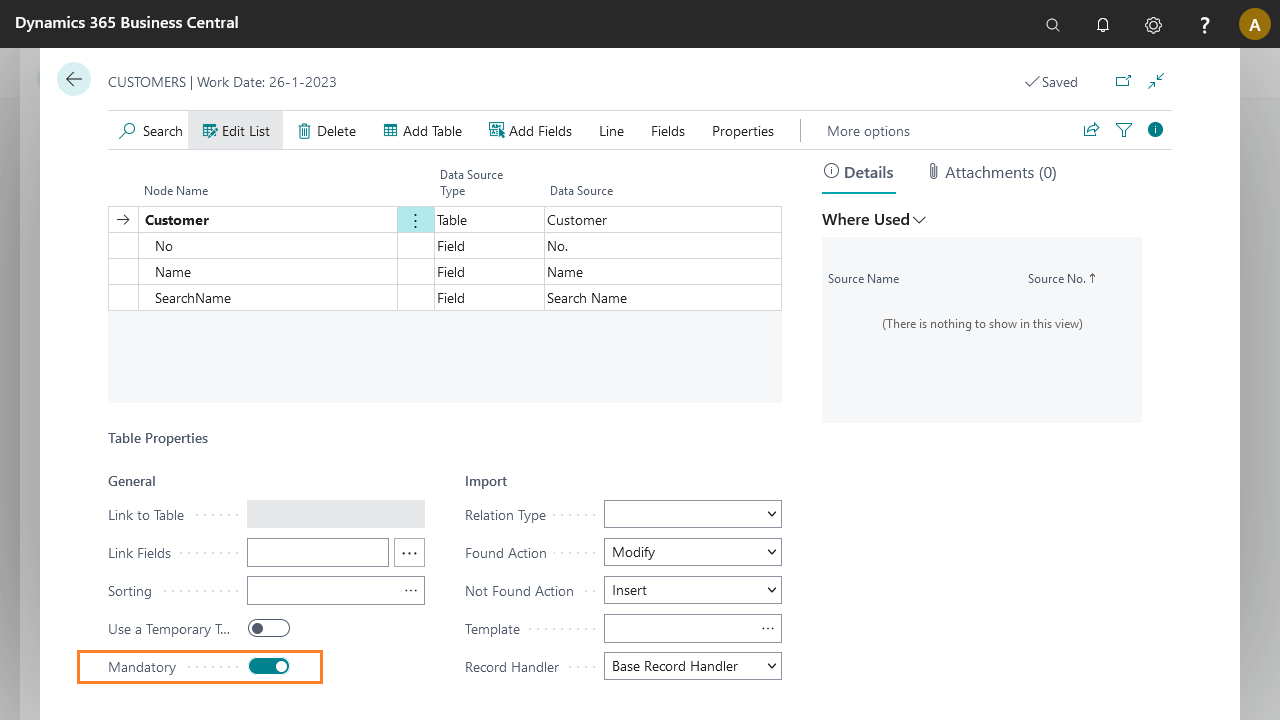
The internal document's field nodes can be set to optional or mandatory. The XML Generator skips optional fields. If a table node in an internal document is marked as mandatory and no related tables/records are generated due to missing relationships or other constraints, the parent node is filtered out. This has a cascade effect, if all child nodes are mandatory and no root record is generated, the XML Generator activity uses the empty document action.
Set up XML Generator activity
Use the XML Generator activity to generate a filtered set of data in XML format for further processing by other pipeline activities.
Steps to set up the XML Generator activity:
Create an export connection and insert the element XMLGENERATOR.
On the elements line, select Edit.
On the XML Generator setup page, fill in the following fields:
Field
Description
Document No.
Specify the internal document.
Skip Schema Validation
Indicates whether the resulting XML document should be validated against the internal document schema.
Empty Document Action
Specifies the action to take when no records can be generated. Error sets the message to an error state and halts further processing. Cancel cancels the message and removes it. Continue continues the pipeline with an empty document.
Parse Data
When enabled, data containing XML-unsafe characters as well as double quotes is evaluated and made XML-safe for Text, Code, and Variant (unspecified) fields. When disabled, only XML-unsafe characters are escaped (for example,
<>).
Select Check Configuration to see if there are Anywhere Mobility Solutions configuration errors.
Select OK.