Industrial Equipment Manufacturing (IEM) for Microsoft Dynamics 365 Business Central supports the customer-driven (pull) style of manufacturing.
Industrial equipment often involves complex machinery and tools. When companies run many projects simultaneously, having the right tools to handle the material required for those projects is essential. Because not all material is needed at the same time, you must store and retrieve material efficiently.
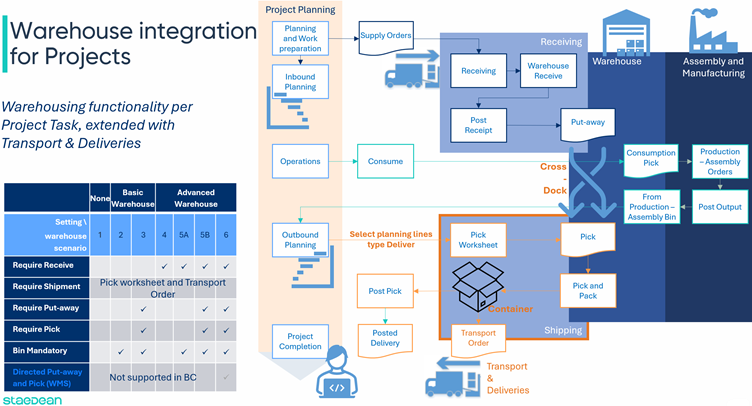
Microsoft Dynamics 365 Business Central has limitations in integrating projects with warehousing. Material ordered for a project through a purchase order is consumed upon receipt. Warehousing is also integrated at the project level. On the shipping side, the Microsoft Dynamics 365 Business Central process completes when material is taken out of inventory: picked items are taken out of the warehouse and, when posted, items are taken out of inventory.
However, installation can also be part of the project, often taking place at a remote project site. To minimize installation interruptions, the required material must be shipped just in time, in the right sequence, with packages clearly indicating their contents. This means that picked and packed material can wait in the shipping area for some time before being moved to the project site.
In another scenario, material can be delivered by external suppliers to be shipped directly to the project site without being unpacked, stored, and picked again. In that scenario, it is important to separate the cross-dock location by project, or assign each project its own cross-dock location.
Industrial Equipment Manufacturing offers integration at the project task level for basic and advanced warehousing scenarios, including the ability to deliver material from a project task to a project site. With the Transport and Deliveries feature, goods can be packed into a container during picking and shipped with a transport order.
The added functionality in Project Control Suite is summarized below:
Material ordered for a project through a purchase order is received in inventory with a reservation type of Order-to-Order binding to the project.
Material to be consumed in the project must first be picked to the To-Project Bin Code before the planning line is posted.
When the project task planning line application type is Deliver, use the Pick Worksheet to select project planning lines of the type Deliver. Based on the warehouse settings on the Location card, create a warehouse pick or an inventory pick to collect the items.
From the pick document, open a Container Worksheet to create a container (box, pallet, crate, and so on) and add the picked items to it. When the container is full, set the status to Closed and start a new container if required. Print a label for each container listing the content.
Posting the pick creates a Posted Delivery for the project task and posts the project planning line. From the project task, retrieve and monitor the status of the packed containers: Open, Closed, Loaded.
Containers are added to transport orders. All containers with the same pick-up and delivery address, shipping agent and service, and shipping date can be added to the same transport order. To plan several transport orders, the Delivery Trip is available for all transport orders with the same shipping agent and service.
On the Project card, specify the cross-dock location for the project together with the cross-dock due date calculation date formula. For shipping, set the method, agent, and service. The shipping methods are inherited on the project tasks together with the shipping address. When necessary, modify these to give each project task its own set of shipping instructions.