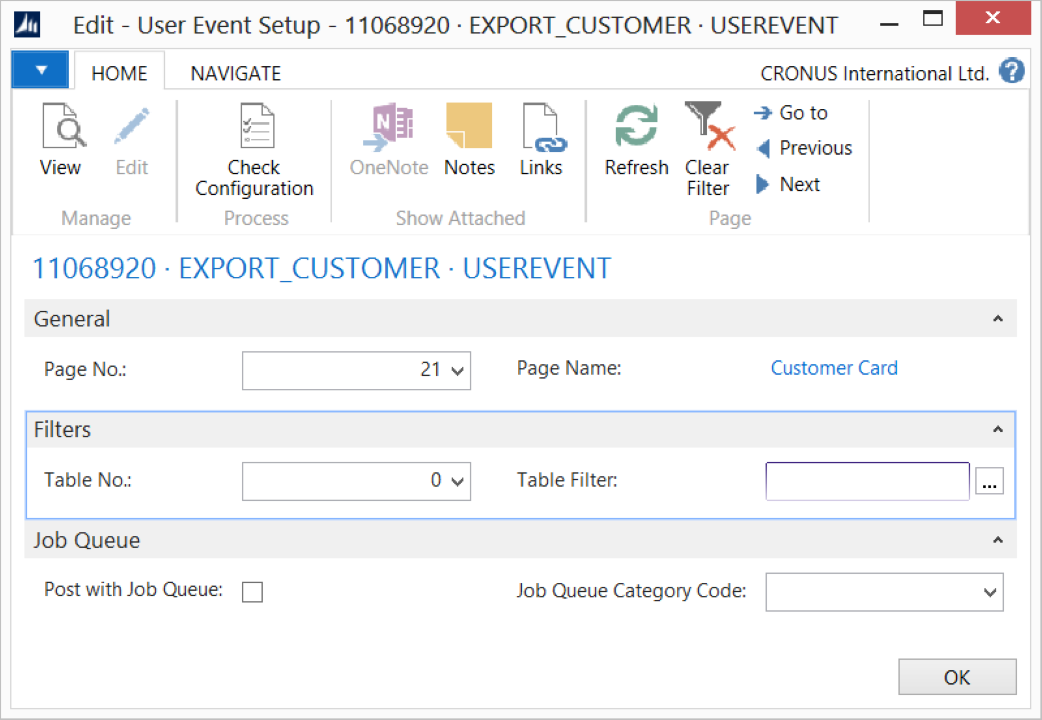
A User event is similar to a Code event. It triggers a pipeline based on a user action, such as selecting a button on a page.
Steps - User event setup
Create an export connection and insert the element USEREVENT.
On the elements line, select Edit.
On the User Event Setup page, fill in the following fields:
Field
Description
Page No.
Specify the page number. The user action is added to this page.
Page Name
Specified automatically based on the page number.
Table No.
Specify the table number. This filter applies to the data set.
Table Filter
Specify the table filter. This filter applies to the data set.
Post with Job Queue
Select this field to process the connection using the job queue with a specific category.
Job Queue Category Code
Select the job queue category used for grouping and filtering jobs.
Select Check Configuration to see if there are Anywhere Mobility Solutions configuration errors.
Select OK.
Steps - Add User event to page
Open the page to which you want to add the action button in the D365 BC Object Designer. A User Event always requires an action button to start the event.
Add a new action to the page activities.
Create the following local variables:
Name
DataType
Subtype
RegisterPipelineEvent
Codeunit
N108 Register Pipeline Event
RecRef
RecordRef
Add C/Side statements to this trigger:
Recref.GETTABLE(Rec);
RegisterPipelineEvent.RegisterEventForRecord(RecRef);