Configure Anywhere Portal
Cloud configuration
For setting up the Portal to connect to a cloud instance or Azure tenant, see here.
On-premise configuration
An overview of all application settings for the Portal is available here.
After installing the Anywhere Portal, carry out the following configuration steps:
Set the properties for the web service. In Internet Information Services (IIS), go to the newly created website: Administrative Tools > IIS Manager >
> Web Sites > Default Web Site > DAW > PRD > Portal. Select Portal and find the next view.
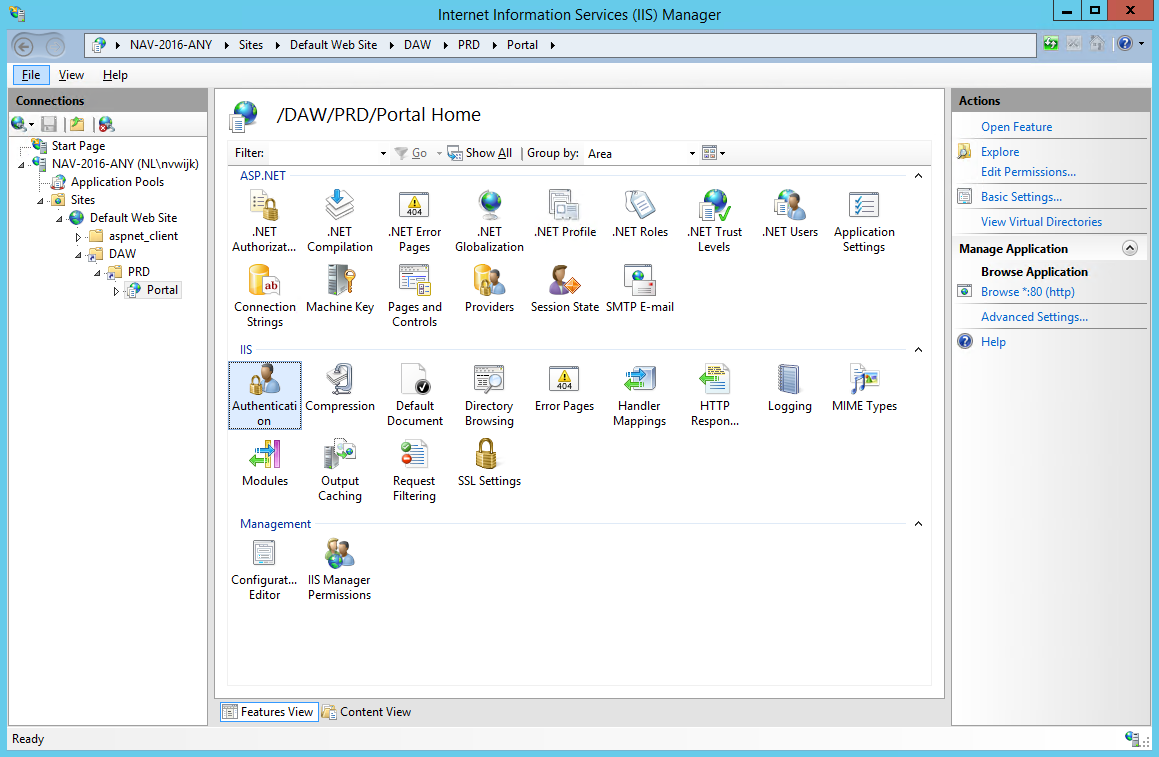
Go to Authentication and enable anonymous access. Set the user as the same user running the Microsoft Dynamics 365 Business Central Server [DynamicsNAV]. This installation guide uses "NetworkService" as a built-in account. If this is the same user as the application pool, you can select application pool identity.
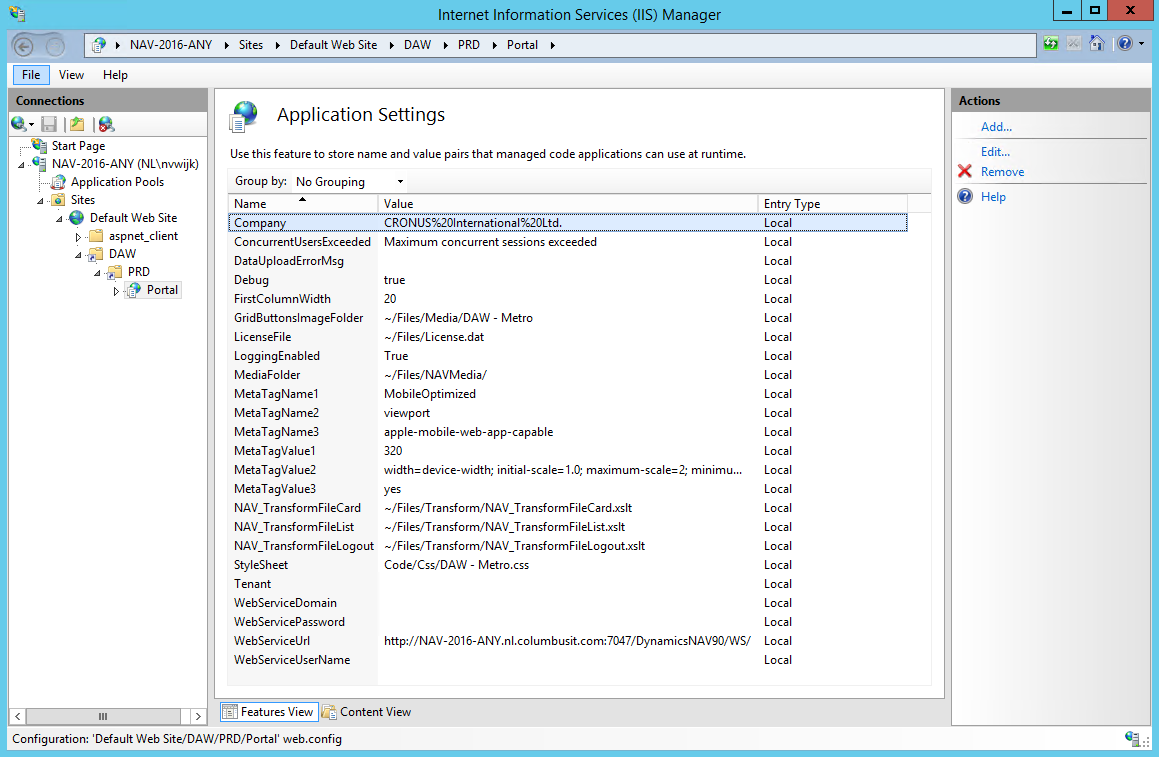
Select the Application settings.
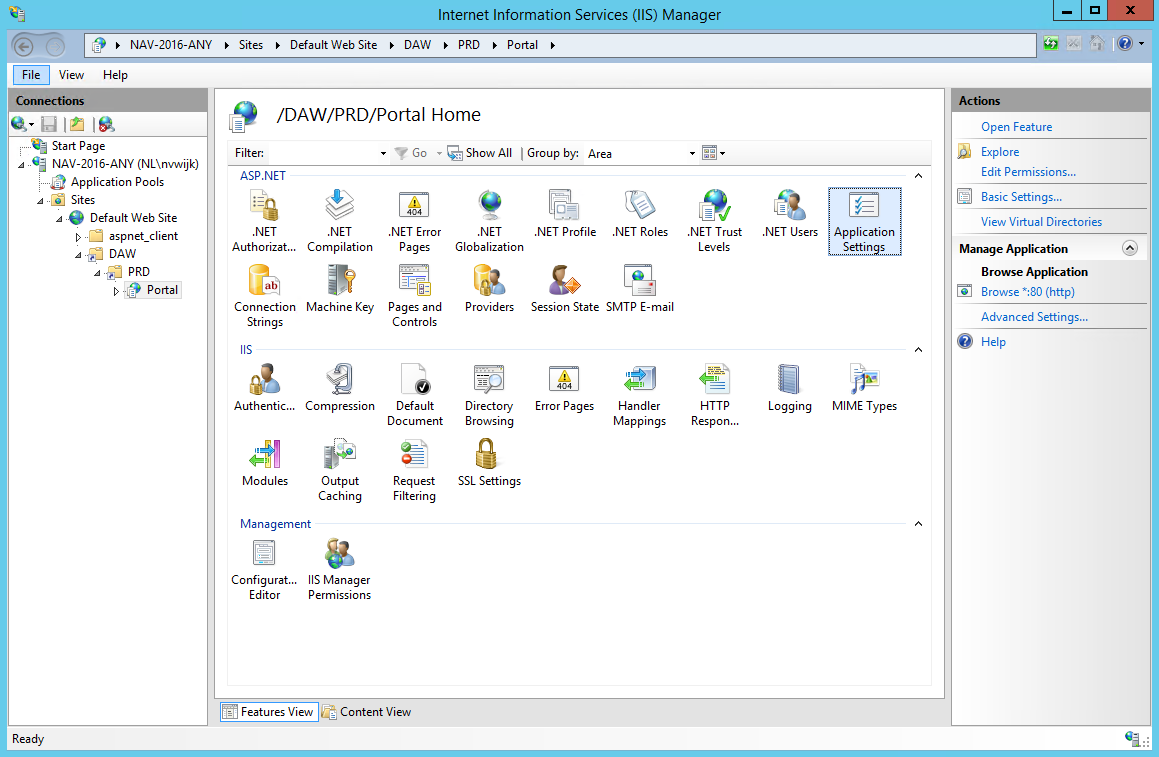
Set WebServiceURL to your Microsoft Dynamics Business Web Services location. For a default installation it is similar to:
http://. You can also open the Web Services page and copy the SOAP URL from the NDAW Web Service line. Remove the remaining string after WS/.:7047/DynamicsNAV100/WS/ 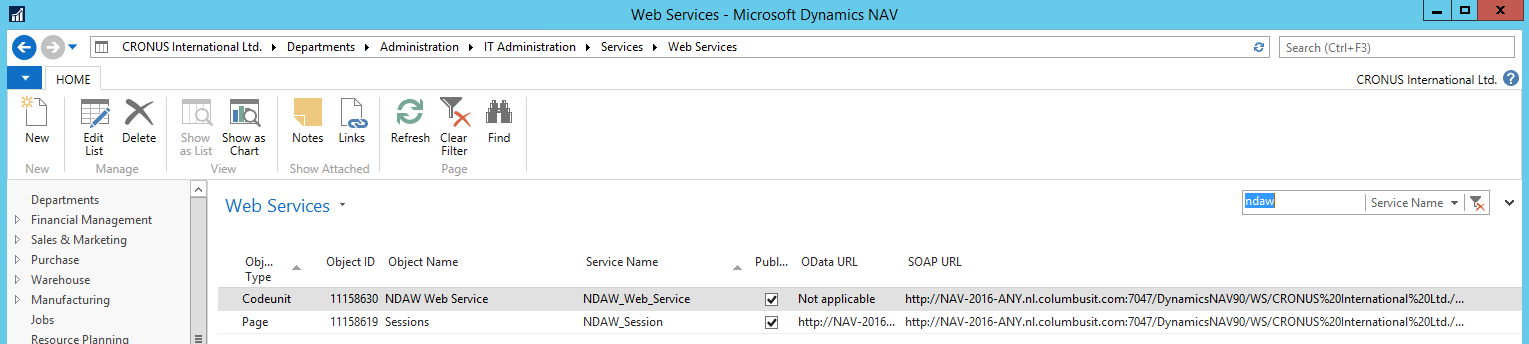
Use ApiBaseUrl to retrieve the license configured in the Anywhere Mobility Solutions Setup page using the Microsoft Dynamics 365 Business Central API.
On-premise example:
https://: / /api/ Cloud example:
https://api.businesscentral.dynamics.com/v2.0//api/
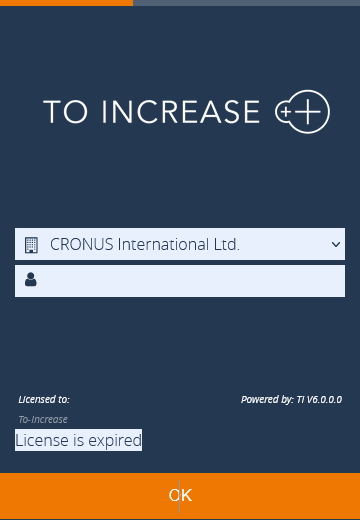
When the application pool identity does not match the Microsoft Dynamics 365 Business Central Business Web Services user, specify the user with these keys:
WebServiceUserName
WebServicePassword
WebServiceDomain
The company dropdown no longer appears in the Anywhere Portal: