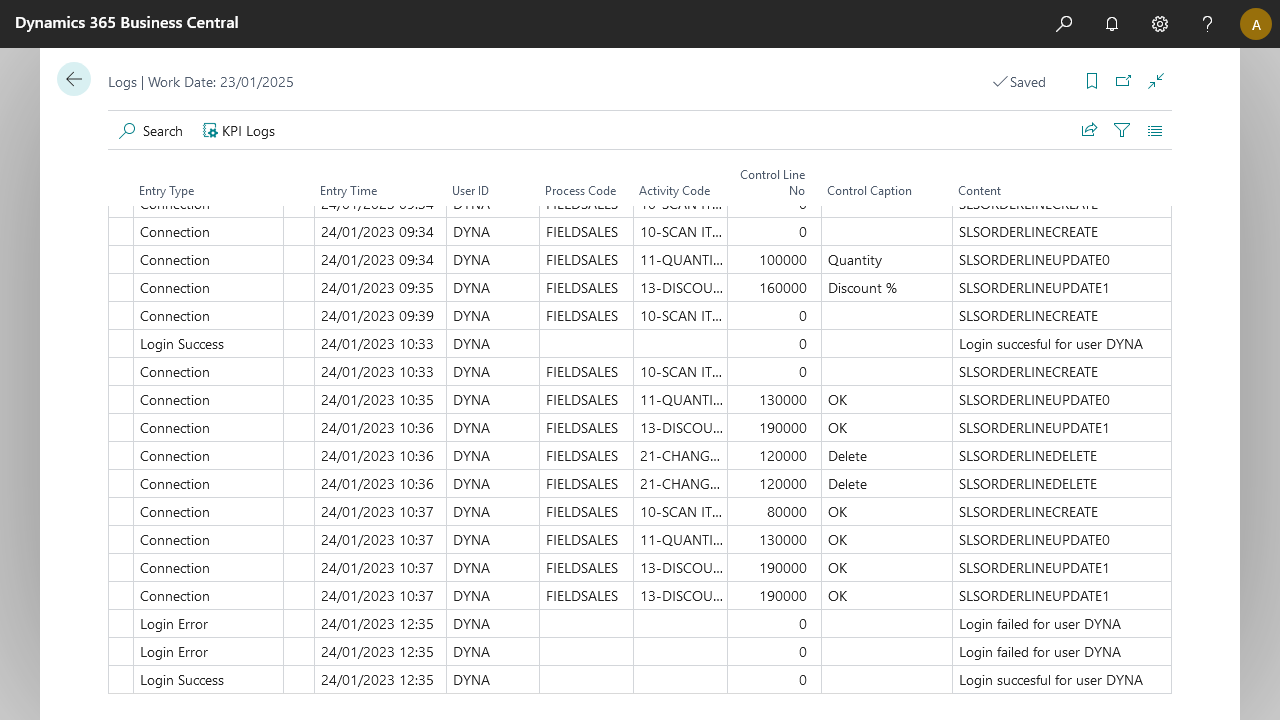
The log contains persistent data on activities in Anywhere Mobility Solutions. Use it to track events and provide source data for analysis. Unlike sessions, which only provide data when a session is active, logs retain their data persistently.
Log entries contain the following data:
Field | Purpose |
|---|---|
Entry Type | The type of event that was logged |
Entry Time | The date and time when the event occurred |
User ID | The mobile user that triggered the event |
Process Code | The process where the event originated |
Activity Code | The activity where the event originated |
Control Line No/Caption | The control that triggered the event |
Content | The message or content of the event |
Setup
Several log levels are available in your environment. All higher log levels also log the events described at lower levels:
Level | Impact |
|---|---|
None | Logs nothing, including login attempts. Disables login rate limiting. |
Error | Logs Anywhere Mobility Solutions error message that can be caught. Also logs all login events to ensure login rate limiting works as designed. |
KPI | Logs custom KPIs whenever they are triggered. |
Standard | Logs whenever a connection is triggered. |
All | Logs all events, including all requests and responses. |
Key Performance Indicators
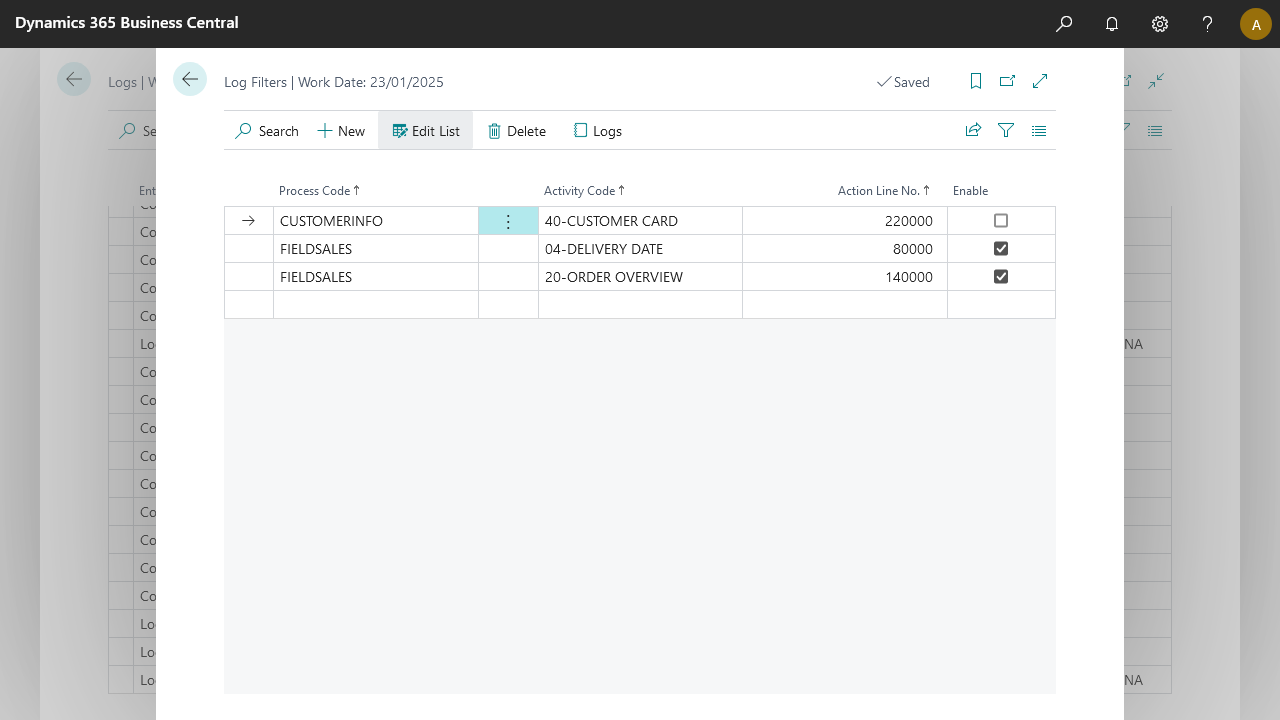
You can set up Key Performance Indicators in Anywhere to log specific actions on various activities in a process. Set these up per environment, per process or activity, and per button. You can enable or disable KPIs (enabled by default). This means you do not have to remove a KPI to stop it from being logged.
Examples
A user receives a choice during receiving to accept or decline part of a shipment that deviates from the expected quantity (for example, over-receiving). You can set a KPI log entry on the approve action to log who accepted the over-receipt.
To track how long it takes to finish specific tasks throughout the day, add a KPI when a document is selected to start work on and again after it is registered. This lets you use the logs as source data to calculate statistics on how long it takes to handle, for example, one pick line or one entire pick document, and take follow-up actions to improve handling time.
Default metrics
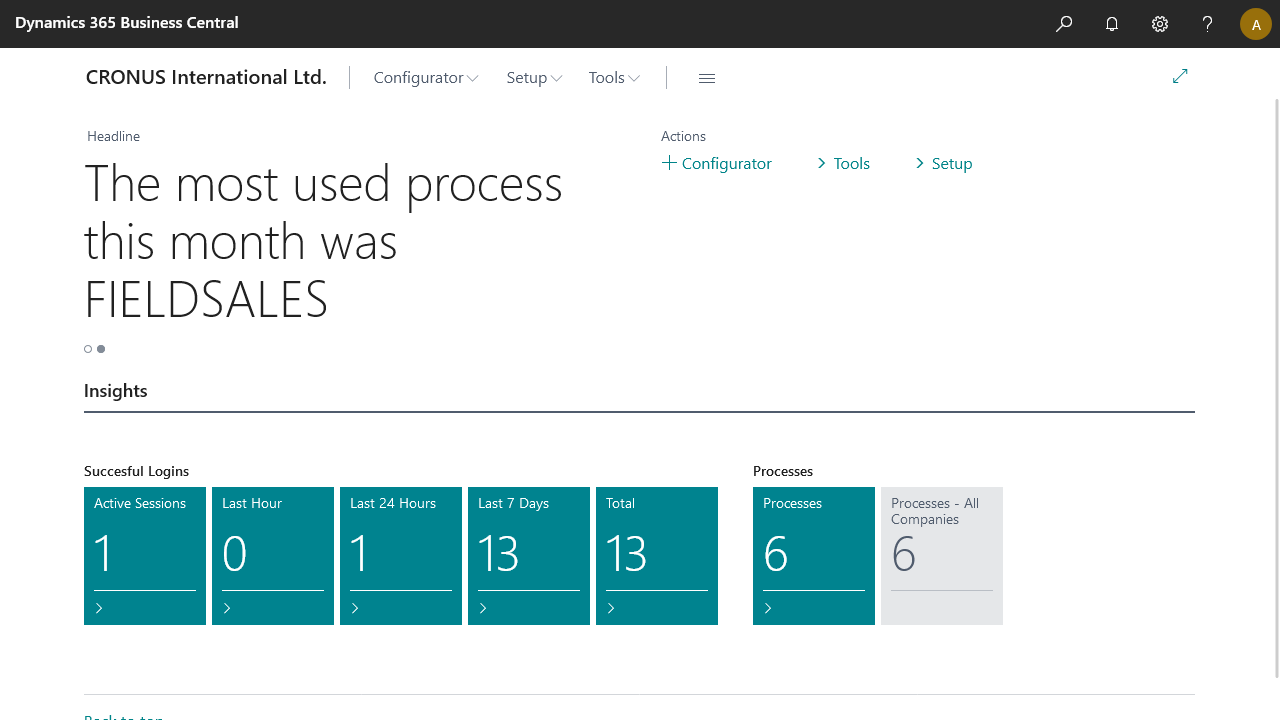
In the Role Center, the headlines show the most used process and most active user in a specific period:
From the 1st up to the 7th of the month, the period is last month.
From the 8th until the 14th of the month, the period is last week.
Anywhere Mobility Solutions other date shows this month's statistics.
When no data is available, the period is this week.
Are logs shared with STAEDEAN?
No, logs are currently not shared with STAEDEAN. STAEDEAN reserves the right to implement this in the future. When this changes, this page will be updated to reflect those changes, as will the release notes and other channels.