This walkthrough provides an overview of how to synchronize customer master data.
In this replication scenario, the walkthrough demonstrates how to publish D365 BC data in a different XML structure and how to subscribe to it.
Prerequisites
You can create two companies for demonstration purposes. In the following scenario:
CRONUS International Ltd.: publishing company
CRONUS Sales: subscription company
Template | Description | Type | Company |
|---|---|---|---|
TI_RM_CUSTOMER.OUT | STAEDEAN Template: Publish Customers for Synchronization | Publication | CRONUS International Ltd. |
TI_RM_CUSTOMER.IN | STAEDEAN Template: Subscribe Customers for Synchronization | Subscription | CRONUS Sales |
Publish customers template
Story
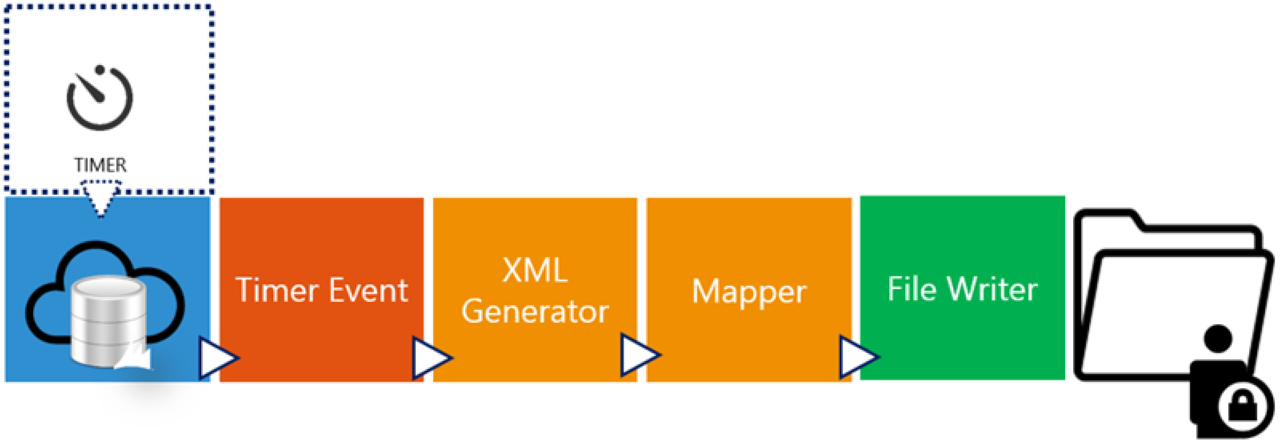
This connection uses the following pipeline elements:
The Timer Event triggers the pipeline.
The XML Generator activity creates an XML file based on the internal document.
A Mapper activity maps the internal document to an external document to export the D365 BC data in an external structure.
The File Writer endpoint stores the created XML file at a specified file location.
Setup
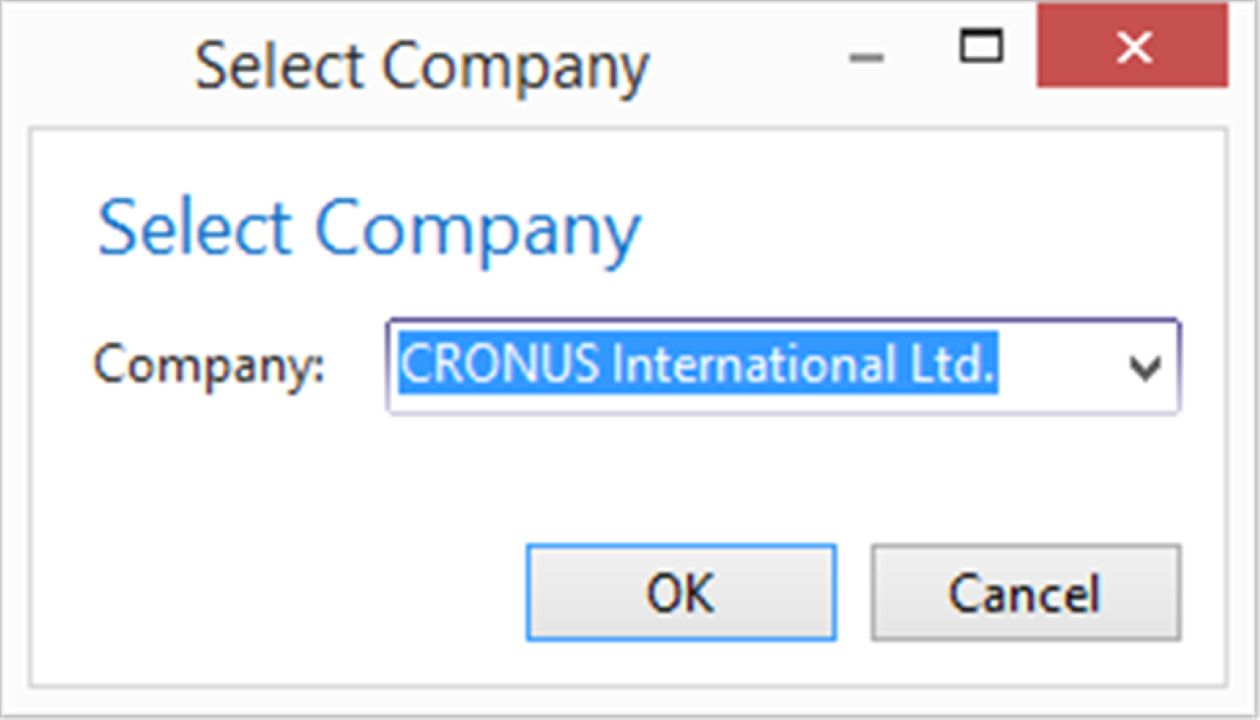
Select the publishing company.
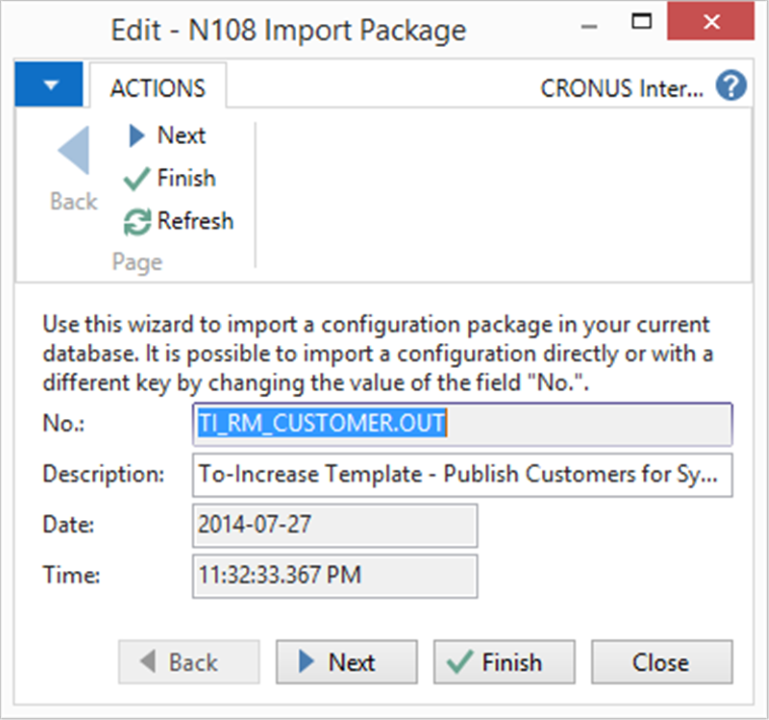
Import the Publication-TI_RM_CUSTOMER.OUT.zip configuration package.
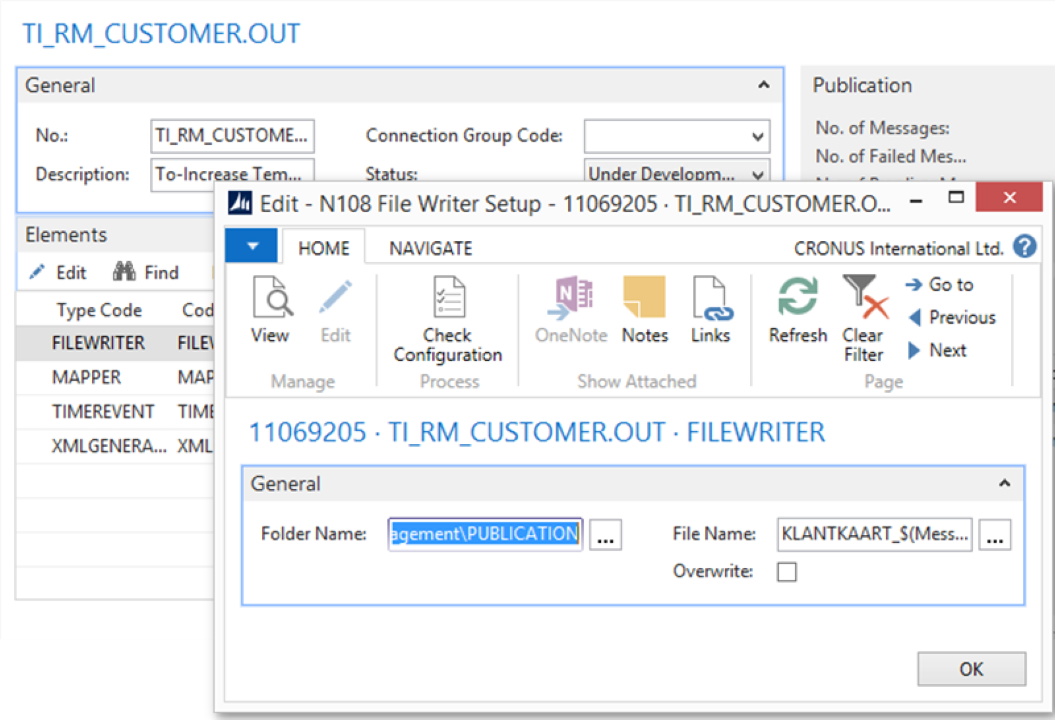
Open the TI_RM_CUSTOMER.OUT connection. On the connection page, edit the File Writer settings and enter the folder name.
Process
Process the connection.
Check the output folder location.
Result
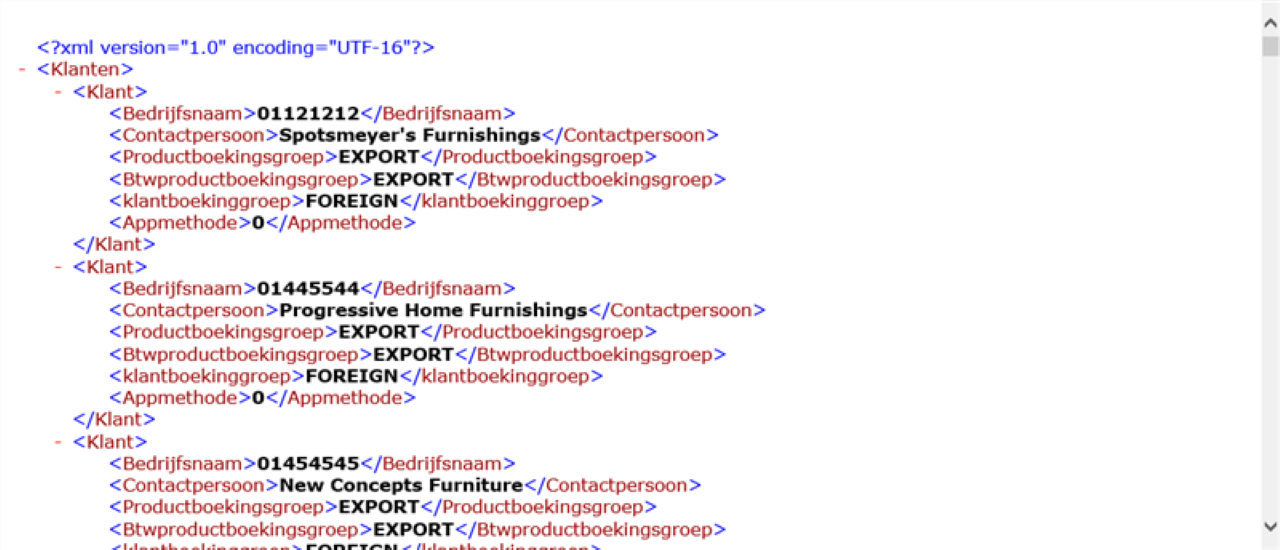
One XML file with a complete overview of your customers is created and available at the specified location.
Subscribe customers template
Story
This connection uses the following pipeline elements:
The File Reader endpoint reads the published file from the file system.
The XML file contains a complete list of customers. The Splitter activity creates one message per customer for proper traceability.
The Mapper activity maps the external document to the internal D365 BC table structure.
The Record Generator activity creates records and updates the D365 BC tables (Customer, Gen. Business Posting Group, and VAT Business Posting Group) based on the internal document.

Setup
Select the subscription company.
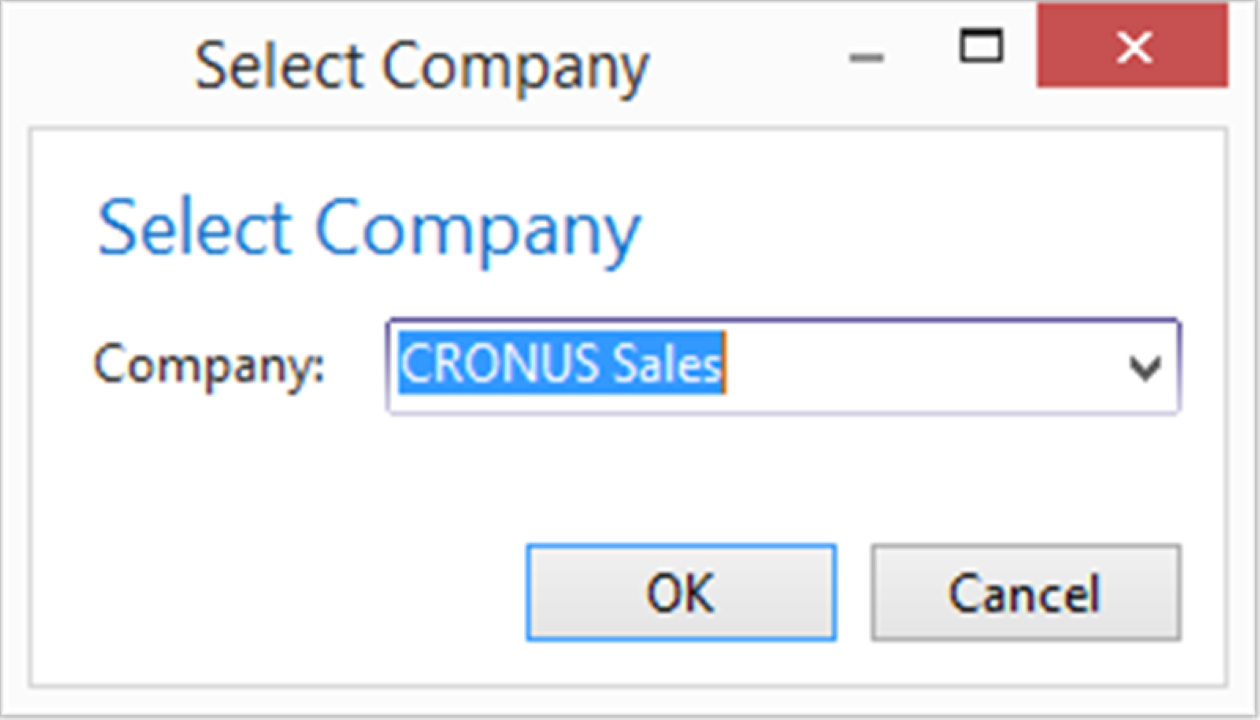
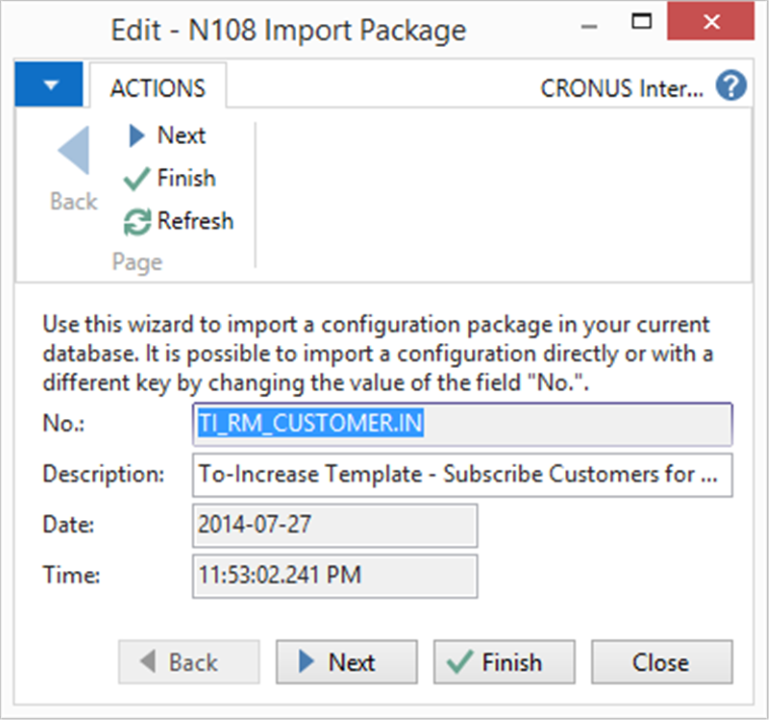
Import the Subscription-TI_RM_CUSTOMER.IN.zip configuration package.
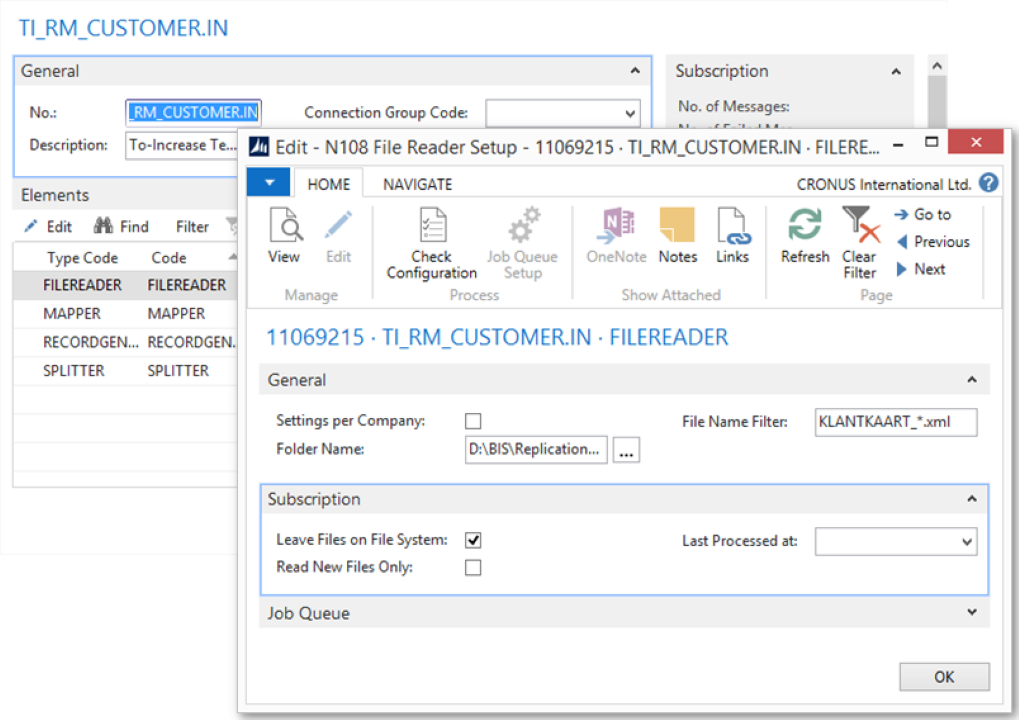
Open the TI_RM_CUSTOMER.IN connection. On the connection page, edit the File Reader settings and enter the folder name.
Note
The File Reader endpoint includes typical Replication Management properties: Leave File on File System, Read New Files Only, and Last Processed at. In many cases, the internal document from the publication connection can reuse for the subscription connection.
Process
Process the connection.
Check the Transaction Log to see more details.
Result
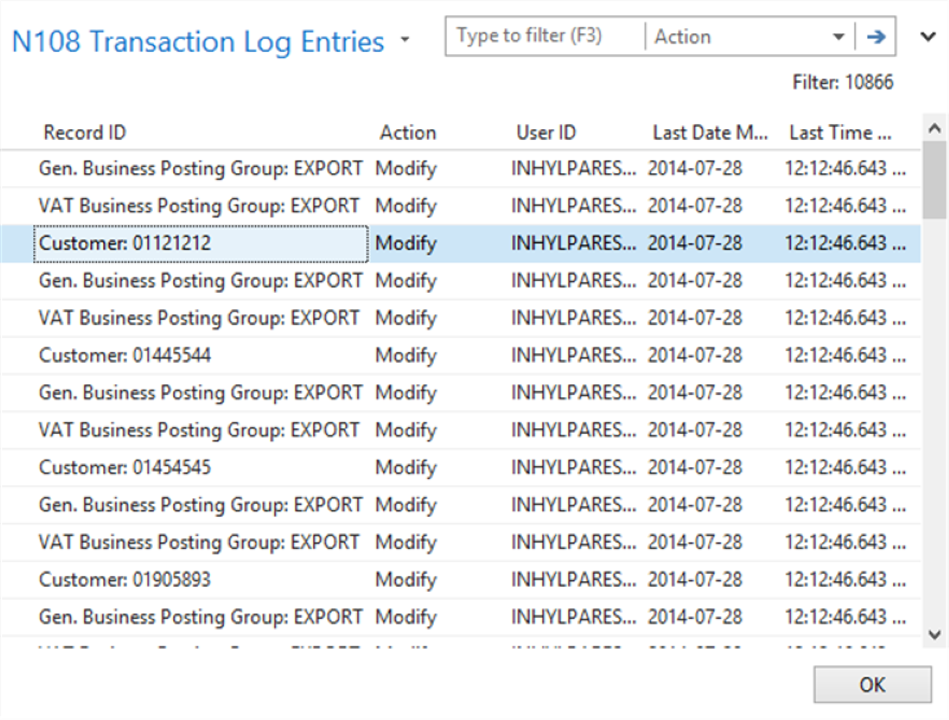
The customers are imported. You can also use the Transaction Log to see more details for each import.