Use this action to create and maintain versions of the production BOM and routing for a project. When created, the current version of the production BOM and routing is copied to a new version.
To make this possible, specify a version number series on the production BOM and routing. See also: Create production BOMs (Microsoft).
In the version list of the production BOM or routing, versions for a project are marked in the For Project field. The Description field shows the project and project task number.
Steps - Create BOM and routing version
To create production BOM or routing versions for a project:
Note
When creating a project-specific production BOM or routing, the replenishment policy for the parent item or SKU must be Order.
From the project budget or ProjectPlanning line, select Production BOM > Create BOM and Routing Version.
In the pop-up page, select an option for the New version for field:
Production BOM
Routing
Both Production BOM and Routing
When created, a new page opens showing the production BOM and routing. Modify the production BOM and routing versions as required.
When complete, use the Certify Versions action to set the status of the production BOM and routing to Certified.
A pop-up message notifies you to calculate the Project Unit Cost and Total Project Cost fields to show the cost based on the production BOM and routing versions for the project.
Show BOM and routing version
Use this action to open the production BOM or routing versions created for the project. The following actions are available:
Certify Versions: set the status of the new production BOM or routing versions to Certified.
Versions Under Development: reopen the production BOM or routing versions by setting the status to Under Development.
Cost Shares: open the cost shares page for the item, showing the cost breakdown based on the current production BOM and routing (not the project versions).
Steps - Calculate cost price per lot size
This feature calculates the project unit cost for an item using setup and runtime costs. You can define different lot sizes to determine the optimal quantity. When first opened, the quantity from the project budget line is used as the lot size.
The multi-level material cost calculation of Microsoft Dynamics 365 Business Central ignores the possibility of production cost reduction caused by higher production volumes in the lower levels. Cost price per lot size takes the actual production costs of the child items into account. You can add resources to the structure as part of the calculated production costs.
From the project budget line, select Production BOM > Cost Price per Lot Size to open the worksheet.
The first line is populated with the quantity from the project budget line. You can add more lines with alternative quantities.
Click Calculate in the ribbon to calculate the costs for the selected lines.
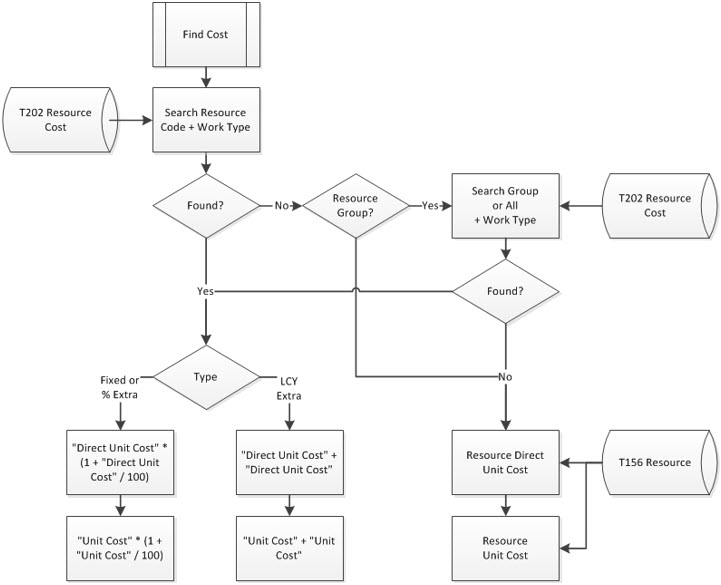
Note that the calculation is based on the cost settings in the work and machine centers. Pay extra attention to these settings when resources are integrated with the capacity centers (see flow chart below). The calculation can be repeated as many times as required.
When the calculation is correct, mark one of the lines as Standard Lot Size and use the Update Budget Line action to copy the lot size and cost settings to the ProjectBudget line.
Note
The calculation for resources looks at the Resource Cost table for the resource and takes the work type into account when retrieving the price:
First with the resource code.
When not found, with the resource group code.
When also not found, the costs from the Resource card are used.
If the manufacturing policy of a component is set to Make-to-Stock, the calculation uses the unit cost of the Item card.
If the manufacturing policy of a component is set to Make-to-Order, the calculation uses the unit cost calculated in the cost price per lot.
Flow chart resource integration