This page describes how to get a shared access signature for Azure File Storage.
Steps
If no storage account is configured, refer first to Azure Storage account setup.
For information on creating a SAS key, see: Authorize with shared access signatures (SAS)
Choose an appropriate storage account name. After completing the storage account setup, choose the appropriate file share to get the shared access signature.
Right-click the file share and select Get Shared Access Signature.

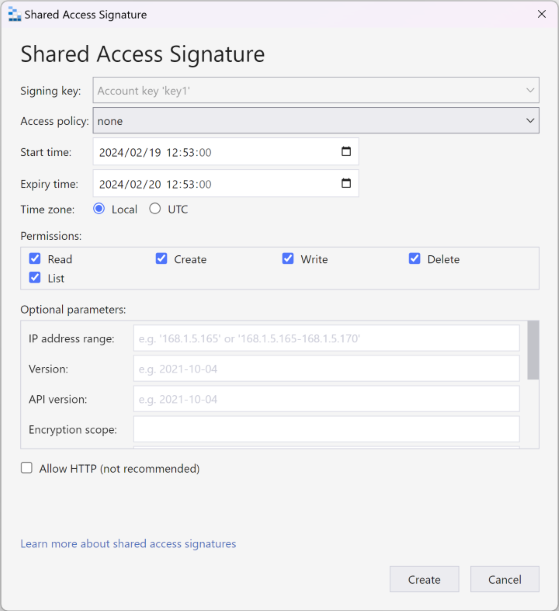
The shared access signature page opens. Choose a start and end date, provide all the necessary permissions, and select Create.
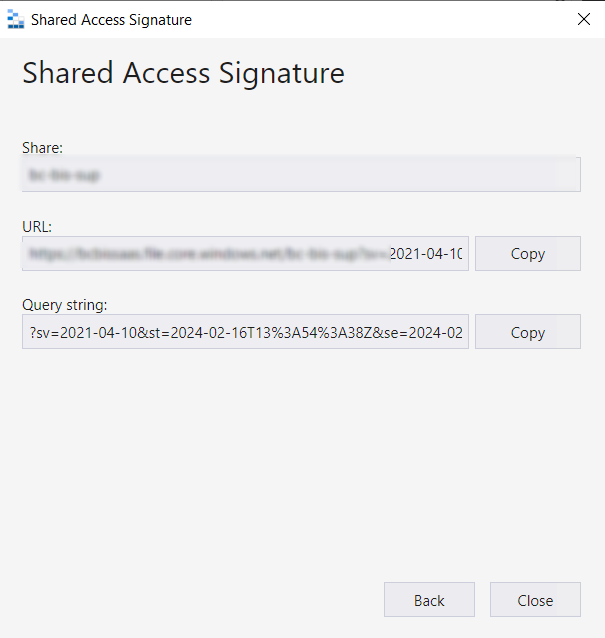
Copy and save the value from the URL field. Use this as the Base URL in the SAS Key Setup. Refer to SAS key setup.