PLM Integration links to a Product lifecycle management (PLM) system.
The PLM Integration is optimized for concurrent engineering and a high level of flexibility in creating complex BOMs. Direct visibility of the consequences of revisions supports close control of costs and schedules. To speed production, PLM Integration promotes greater efficiency in release and change management, and provides you with a single system of reference for all product and operational information.
For a visual introduction to PLM integations, see the video below.
Elements of PLM integration
The PLM integration connects engineering systems with D365 F&SCM to enable consistent and structured data exchange. It transfers product data such as items, bills of materials (BOMs), and routes from engineering to operations in a controlled way.
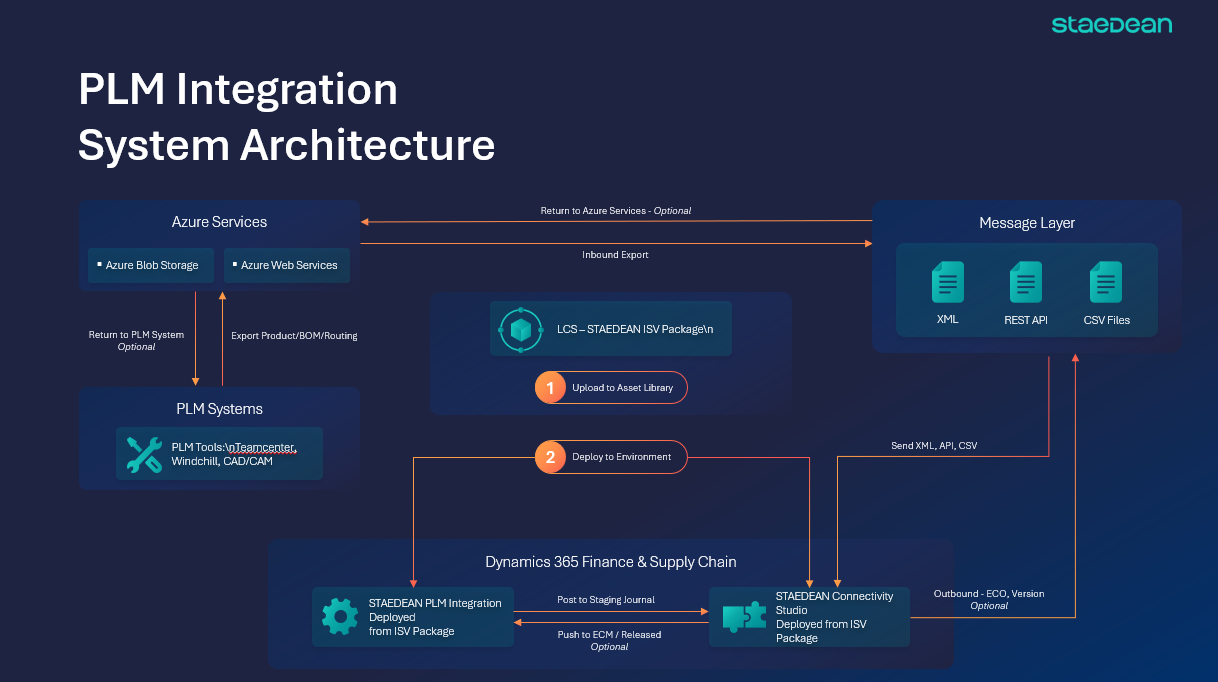
Engineering system (PLM, PDM, or CAD)
The engineering system is where product data is created and maintained.
Engineers use this system to design products and manage changes. It contains all the technical details required to manufacture a product.
Typical data includes:
Item and product definitions
Bills of materials (BOMs)
Routing or process information
Versions and revisions
To share this data with D365 F&SCM, the system uses connectors such as Windchill ERP Connector or Teamcenter T4EA. These connectors extract the required data and prepare it in a structured format.
Message layer
The message layer is responsible for sending data from the engineering system (or PEPLM) to D365 F&SCM.
It acts as a communication channel between systems and ensures that data is transferred in a standard format.
Key points:
Supports XML, REST APIs, and CSV formats
Ensures data consistency during transfer
Enables communication between different systems
Azure services (optional)
Azure services provide additional support for handling integration data.
You can use this layer when you need better control over how data is stored or transferred.
Typical use cases:
Store exported files in Azure Blob Storage
Process or transform data using Azure services
Manage large volumes of data
This layer is optional but useful for complex or large-scale integrations.
Connectivity Studio
Connectivity Studio controls how incoming data is understood by D365 F&SCM.
It acts as a configuration tool where you define:
How external data maps to D365 F&SCM fields
How data should be transformed before import
What validations should be applied
This ensures that incoming data fits correctly into D365 F&SCM and reduces errors during processing.
STAEDEAN PLM integration (ISV solution)
This is the main solution installed in D365 F&SCM that handles the integration process.
It works together with Connectivity Studio to:
Receive incoming data
Process and validate the data
Import it into the correct tables
It also manages integration workflows, error handling, and logging.
Dynamics 365 Finance & Supply Chain Management
This is the system where the imported data is used for business operations.
After the data is imported:
Items and BOMs are available for planning and production
Changes are managed through Engineering Change Management (ECM)
ECM helps you:
Track product versions
Control when changes are applied
Approve updates before release
Functional Flow of the PLM Integration
The PLM integration is executed using Connectivity Studio, which supports multiple file formats and connection types. This flexibility enables organizations to integrate PLM systems using any format supported by Connectivity Studio.
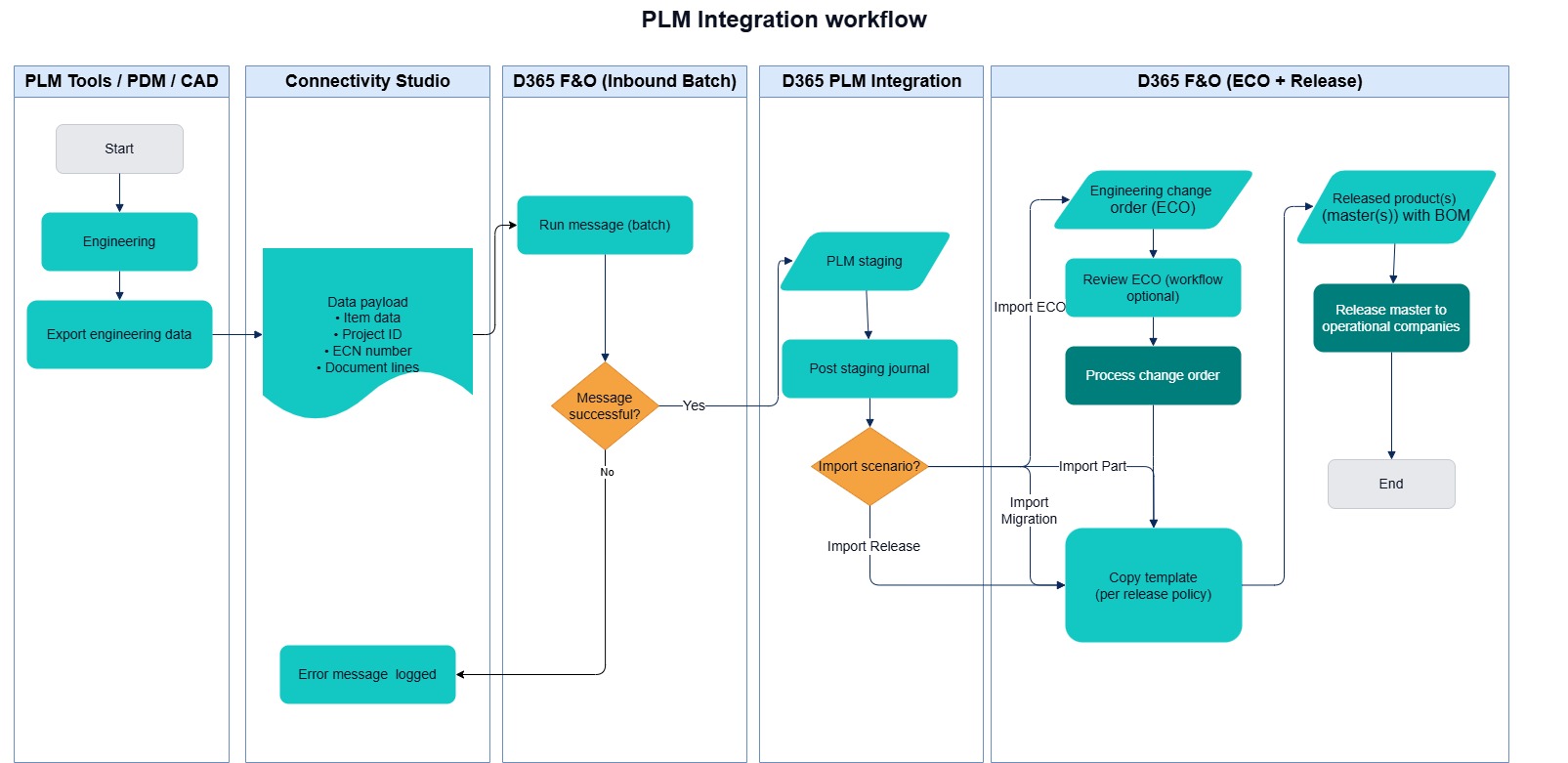
Export engineering data from PLM / PDM / CAD
The engineering system exports product structure and revision data as an XML file. Depending on configuration, the export may include additional information such as Engineering Change Notices (ECNs) or Bill of Materials (BOM).
The XML file can contain:
Item information
Project ID
Engineering Change Notice (ECN) number
Document links
BOM and route information
Scenario-specific data, such as release or migration details
The export represents the authoritative source data for integration.
Azure File Storage
The XML file is placed in the configured source location that is used by the connector. Depending on the implementation, this can be Azure File Storage, Azure Blob Storage, SharePoint, or a Web Service endpoint. This location acts as the exchange point between the PLM system and D365 F&SCM.
For file-based integrations:
Success message – After successful import, the XML file is moved to the Archive folder.
Error message – If import fails, the XML file is moved to the Error folder.
Inbound processing - Connectivity Studio
The Connectivity Studio component of the STAEDEAN Business Integration Solutions suite retrieves the XML file from the configured connector source. This process can run in batch mode, which removes the need for manual intervention.
If the message runs successfully, the data is written to a PLM staging journal.
If the message fails, an error log entry is generated.
At this stage, the imported engineering data becomes visible in the D365 F&SCM user interface through the PLM staging journal.
PLM Staging Journal Processing
When imported, the PLM data becomes available in the staging journal. Each journal represents an integration message and includes metadata about the imported product, version, and scenario.
The next step is to post the PLM staging journal. The selected scenario determines how the data is processed in D365 F&SCM.
The PLM Integration supports four scenarios:
ImportPart
Use this scenario to create or update engineering products directly from the imported PLM data.
Used when the import should create or update products without engineering change order processing.
Engineering items, versions, BOMs, and documents are created or updated directly when the staging journal is posted.
This scenario is typically used for standard product and BOM synchronization from PLM to D365 F&SCM.
No ECO is created.
For example:
Windchill data sent without an ECN is processed through this scenario.
Generic PLM integrations such as PEPLM can use this scenario to create or update released products directly.
ImportECO
Use this scenario when engineering change control is required.
Used when the XML contains ECN information, or when the scenario indicates that an engineering change process must be followed.
The imported ECN data is converted into a D365 F&SCM Engineering Change Order (ECO).
Standard Engineering Change Management processes are then used to review, approve, and process the change.
This scenario ensures traceability and controlled change execution.
For Windchill integrations, the presence of an ECN typically triggers this scenario automatically.
ImportMigration
Use this scenario for controlled engineering data migration into the engineering company.
Used during data migration activities to create engineering products and versions in D365 F&SCM.
Typically used to load products first, without releasing them immediately to operational companies.
Can be used to import products without BOMs in an initial step, and later import BOMs and routes in a separate migration step.
Posting is performed through Post migration staging journals.
This scenario is especially useful during initial implementation or bulk migration, where data must be loaded in a phased and controlled sequence.
ImportRelease
Use this scenario to release engineering products from the engineering company to operational companies.
Used after products and versions exist in the engineering company.
Supports release of products to logistical or operational companies.
Can be used first to release products without BOM structures, and later to release parent items so that BOMs and routes are released in a controlled way.
Requires the Target company to be specified on the staging journal.
Posting is performed through Post release staging journals.
This scenario supports structured rollout of engineering data across legal entities while minimizing posting issues and database deadlocks during large releases.