In general, the more complex your integration setup is, the longer it takes to run the integration. To make performance issues visible, do not test with only a few records. Also test with the number of records that you expect the message to process daily.
Besides the complexity level of your integration, you have several options that you can consider to improve the performance of the integration.
Connector
To improve the performance of data import or export, you can consider several connector settings. The available settings depend on the connector type.
Database
Timeout
For a Database connector, you can configure a timeout. If an export or import exceeds the specified time, the process is stopped and a timeout error is returned. Define the timeout in the Properties section, in the Timeout (secs) field. The timeout value is expressed in seconds.
In the Timeout (secs) field, enter the timeout threshold in seconds.
Note
The Database connector timeout is related to the Service Bus Timeout as defined in the Connectivity Studio parameters. When both timeout settings are configured, the higher value of the two is applied.
Partition
In database systems, such as Microsoft Dynamics AX 2012 R2 and later, data partitions are used to logically separate data within a single database. To be able to use the primary index in your query, the partition is included in the database (ODBC) query.
The partition column in each AX 2012 table (usually called PARTITION) stores the RecId of an entry in the Partitions table. Define the partition column name in the ODBC fields section, in the Partition field.
In AX 2012, several partitions can exist. Define the desired partition for your query. Define the partition RecId in the ODBC fields section, in the Partition value field.
Note
Besides the Partition, the primary index of AX 2012 tables also includes the Data area ID. The connector uses the current legal entity's Data area ID automatically.
Service Bus queue
Timeout
For a Service Bus queue connector, you can configure a timeout that is applied when data is received from the Service Bus queue.
A general rule for setting the appropriate timeout: The larger the message size, the longer the timeout.
Define the timeout in the Properties section, in the Time out (secs) field. The timeout value is expressed in seconds.
Note
This Service Bus queue connector timeout is related to:
The Service Bus Timeout as defined in the Connectivity Studio parameters.
A hard-coded timeout of 300 seconds (5 minutes).
When two or three of these timeout settings are configured, the highest value is applied.
Document
In general, to limit processing time, include only the necessary records and fields in your documents. The more records and fields your document has, the longer it takes to process the integration. To improve the performance of data import or export, you can also consider several document header settings. The available settings depend on the document type:
External file-based
Process type = 'Direct'
If you import or export (big sets of) simple data, use the process type Direct. For simple data, the document lines only have a root record. When a message is run, the data is directly mapped. More technically: It only loads the data into the memory of the record table (usually the BisBufferTable). As a result, the import or export of data is faster.

Read filename
For external file-based documents, you can import all applicable files in the Source folder in parallel. To import several files in parallel, on the:
Document header, in the Read filename field, define a range value. For example, use an asterisk (*).
Example: Read file name = %1*.%2 and Sample file name = SalesOrder*.xml.
Message header, set the performance Type to 'Parallel'.
Text or Microsoft Excel
Split quantity
For Text or Microsoft Excel documents, on import, you can split large files with a lot of records. Whether a file must be split is defined on the document header, in the Split quantity field. As a result, the original file is put in the Split folder instead of the Working folder. When the message is run, the original file is split into smaller files based on the split quantity. The smaller split files are put in the Working folder. Combined with the message performance Type set to 'Parallel', the message processes the split files in parallel to improve performance.

ODBC
Paging
For ODBC documents, to improve performance when processing a lot of records, you can use paging. For paging, the records are split over several threads that run these records in parallel batch tasks. For each new run, the threads get the same start and end dates.
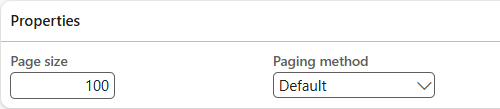
On the document header, in the Page size field, enter the number of records to be processed by one batch task. Combined with the message performance Type set to 'Parallel', the pages are processed in parallel to improve performance.
Also, define the applicable paging method:
Default: The default method uses offset paging. For each next page, it starts at the beginning and counts forward again, walking past and skipping all previous records each time. As a result, this method gets slower as the offset grows. Example: Page size=100, first 1,000 records are already paged. For the next page, records 1 - 1,000 are read and skipped, records 1,001 - 1,100 are returned.
Modulo: Used for large data sets of, for example, millions of records. All records are sorted into pages based on the record ID. This method results in more consistent query performance for large datasets.
In the Paging method field, select an option.
Note
The Modulo paging method only works if a sorting field is defined for the document and this field is of type Int64 or Integer.
Internal
Query page size
For internal documents, to improve performance when exporting a lot of records, you can use paging. For paging, the records are split over several pages that run these records in batch tasks. On the document header, in the Query page size field, enter the number of records to be processed by one batch task. Combined with the message performance Type set to 'Parallel', the pages are processed in parallel to improve performance.

Message
In general, to limit the processing time, on your messages, only map the records and fields that you need for the integration. The more records and fields you map in your message, the longer it takes to process the integration.
To improve the performance of data import or export, you can also consider several message header settings:
Performance settings
Type = 'Parallel': You can define how batch tasks are run when a message is processed. If the Type is 'Parallel', batch tasks are split over several threads to run in parallel. Parallel processing improves the performance of message processing.
Note
Parallel processing is only applied if the message is run in batch.
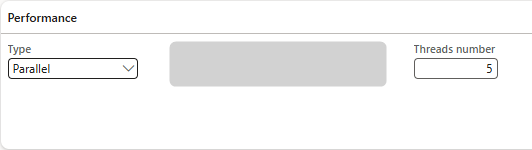
Threads number: If Parallel processing is applied, by default the number of threads is set to 0. When the message is run, a separate batch task is added to the batch job for each file to be processed.
Disadvantage: The more files must be processed, the more batch tasks are created. This can 'flood' the batch system with batch tasks being run at the same time.
You can define a number of threads to limit the number of batch tasks that are created for a message run. As a result, the files to be processed are spread over the defined number of threads.
Example: Threads number is 5, number of files is 50. As a result, 5 batch tasks are created, each processing 10 files sequentially.
History settings
History type = 'History':
To improve performance, select 'History' to only store generic message errors in the history for the message.
Disadvantage: Fewer details are stored in the message history.Transaction level = 'Document':
Process all data in one transaction instead of processing the data in separate transactions per root record entity of the document.
Example: If you process several sales orders in one message run, all sales orders are processed in the same transaction.Note
You are advised to thoroughly consider the number of records to be processed in one transaction. If you process many records in one transaction and one of these records fails, none of the records is processed. If your transaction level is 'Document' and you process many records in one go, consider using paging or split quantity on the applicable document.
Create history report = 'No':
Do not create a report in Microsoft Excel format that contains the errors that occurred during a message run. The more errors you have, the more time it takes to create a history report.Store history = 'No':
Only store the records with errors in the history. Do not store the successfully processed records, as this increases the processing time. The fewer errors you have, the more time it takes to store the history.Log changes = 'No':
On import, do not log which D365 F&SCM data is changed during import.
Tasks
You can use task dependencies to schedule data import or export in batch. One of the reasons to use task dependencies is to improve the performance of your integration. Tasks that are scheduled at the same level can be processed in parallel. This improves the performance of the data import or export. Also, the messages that are defined for a task are run in parallel.