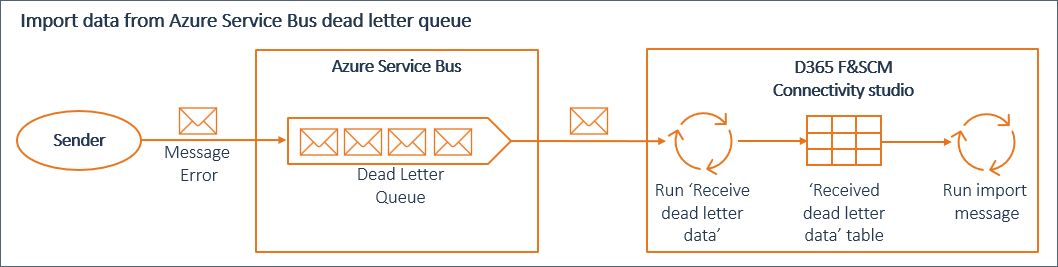
If a receiver reads a message from a Service Bus queue or topic subscription, an error can occur. If so, the Service Bus moves the message to the applicable dead letter queue.
For more information, refer to Service Bus queues, topics, and subscriptions.
Setup
In this section, you can find information on the setup required to import Service Bus dead letter queue data into D365 F&SCM.
Connector
You can use a connector of type 'Service Bus queue' to import data from an Azure Service bus dead letter queue.
Make sure that for the connector the:
Service Bus type is 'Queue'.
Entity field is filled with the name of the applicable Service Bus dead letter queue.
Document
The source document of the import message defines which data is imported from the Received dead letter data (BisConSbReceivedDataDeadLetter) table and in which format and structure.
Examples of fields that can be used in the document are:
DeadLetterReason: Contains the reason the message was moved to the dead letter queue.
DeadLetterErrorDescription: Contains the detailed error description associated with the dead-lettered message.
Note
In a dead letter data import message, you can only use these external file-based documents: EDI, Fixed text, Text, XML, JSON. For such a document select the version 3 (V3) handler class.
Message
Set up messages to read data from the Received dead letter data (BisConSbReceivedDataDeadLetter) table and import this data into D365 F&SCM. The import messages must have the 'Service Bus queue' connector as source connector.
Service Bus search definitions
To import data received from a Service Bus dead letter queue, you need an import message. Define dead-letter-specific Service Bus search definitions that are used to assign messages to the received data records. You can use these messages to import the received dead letter data into D365 F&SCM.
Data import from Service Bus dead letter queue
To import Service Bus dead letter queue data:
Run 'Receive dead letter data' to receive data from a Service Bus dead letter queue. The received data is added to the Received dead letter data (BisConSbReceivedDataDeadLetter) table in Connectivity Studio. On receiving data from the Service Bus dead letter queue, based on the Service Bus search definitions and settings on the received data, import messages are automatically assigned to the received dead letter data records.
Run import messages to read data from the Received dead letter data (BisConSbReceivedDataDeadLetter) table and import this data into D365 F&SCM. The import messages must have the 'Service Bus queue' connector as source connector.