---
title: "XMLTOHTMLTRANSLATOR activity"
slug: "bc-xmltohtmltranslator-activity"
description: "Convert XML to HTML effortlessly with the XMLTOHTMLTRANSLATOR activity, creating unique templates for your company's notifications and branding."
tags: ["BC", "BIS", "Business Central", "Business Integration Solutions", "Concept", "Task"]
updated: 2026-06-25T09:59:07Z
published: 2026-06-25T09:59:07Z
canonical: "docs.staedean.com/bc-xmltohtmltranslator-activity"
---
> ## Documentation Index
> Fetch the complete documentation index at: https://docs.staedean.com/llms.txt
> Use this file to discover all available pages before exploring further.
# XMLTOHTMLTRANSLATOR activity
In Business Integration Solutions, use the **XMLTOHTMLTRANSLATOR** activity to convert an XML document into an HTML document.
## Usage
Use this activity to create an HTML template that is unique to your company. You can use this template in the notification body as your company branding.
## Concept
For external documents, notifications must use the company's house style. Notification message layouts require complex configuration. A data source must be specified per language or a document definition must be configured.
The **XML to HTML Translator** activity gives you flexibility to create these layouts in several ways:
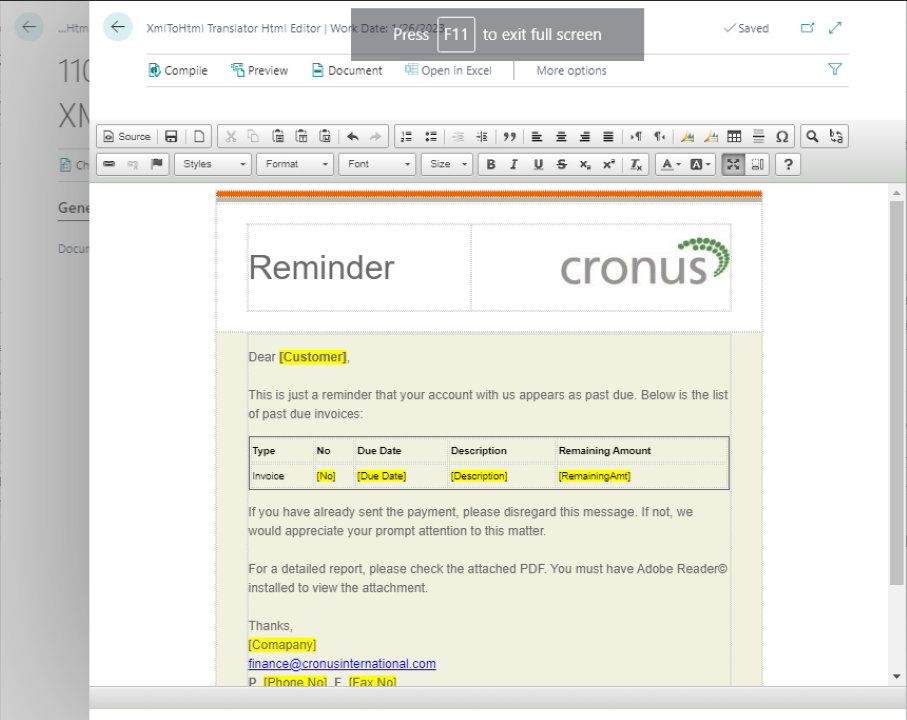
- **Text-Only**: In most cases, text-only notifications are sufficient. Open the **CK Editor** and type the text that should appear in the notification body.
- **Edit Source**: If you have an HTML source available, copy and paste it directly into the Source option of the **CK Editor**.
- **Import XSLT**: You can import and use a custom XSLT (Extensible Stylesheet Language Transformations). To enable this option, enable the **Use a Custom Xslt** flag after selecting **More options** in the **General** tab.
The **CK Editor** provides a data binding option that establishes a connection between the application and business logic. When settings and notifications are correctly configured, the data reflects changes when made.
You can preview the notification message with sample data and make corrections before publishing the notification.
> [!NOTE]
> **Note**
>
> Select the save button in the **CK Editor** after making changes.
XML input ➡️ [XML to HTML Translator] ➡️ HTML output
## Setup
To set up the XML to HTML Translator activity, see [Set up the XML to HTML Translator activity](/business-central/docs/bc-set-up-the-xml-to-html-translator-activity).
## Related
- [Set up the XML to HTML Translator activity](/bc-set-up-the-xml-to-html-translator-activity.md)