In Business Integration Solutions, the Timer event triggers a pipeline based on a time interval in Microsoft Dynamics 365 Business Central.
Usage
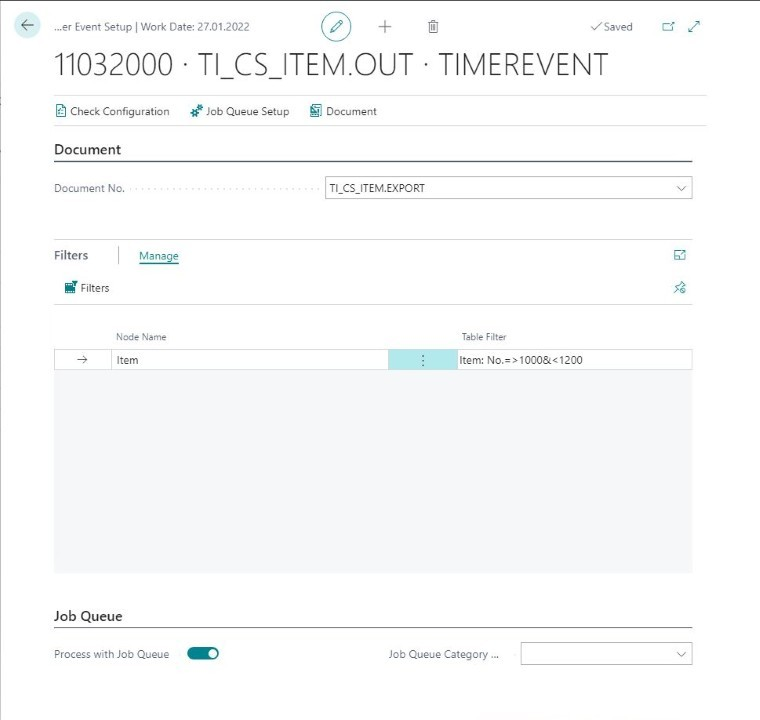
Use this event to export a filtered set of data frequently from Microsoft Dynamics 365 Business Central. You can configure a Timer event for a table by:
Defining an internal document
Providing table and field filters
Use the job queue to process the Timer event automatically. On the Job Queue Entry card, you can define the recurrence and interval of the job queue. Once the job queue is configured for the Timer event, it regularly exports a filtered dataset.
Concept
An internal document specifies the tables on which the Timer event is configured. When the Timer event triggers, either manually by selecting the Process button or automatically via the job queue, it creates a filtered set of data. You can add extra filters for the table field values; for example, customers with language code = NL, or items with a cost price > €1500. This record set is the Timer event's output and serves as the input for the first activity in the pipeline, most likely the XML Generator activity.
[Microsoft Microsoft Dynamics 365 Business Central] ➡️ [Timer Event] ➡️ [