Project Control Suite is a module of Industrial Equipment Manufacturing and extends the Business Central Projects Setup with the following fields:
General
Field | Description |
|---|---|
Apply Usage Link | This is a Microsoft Dynamics 365 Business Central setting: Specifies whether project ledger entries are linked to project planning lines by default. Select this check box if you want to apply this setting to all new projects that you create. This setting is essential for APM to ensure postings are linked to the correct planning line. For that reason, the setting is Not-Editable. |
Numbering
To see the number series set up in the No. Series table, click the drop-down arrow in the field.
Field | Description |
|---|---|
Posted Deliveries No. | Specifies the code for the number series used to assign numbers to deliveries posted from the project. |
Project Deliverable No. | Specifies the code for the number series used to assign numbers to project deliverables. |
Project Change Order Nos | Specifies the code for the number series used to assign numbers to project change orders. |
Combined Projects Nos | Specifies the code for the number series used to assign numbers to combined projects. |
Advanced
These settings are specific to the Project Control Suite extension.
Field | Description |
|---|---|
Action on Completion | When the project is set to the status Completed, several checks are made. This setting determines the response: Blank: do nothing. Warning: the user gets a warning but can continue. Error: the user gets an error and is stopped. |
Base for ETC Calculation | Select the basis for the forecast estimate to completion calculation: Budget (default) or Actual. |
Forecast Rounding Method | Select the method to round numbers in the forecast. |
Summary Rounding Method | Select the method to round numbers in the summary. |
Base Calendar Code | Mandatory. Select a base calendar code as a default for projects to set non-working days in the timeline calculation. Specific base calendar codes can be set in the base template and/or project header. |
Delivery Off-set | Specify a date formula to set the planned delivery date before the project task ending date. |
Use Work-date as Posting Date | When set, the work date is used when posting the project planning line instead of the planning date. |
Project Dimension Code | For the dimension code selected here, a new dimension value is created (the project number) every time a new project is created. |
Cost types
With cost types you can group the different types of costs in a project. The cost type is also used to calculate surcharges. Define the codes in Project cost types and use the fields below as a default. On item, resource, and G/L account cards you can select specific project cost types.
Field | Description |
|---|---|
Resource Cost Type | Select one of the project cost type codes as default for resources (person). |
Equipment Cost Type | Select one of the project cost type codes as default for equipment (resource: machine). |
Material Cost Type | Select one of the project cost type codes as default for material (items). |
Expenses Cost Type | Select one of the project cost type codes as default for expenses (G/L account). |
Long lead-time warning
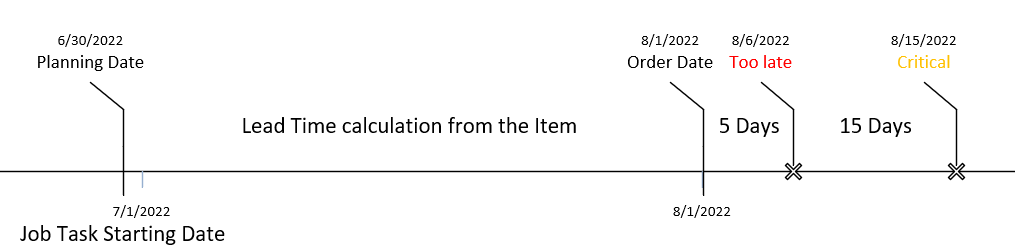
To make planners aware of long lead-time items, the Order Date field in the ProjectBudget line is calculated based on the Planning Date + Lead Time Calculation as specified on the Item card. The order date indicates the latest date the order can be placed, assuming time is required for negotiating and processing the order.
Field | Description |
|---|---|
Critical | Specify a date formula to set the threshold for critical. When true, the style of the Order Date is set to Ambiguous. |
Too Late | Specify a date formula to set the threshold for too late. When true, the style of the Order Date is set to Unfavorable. |
From opportunity to project quote
When using the activity from opportunity to project quote, the sales cycle workflows can be used to automatically create tasks (to-dos).
Field | Description |
|---|---|
Cancel Existing To-Do's | When set, related tasks are automatically cancelled when the opportunity is closed or cancelled. |
Project features
Select the feature codes (maximum 20) you want to use in the Project card, budget lines, and planning lines. Create feature codes in Project Features and then select them in Projects Setup to set the sequence.