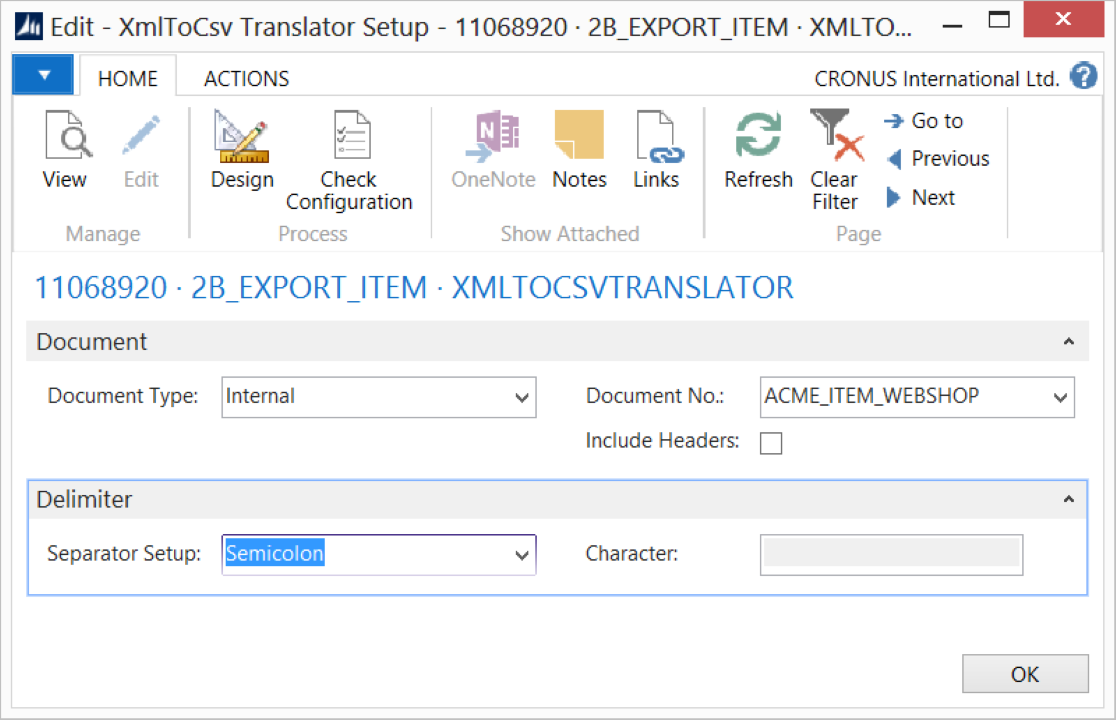
Use the XML to CSV Translator activity to export data in CSV format.
To set up the XML to CSV Translator activity:
Create a connection and insert the element XMLTOCSVTRANSLATOR.
On the elements line, select Edit.
On the XML to CSV Translator Setup page, fill in the following fields:
Select Check Configuration to see if there are Anywhere Mobility Solutions configuration errors.
Select OK.
Settings
Field | Description |
|---|---|
Document Type | Select the document type: Internal or External. For this activity, typically select Internal. |
Document No. | Based on the document type, select the document. |
Include Headers | Select this field to export header details to the CSV. |
Separator Setup | Select the delimiter type to use in the CSV file. |
Character | If you set Separator Setup to Other, specify the delimiter character in this field. |
Encoding | The activity supports the encoding types supported by standard Microsoft Dynamics 365 Business Central: Unicode, UTF8, and ASCII. |
Codepage | To write the file in a specific encoding type, set Encoding to Others and specify the codepage ID. For more information about encoding code page numbers, see the Encoding Class topic in MSDN. |