Use the Text to XML Translator activity when you receive external data in text format (fixed length) to process into Microsoft Dynamics 365 Business Central
Cost bases and cost calculation methods
Steps
Create a connection and insert the element TEXTTOXMLTRANSLATOR.
On the elements line, select Edit.
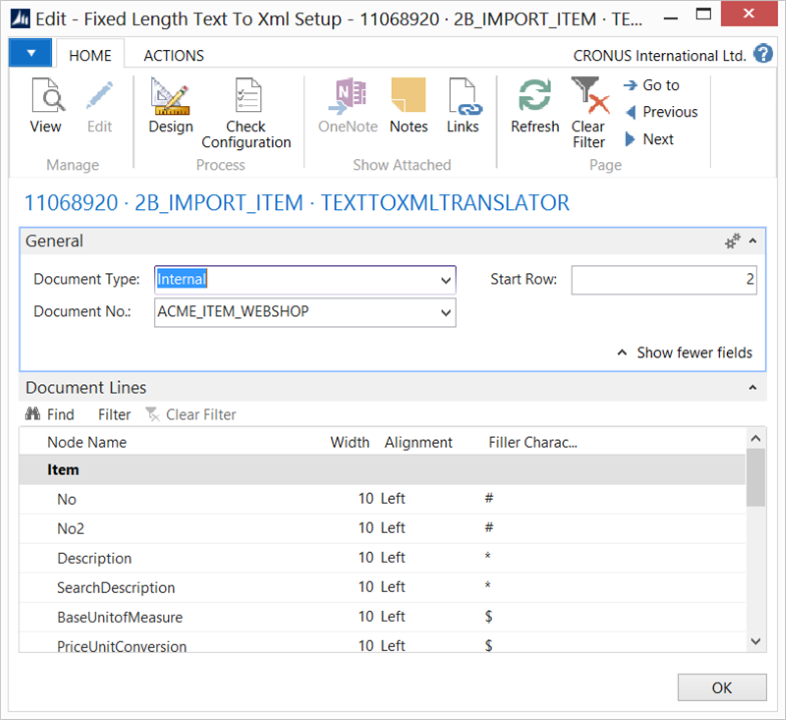
On the Text to XML Translator Setup page, fill in the following fields:
Select Check Configuration to see if there are Anywhere Mobility Solutions configuration errors.
Select OK.
Settings
Field | Description |
|---|---|
Document Type | Select the document type: either Internal or External. |
Document No. | Based on the document type, select the document. |
Start Row | Specify the row in the source document from which to start the translation. |
Node Name | Filled in automatically based on the selected document. |
Width | Specify how many characters the field includes. |
Alignment | Specify the alignment: Left or Right. |
Filler Character | Specify which character fills the empty places in your text file. |