Use an ATTACHMENTGENERATOR to attach Microsoft Dynamics 365 Business Central reports or files to an outgoing message.
Settings
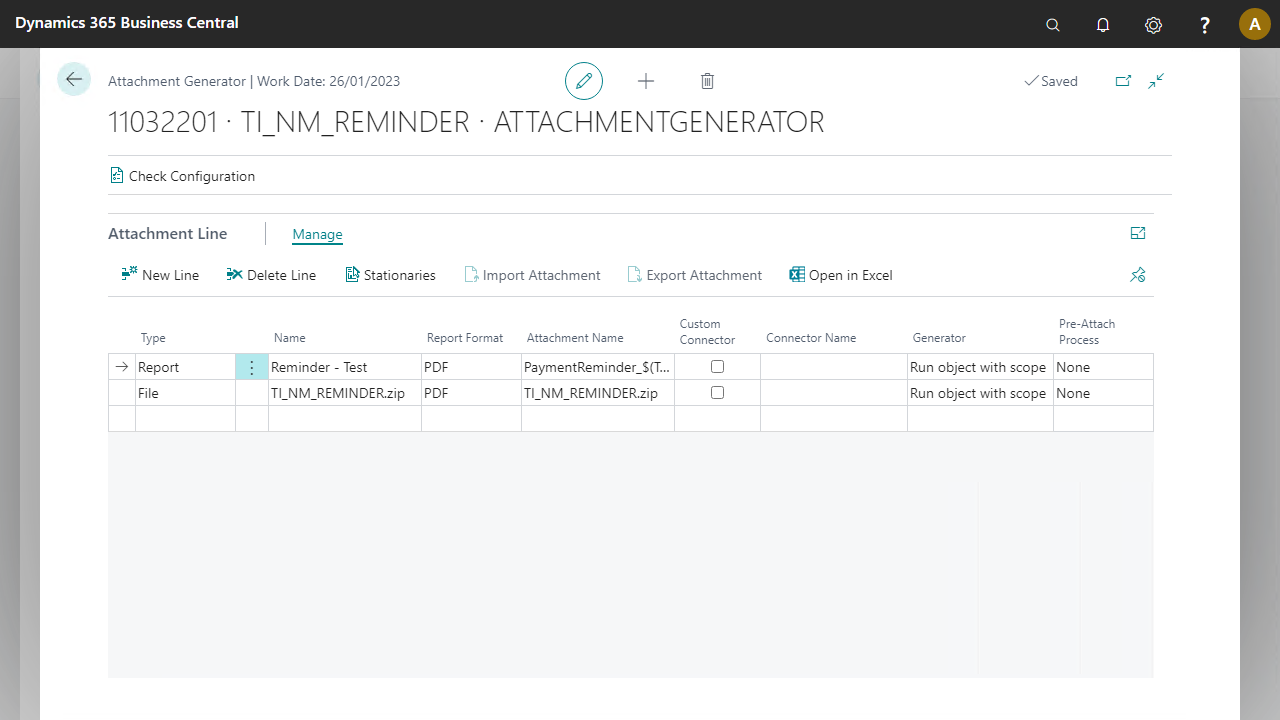
Field | Description |
|---|---|
Type | Select a type. Report: attach a report. File: attach a file, uploaded via Import Attachment. |
Name 1 | Either the report name or the file name. |
Report Format | PDF only. Word and Excel formats are no longer supported. |
Attachment Name | Provide an attachment name. You can add a string value to generate a unique name for each attached file, for example, date and time values, a message number, and/or a field value such as the related sales order number. |
Custom Connector | When selected, a custom connector is used for the attachment. |
You can use a custom connector to implement custom functionality. For more information, refer to the Software Development Kit document. | |
Generator | When a report is selected, it can run in scope of the record in the message or without. |
Pre-Attach Process | A pre-attach extension manipulates the file or report before attaching, for example, applying stationeries or watermarks, encrypting, or signing documents. |
Steps
Create a notification and insert the element
ATTACHMENTGENERATOR.On the elements line, select Edit.
In the Attachment Generator Setup page, fill in the fields.
Select Check Configuration to see if there are Anywhere Mobility Solutions configuration errors.
Select OK.
Note
The name can refer to a network location without uploading a file. This is limited to on-premise versions only.
The Custom Report Connector is only supported in on-premise versions.
The stationeries option is limited to on-premise. The pre-attach process can be an alternative to bring this support to the cloud.