Execute the following setup configuration before running this demo process.
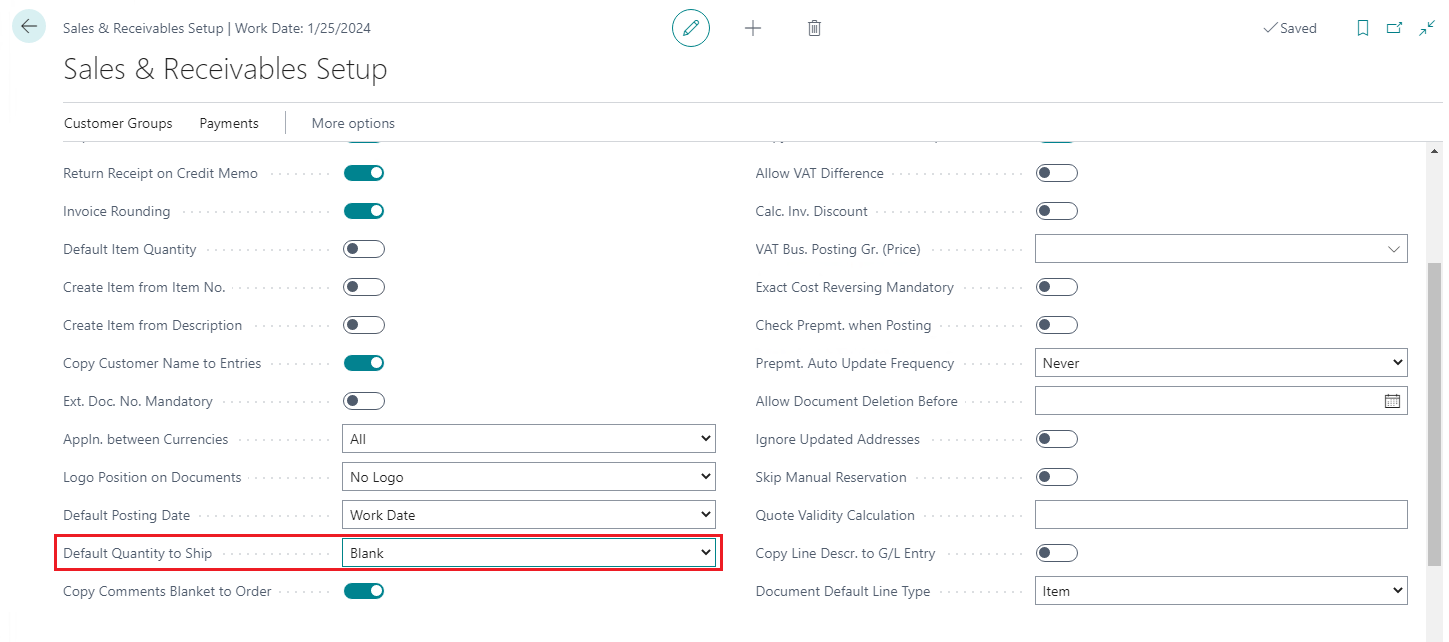
Set the default value of the Qty. to Ship field at the Sales Order Line to 0 when creating new orders and after posting.
Sales and receivables setup
Go to the Sales & Receivables Setup page and set the Default Quantity to Ship to Blank.
Item tracking
To support item tracking in all pre-configured processes, modify existing item tracking codes. See more.
Sales order
In this demo script, a released sales order is shipped. Create this released sales order before using the Sales Order Shipment pre-configured process.
Tip
Instead of entering a sales order, you can execute the demo script "Create Sales Order" to create a new sales order for location BLUE. Make sure you order items that are in inventory at the location. Do not forget to release the sales order in Microsoft Dynamics 365 Business Central to make it eligible for use in this process.
Steps
Execute the following steps before running this demo process.
Go to the Sales Orders page.
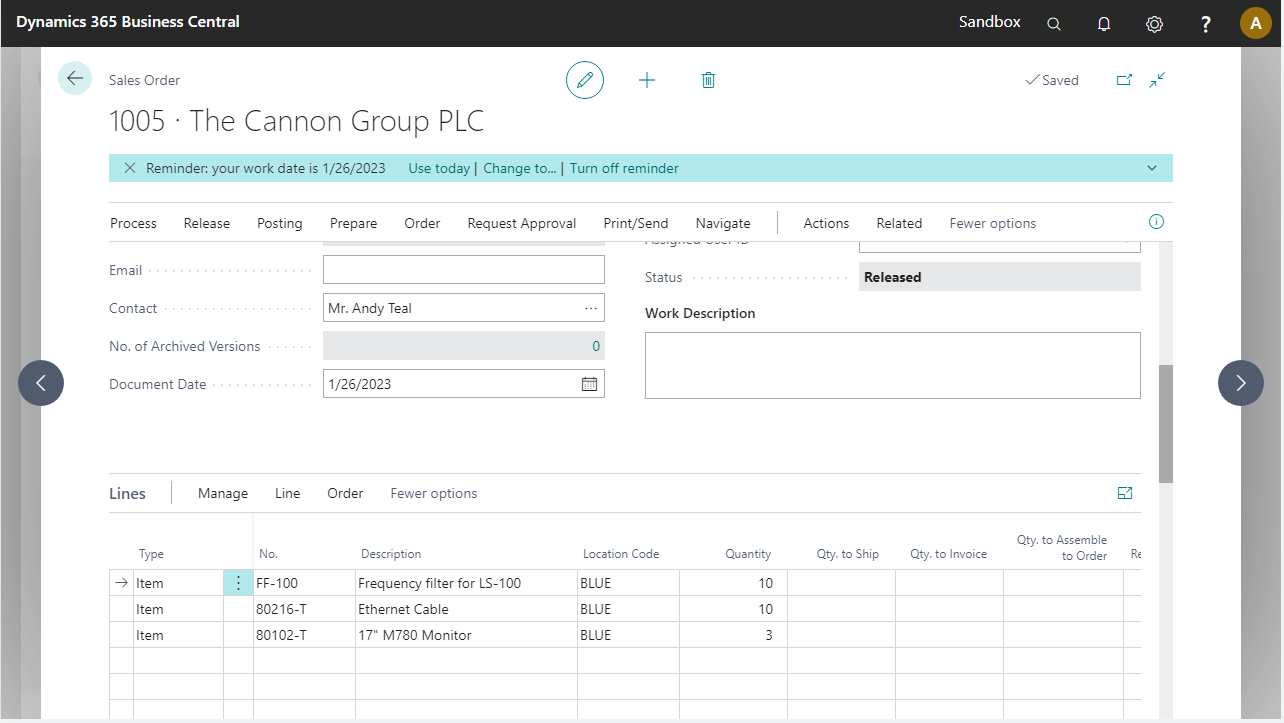
Create a new order for customer 10000, The Cannon Group PLC.
Type
No.
Location Code
Quantity
Item
FF-100
BLUE
10
Item
80216-T
BLUE
10
Item
80102-T
BLUE
3
Add the following lines with the exact items and quantities shown below.
Release the order.