This walkthrough provides an overview of how to export data from Microsoft Dynamics 365 Business Central, involving several tables. In the following example, you export purchase order data from Microsoft Dynamics 365 Business Central.
Prerequisites
Template | Description | Sample file |
|---|---|---|
TI_CS_PURCHORDER.OUT | STAEDEAN Template - Export Purchase Order (XML Format) | N/A |
Story
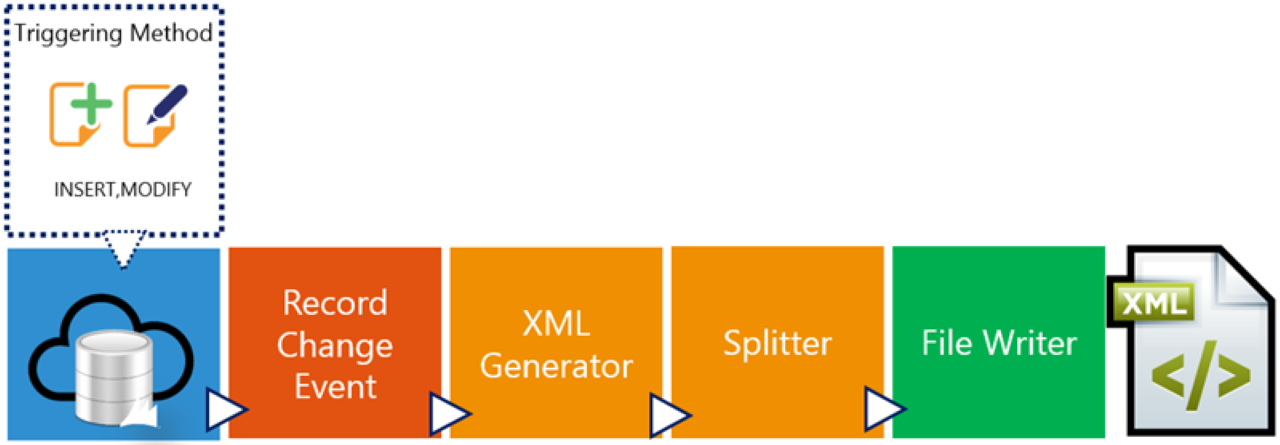
This connection uses a Record Change Event to trigger the pipeline. Whenever you modify the Purchase Header, such as a status change, the Record Change Event picks it up. Once the pipeline triggers, the XML Generator activity creates an XML file based on an internal document. The Splitter activity creates one message for each purchase order. The File Writer writes the XML document to the specified location.
Setup
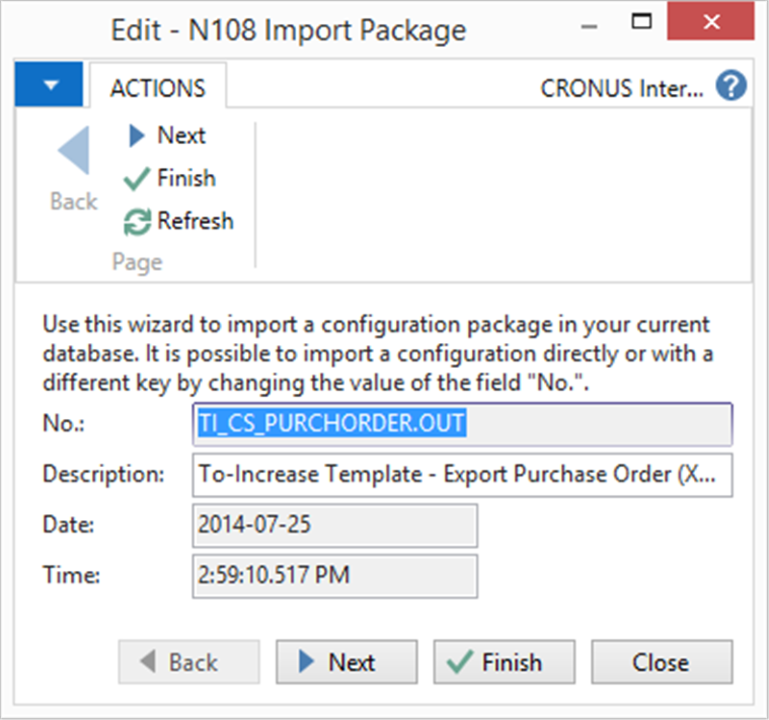
Import the Connectivity Studio Connection-TI_CS_PURCHORDER.OUT.zip configuration package.
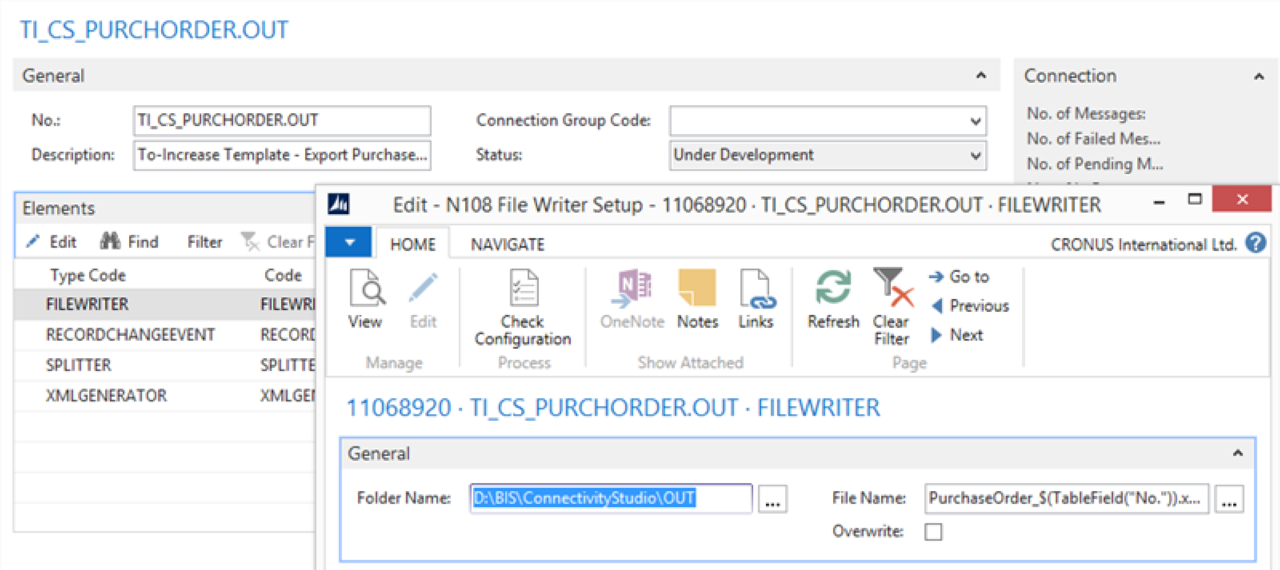
Open the TI_CS_PURCHORDER.OUT connection. On the connection page, edit the File Writer settings and enter the folder name.
Restart the RTC client.
Process
Open a purchase order or create a new one, for example, for 50000 Service Electronics Ltd.
Change the status to Released.
Open the connection. To check whether the event detected the record modification, select Edit, then Navigate, then Design.
Process the connection.
Check the output folder location.
An XML file with the purchase order details is created. In this scenario, the item details are generated only when the status is set to Released. You can change this in the table filter for Purchase Header in the TI_CS_PURCHORD internal document.
Result
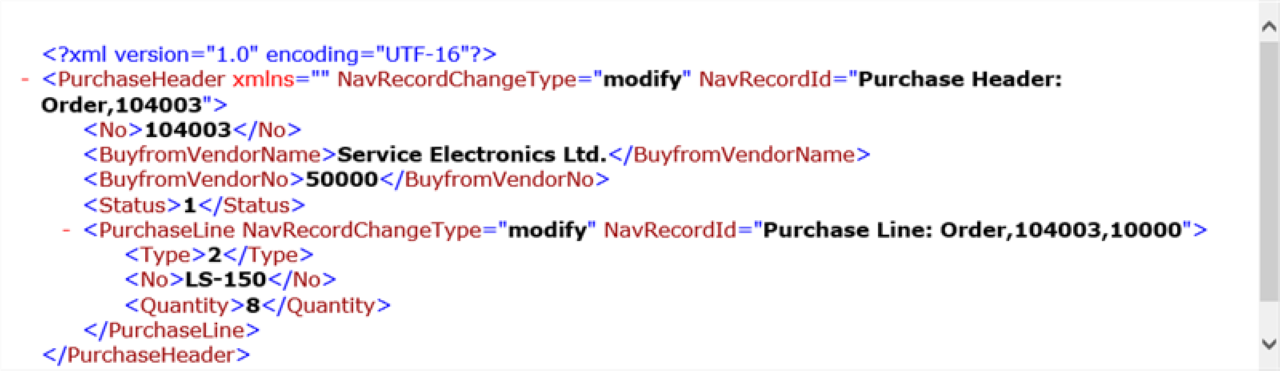
This exports purchase orders based on the internal document structure and the status change filter.