Business Integration Solutions app structure
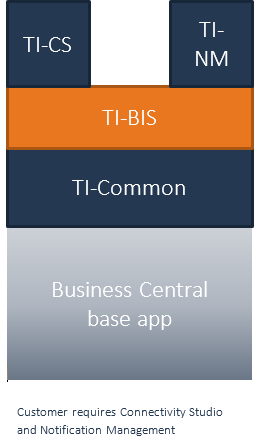
A new structure replaces the Business Integration Solutions, splitting it into several apps. At the base is the STAEDEAN-Common app. In a regular app environment, STAEDEAN-Common is the first app placed on top of the Base D365 BC app. This app does not appear in the Extension list in Microsoft Dynamics 365 Business Central and is a depend-app.
The second layer is the Business Integration Solutions app. This app contains only the business logic used by the former Business Integration Solutions solutions: Replication Management, Connectivity Studio, Notification Management, and EDI Studio-Studio. The Business Integration Solutions app also contains the framework for Label Printing and Anywhere Mobility Solutions. The Business Integration Solutions app does not appear in the Extension list in D365 BC and is also a depend-app.
The former Business Integration Solutions solutions are now all separate apps. For example, if an organization requires Connectivity Studio, it installs the Connectivity Studio app without Notification Management, EDI Studio, and Replication Management.
The following apps are available in the Business Integration Solutions Solution:
STAEDEAN-Common (depend-app)
Business Integration Solutions App (depend-app)
Connectivity Studio App
Notification Management App
EDI Studio App
Replication Management App
Business Integration Solutions APP structure layer example
Initialize Business Integration Solutions on-premises
This manual applies only to the on-premises installation of Business Integration Solutions. Download the installation package and unzip it.
Note
Run the unpacking and installation process on the same machine with the same environment to prevent Windows security from blocking the executables.
From the extracted package, open the root folder, locate the file STAEDEAN D365 BC Business Integration Solutions Installer.exe in the BCBIS folder, and run the file.
Installing add-ins
This installer copies all required external files to the BCBIS subfolder in the server-side STAEDEAN add-in folder. The default path is C:\Program Files\Microsoft Dynamics 365 Business Central\250\Service\Add-ins\STAEDEAN\NAVBIS. You can modify this path during installation.
Configuring the server
To support custom functions in expressions, add a key to the customsettings.config file of the D365 BC Service (default path: C:\Program Files\Microsoft Dynamics 365 Business Central\150\Service\Customsettings.config):
To update the server configuration, run the Microsoft Dynamics 365 Business Central Administration Shell (or a PowerShell instance with the Microsoft Dynamics 365 Business Central modules loaded).
To retrieve the current value:
Get-NAVServerConfiguration-ServerInstance -KeyName ProtectNavAppSourceFiles
This returns true or false.
To set or create the configuration setting, run the following command:
Get-NAVServerConfiguration-ServerInstance -KeyName ProtectNavAppSourceFiles -KeyValue false -ApplyTo All
Note
The ApplyTo options are All, ConfigFile, and Memory. All updates both the value in the running instance and the config file. Some values can only be set in the config file and not in memory, for example EnableTaskScheduler.
Note
When a change applies only to the config file but not in memory, restart the service before the settings apply.
Install script for Business Integration Solutions apps
Create a working directory (for example, C:\users\) and copy all the apps (only) from the extracted package to the working directory.
Note
Copy only extensions/apps in this folder. Do not copy apps that replace the base app (so-called MegaApps).
The $systemApplication variable must point to the path from where the Setup was run.
Run Windows PowerShell ISE as administrator from your desktop.
Notes
Upon successful completion of the script, Extension Management lists the published and installed extensions. The System Application shows the Dynamics 365 Microsoft Dynamics 365 Business Central build number, while the STAEDEAN applications show the STAEDEAN build number. Example: 15.2.
15 is the Microsoft Dynamics 365 Business Central major version: must be the same between Microsoft and STAEDEAN.
2 is the Microsoft Dynamics 365 Business Central minor version (update): must be the same between Microsoft and STAEDEAN.
39527 is the build number: will differ between Microsoft and STAEDEAN.
In Windows PowerShell ISE, run the installation script below.
Installation script for STAEDEAN apps
Disclaimer: This script is an example and is not supported.
# Set the variables before running the script$serverInstance = 'BC150'$AppsFolder = 'C:\users\\desktop\NewApps'#Optional: Create a list of the requested apps, this ensures that only the apps in the list are installed and not all the apps in the $AppsFolder#When omitting this step, all the apps available in the directory will be installed#Remove the # prefix from StaedeanApps#$StaedeanApps = "Staedean-Common" #Mandatory for All Staedean Apps#BIS (Connectivity Studio/Replication Management/Notification Management/EDI Studio can be installed separately)#$StaedeanApps += "BIS-Business Integration Solutions"#$StaedeanApps += ",BIS-Connectivity Studio"#$StaedeanApps += ",BIS-Replication Management"#$StaedeanApps += ",BIS-Notification Management"#$StaedeanApps += ",BIS-EDI Studio"# When running this script in a seperate session in ISE the user need to import the modules againImport-Module"C:\Program Files\Microsoft Dynamics 365 Business Central\150\Service\Microsoft.Dynamics.Nav.Apps.Management.psd1"Import-Module"C:\Program Files\Microsoft Dynamics 365 Business Central\150\Service\Microsoft.Dynamics.Nav.Management.psd1"# The installation script publishes and installs the Staedean apps in the correct sequencefunctionSort-AppFoldersByDependencies {
    Param(
        [Parameter(Mandatory=$true)]
        [string[]] $appFolders,
        [Parameter(Mandatory=$false)]
        [string] $baseFolder = "",
        [Parameter(Mandatory=$false)]
        [ref] $unknownDependencies
    )
    if ($baseFolder) {
        $baseFolder = $baseFolder.TrimEnd('\')+'\'
    }
    # Read all app.json objects, populate $apps$apps = $()
    $folders = @{}
    $appFolders | ForEach-Object {
        $appFolder = "$baseFolder$_"$appJsonFile = Join-Path$appFolder"app.json"if (-not (Test-Path-Path$appJsonFile)) {
            Write-Warning"$appFolder doesn't contain app.json"
        }
        else {
            $appJson = Get-Content-Path$appJsonFile | ConvertFrom-Json$alreadyAdded = $apps | Where-Object { $_.Id -eq$appJson.Id }
            if (-not ($alreadyAdded)) {
                $folders += @{ "$($appJson.Id)" = $appFolder }
                $apps += @($appJson)
            }
        }
    }
    # Populate SortedApps and UnresolvedDependencies$script:sortedApps = @()
    $script:unresolvedDependencies = $()

    functionAddAnApp { Param($anApp)
        $alreadyAdded = $script:sortedApps | Where-Object { $_.Id -eq$anApp.Id }
        if (-not ($alreadyAdded)) {
            AddDependencies -anApp$anApp$script:sortedApps += $anApp
        }
    }
    functionAddDependency { Param($dependency)
        $dependentApp = $apps | Where-Object { $_.Id -eq$dependency.AppId }
        if ($dependentApp) {
            AddAnApp -AnApp$dependentApp
        }
        else {
            if (-not ($script:unresolvedDependencies | Where-Object { $_-and$_.AppId -eq$dependency.AppId })) {
                Write-Warning"Dependency $($dependency.appId):$($dependency.publisher.Replace('/',''))_$($dependency.name.Replace('/',''))_$($dependency.version)).app not found"$script:unresolvedDependencies += @($dependency)
            }
        }
    }
    functionAddDependencies { Param($anApp)
        if (($anApp) -and ($anApp.Dependencies)) {
            $anApp.Dependencies | ForEach-Object { AddDependency -Dependency$_ }
        }
    }
    $apps | ForEach-Object { AddAnApp -AnApp$_ }
    $script:sortedApps | ForEach-Object {
        ($folders[$_.id]).SubString($baseFolder.Length)
    }
    if ($unknownDependencies) {
        $unknownDependencies.value = @($script:unresolvedDependencies | ForEach-Object { if ($_) { "$($_.appId):$($_.publisher.Replace('/',''))_$($_.name.Replace('/',''))_$($_.version).app" } })
    }
}
functionGetAppFolders {
    Param(
        [Parameter(Mandatory = $true)]
        [string]$baseFolder,
        [Parameter(Mandatory = $false)]
        [string]$apps
    )
    $appFolders = ''$AllAppJsonFiles = Get-ChildItem-Path$baseFolder-Filter"app.json"-Recurseforeach ($AllAppJsonFilein$AllAppJsonFiles) {
        $a = Get-Content$AllAppJsonFile.fullname | ConvertFrom-Jsonif (($apps.Split(',') -contains ($a | Select-Object-expand name)) -or ($apps-eq'')) {
            Set-Location$baseFolder$relativePath = Get-Item$AllAppJsonFile.PSParentPath | Resolve-Path-Relativeif ($appFolders) {
                $appFolders = $appFolders + ',' + $relativePath.Substring(2)
            }
            else {
                $appFolders = $relativePath.Substring(2)
            }
        }
    }
    return$appFolders.Replace('\', '/')
}
$appFolders = GetAppFolders -baseFolder$AppsFolder-apps$StaedeanApps$appFoldersSort-AppFoldersByDependencies-appFolders$appFolders.Split(',') -baseFolder$buildArtifactFolder-WarningAction SilentlyContinue | ForEach-Object {
    Write-Host"Publishing $_"Get-ChildItem-Path (Join-Path$AppsFolder$_) -Filter"*.app" | ForEach-Object {
        Publish-NAVApp-Path$_.FullName -ServerInstance$serverInstance$name = (Get-Content (Join-Path (Split-Path$_.FullName) ('app.json')) | ConvertFrom-Json | Select-Object-expand name)
        $version = (Get-Content (Join-Path (Split-Path$_.FullName) ('app.json')) | ConvertFrom-Json | Select-Object-expand version)
        Sync-NAVApp-Name$name-ServerInstance$serverInstance-Version$versionInstall-NAVApp-Name$name-ServerInstance$serverInstance-Version$version
    }
Installing Business Integration Solutions apps in Microsoft Dynamics 365 Business Central
InstallBISapps.ps1
Upon successful completion of the script, Extension Management lists the published apps. Now install the apps in Microsoft Dynamics 365 Business Central by following the instructions below.
Notes
Update your local path in the script to the directory where the apps are located (created in the previous step).
Connectivity Studio, Replication Management, Notification Management, and EDI Studio can be installed separately.
Open the Dynamics Microsoft Dynamics 365 Business Central Web client and go to the Setup & Extensions page. Select the required app and select Install under Manage.
Notes
Dependent apps install automatically.
When the extensions install successfully, open a Microsoft Dynamics 365 Business Central Web client page and run the Product Registration page to Register All. Install and Enable or Upgrade the STAEDEAN products.
Notes
Register All: scans the customer license and shows the STAEDEAN products configured in that license.
Install: updates the database metadata for the imported objects.
Enable: allows access per company to the functionality and, where relevant, imports data such as basic Lifecycles.
Register the following codeunit in the function library (found through search or in the setup of the menu): 11070243.