Steps - Create a template using connections
Use these steps to create a new template based on an existing connection.
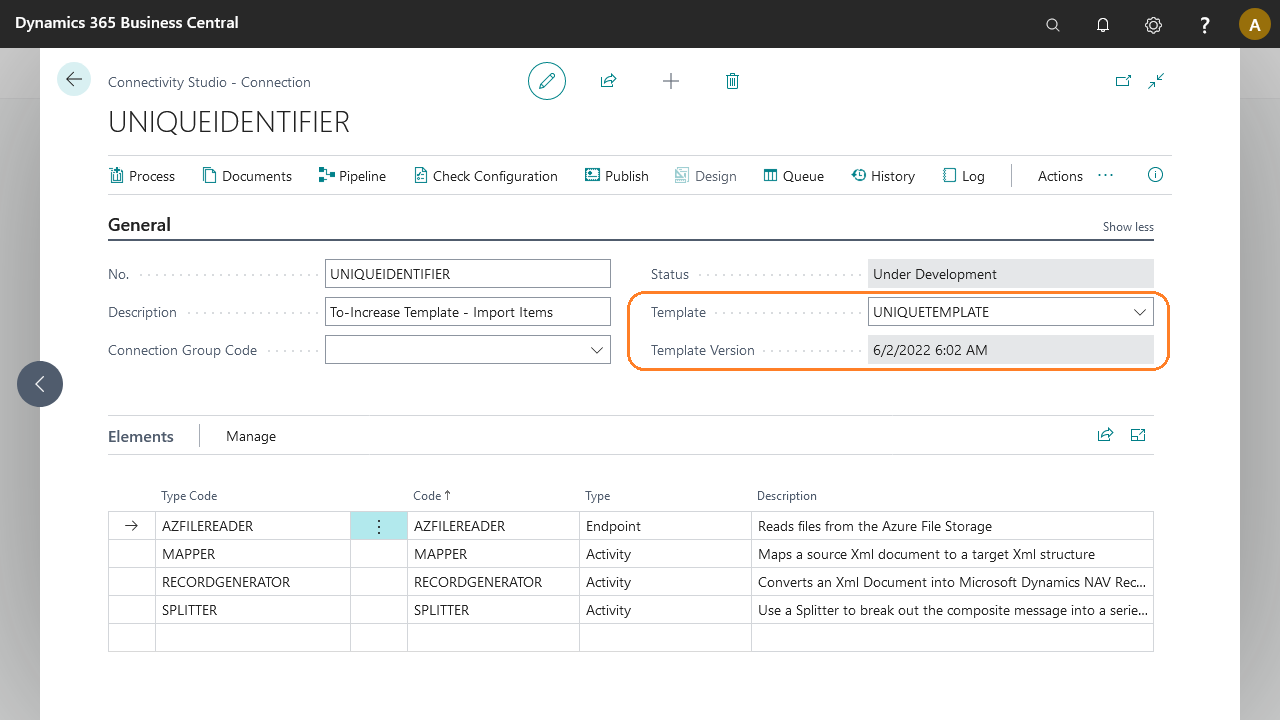
From the Connections page, create the structure you want to save.
Under the Actions menu, select Save As Template.
On the page that opens, fill in the following fields:
Field
Description
Editable
Template Name
Provide a unique code for the new template. If you specify an existing name, the template is overwritten.
✔
Template Description
Provide a description for the new template.
✔
Version Date Stamp
The date and time the connection was published, or the current date and time if the connection is in design mode.
❌
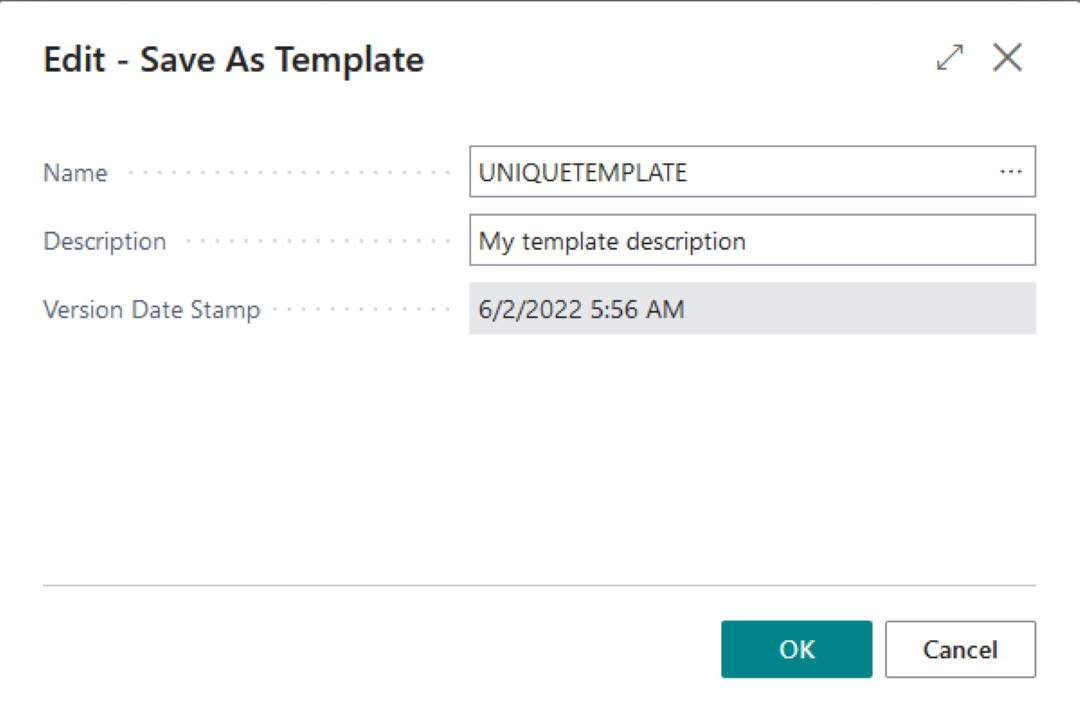
Select OK. The new template appears on the Business Integration Solutions Templates page and is ready to use when creating new connections.
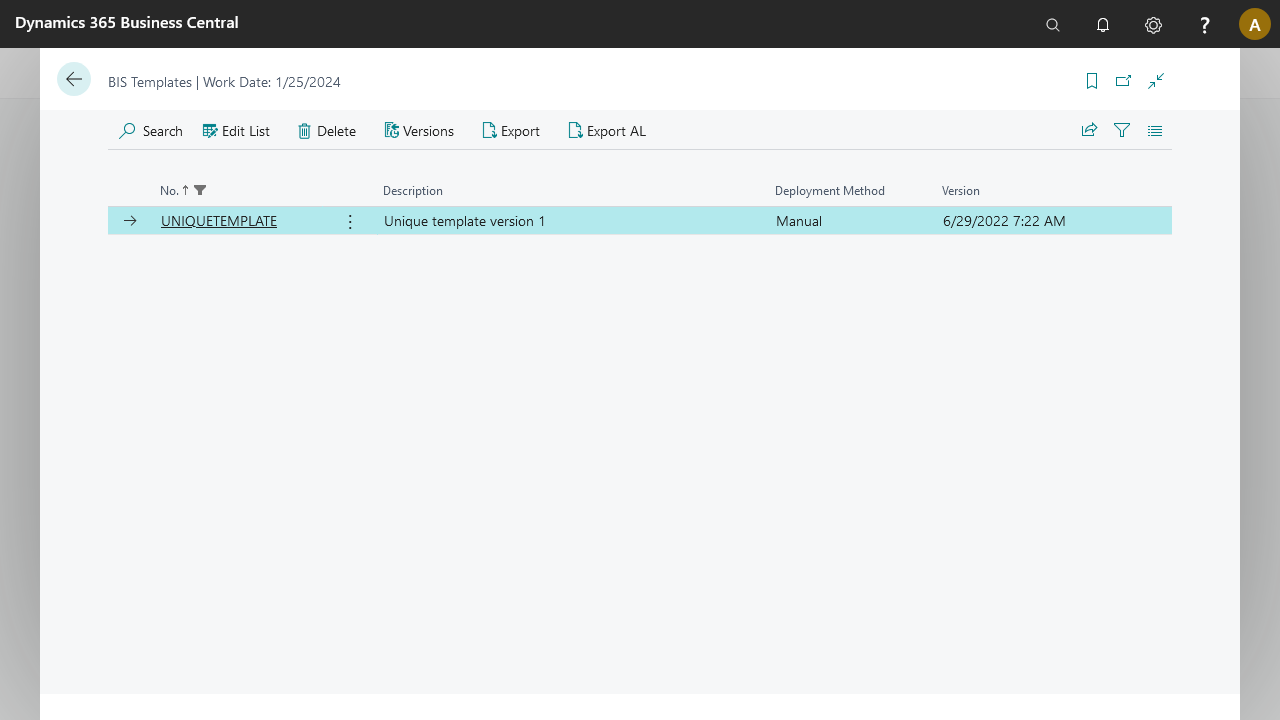
The Business Integration Solutions Templates page shows the following fields:
Field
Description
No.
Template name.
Description
Template description.
Deployment method
Determines what happens with the template when the app installs or updates. See the table below for details.
Version
Template's latest version date stamp.
Deployment method
Description
Manual
The template is not handled by the app install/update procedure. Create connections from it manually.
Create
The app install/update procedure handles the template. One connection is created from the template if it does not already exist.
Create and Update
The app install/update procedure handles the template. One connection is created from the template if it does not already exist, and all other connections linked to this template are updated.
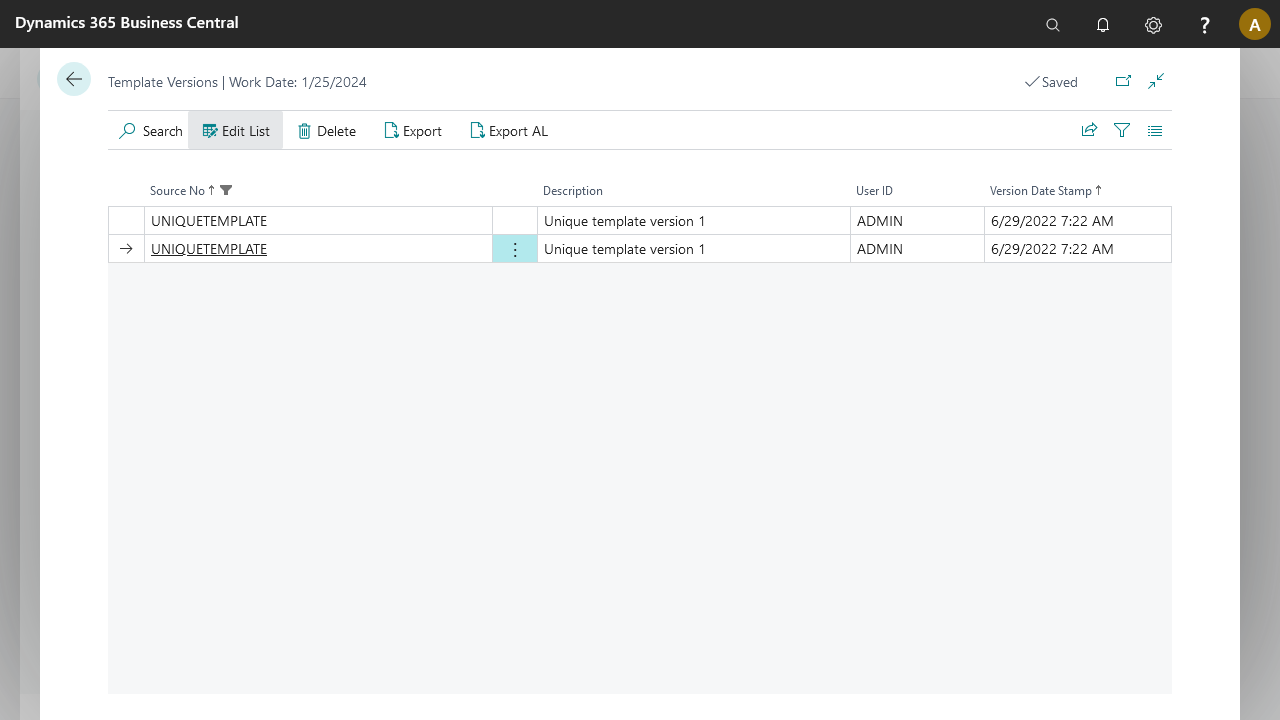
Templates support several versions of the same connection, based on the Version Date Stamp field. View these versions using the Versions action from the templates page.
The Export to AL action creates a template subscriber codeunit based on details from the template. Choose an ID for the codeunit and select OK. A file downloads that you can use further.
This subscriber, if included in your app solution, invokes when the app install/update procedure runs.
codeunit 50000 UNIQUETEMPLATE implements BISITemplate { //////This codeunit contains autogenerated code from STAEDEAN /// local procedure GetConnection(var SourceType: Integer; var ConnectionNo: Code[20]; var ConnectionDescription: Text[100]; var ContentBlob: Codeunit "Temp Blob"; var TimeStamp: DateTIme; var DeploymentMethod: Enum BISTemplateDeployment) var TICConversion: Codeunit "TIC Conversion Functions"; Content: Text; begin SourceType := 11032000; ConnectionNo := 'UNIQUETEMPLATE'; ConnectionDescription := 'Unique template version 1'; Evaluate(TimeStamp, '<06/29/22 07:22 AM>'); DeploymentMethod := DeploymentMethod::Create; Content := 'Templates content in a base64 format'; TICConversion.Text2BLOB(Content, ContentBlob); end; [EventSubscriber(ObjectType::Codeunit, Codeunit::"BIS Product Registration", 'LoadConnectionTemplate', '', false, false)] local procedure LoadConnectionTemplate(PackageMgmt: Codeunit "BIS Package Helper") var TempBlob: Codeunit "Temp Blob"; SourceType: Integer; ConnectionNo: Code[20]; ConnectionDescription: Text[100]; TimeStamp: DateTime; DeploymentStatus: Enum BISTemplateDeployment; begin GetConnection(SourceType, ConnectionNo, ConnectionDescription, TempBlob, TimeStamp, DeploymentStatus); PackageMgmt.CreateNewTemplate(SourceType, ConnectionNo, ConnectionDescription, TempBlob, TimeStamp, DeploymentStatus); end; }
Steps - Create a connection using a template
Use these steps to create connections based on a saved template.
Depending on the solution, open or create:
Connections for Connectivity Studio.
Notifications for Notification Management.
Publications or Subscriptions for Replication Management.
EDI Studio Connections for EDI Studio.
Select New to create a new connection.
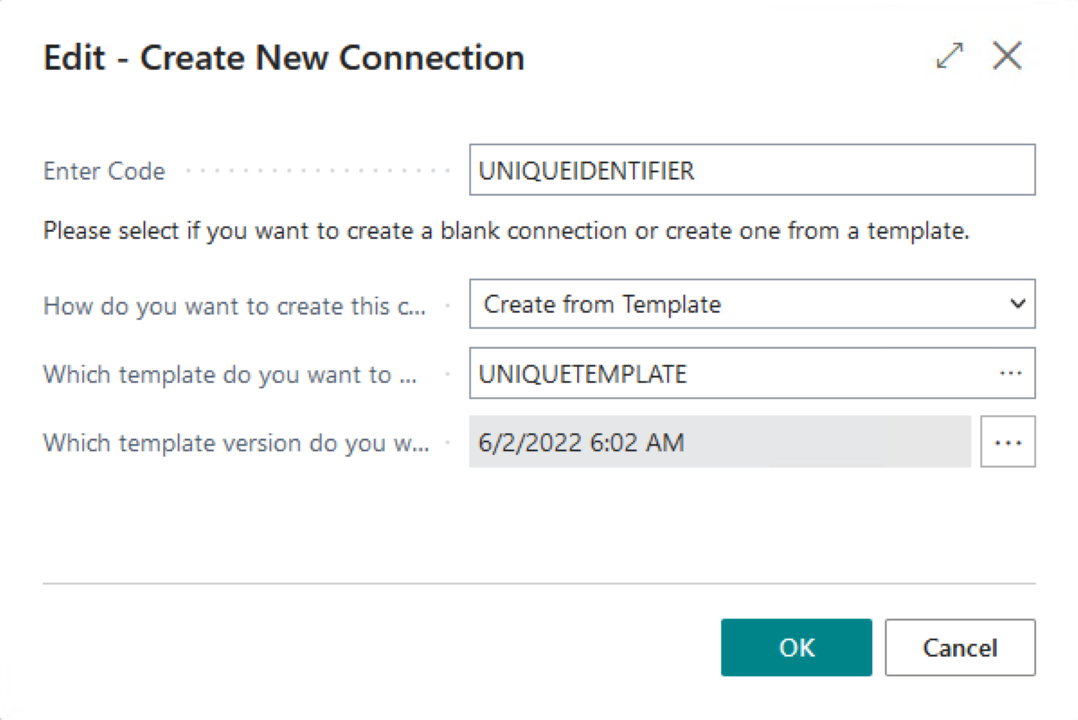
On the Create New Connection dialog, fill in the following fields:
Field
Description
What is the identifier of the connection?
Provide a unique code for the new connection.
How do you want to create this connection?
Select Create from Template from the dropdown list.
Which template do you want to use?
From the lookup, select the template to use for the new connection.
Which template version do you want to use?
Defaults to the template's latest version, but you can change it to Anywhere Mobility Solutions other available version using the lookup.
Note
When you look up a template, notice that templates list according to the solution, for connections, only Connectivity Studio templates are listed; for notifications, only Notification Management templates are listed; and so on.
Select OK.
On the confirmation dialog confirming successful creation of the new connection, select OK.
The connection, pipeline, and related documents for the new connection are based on the selected template.