The Async Azure File Reader endpoint continues a message by treating a specific file as a response. The defined folder polls periodically for a specific file. When found, the related Business Integration Solutions message continues with the file content as the message body.
An Azure File Storage account can contain several file shares, which are locations where files trigger from or send to. Before using this element, an Azure File Storage account must be available. For a brief guide, see Azure Storage account setup.
Setup
Element setup
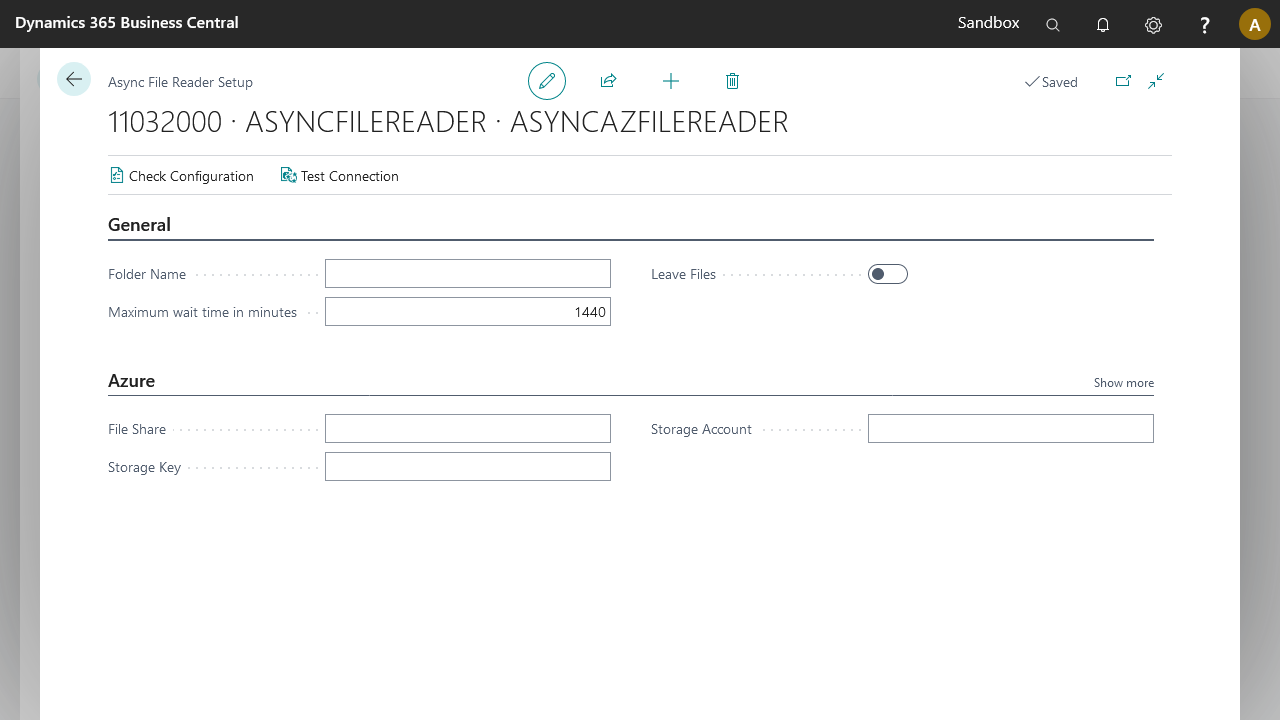
Field | Description |
|---|---|
Folder Name | The folder path to monitor (see Azure Storage account setup Step 6). Make sure the folders exist on the file share. The file share name itself is not part of the folder path. |
Maximum wait time in minutes | The maximum wait time in minutes for a file to appear. If the file does not appear within the wait time, the message fails. A value of 0 means no timeout. |
Leave Files on File System | When selected, files in the file system are not deleted after processing. |
File share | The file share on the Azure storage to read from. |
Security Profile | The profile that provides access to an external interface. To set up a security profile, see Security profiles. |
Storage account | The Azure storage account identifier. |
Storage key | The storage key used to access the directory. This setting does not export when you export the connection. |
Header mapping setup
Set the linked file name via the Header Mapper element. Use variables and metadata to ensure a unique file name per message.